In the Payhawk Web Portal, you can view the details of your credit, such as your accumulated unpaid credit balance, repayment history, and due date as well as set a threshold for the minimum account balance on your account.
Viewing monthly credit spend and repayment history
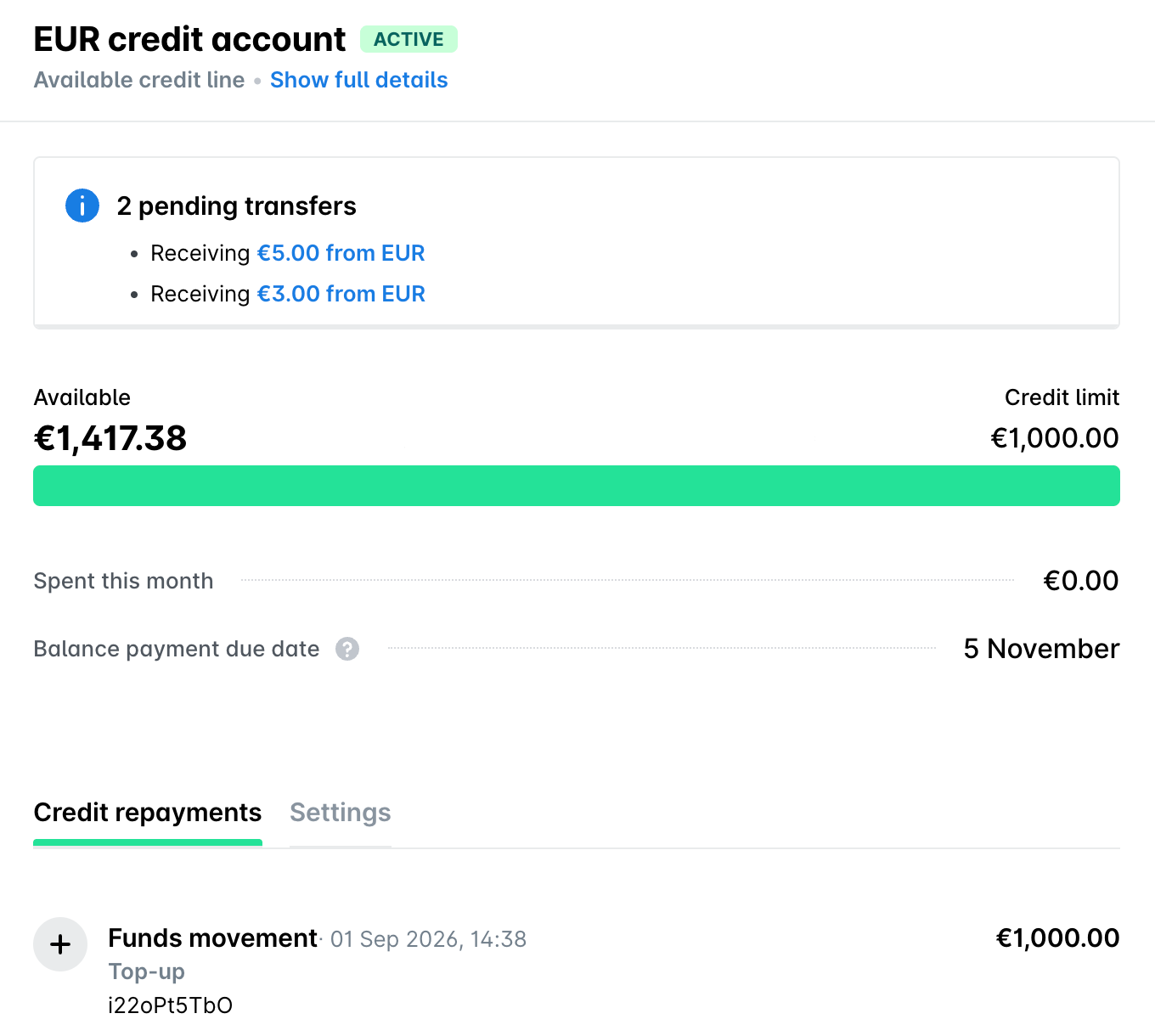
You can stay on top of your monthly credit spend by viewing the utilized amount during the month:
In the Payhawk Web Portal, open the app switcher in the top-left corner and go to Funds. Your monthly credit spend is displayed in the Spent this month field.
Go to the Credit repayments tab to view the history of your credit repayments.
Viewing the unpaid credit balance and due date
You can view the accumulated unpaid credit balance and due date in the account statement Payhawk sends Payhawk Administrators over email.
You can also view them from the Funds app:
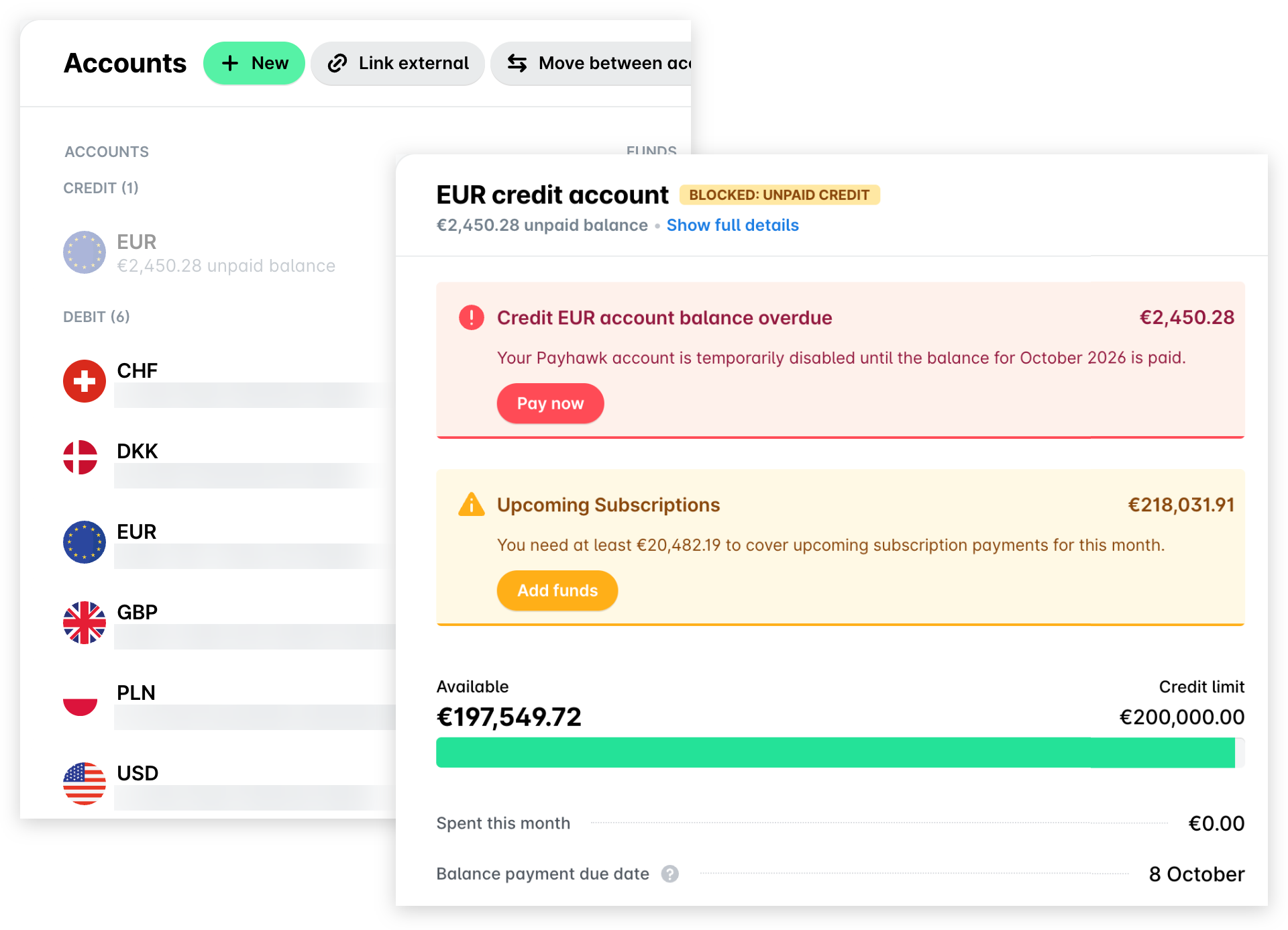
Open the app switcher in the top-left corner and go to Funds. Under the credit account, you can view the accumulated unpaid credit balance.
Select the credit account by clicking on it. The next screen displays the accumulated unpaid credit balance and the due date.
The due date is also displayed in the Balance payment due date field.
Viewing the Payhawk payment details
You can view the payment details you have to use when repaying the used credit amount in the account statement Payhawk sends Payhawk Administrators over email.
You can also view them from the Funds app:
Open the app switcher in the top-left corner and go to Funds.
Select the credit account from which you need to repay by clicking on it.
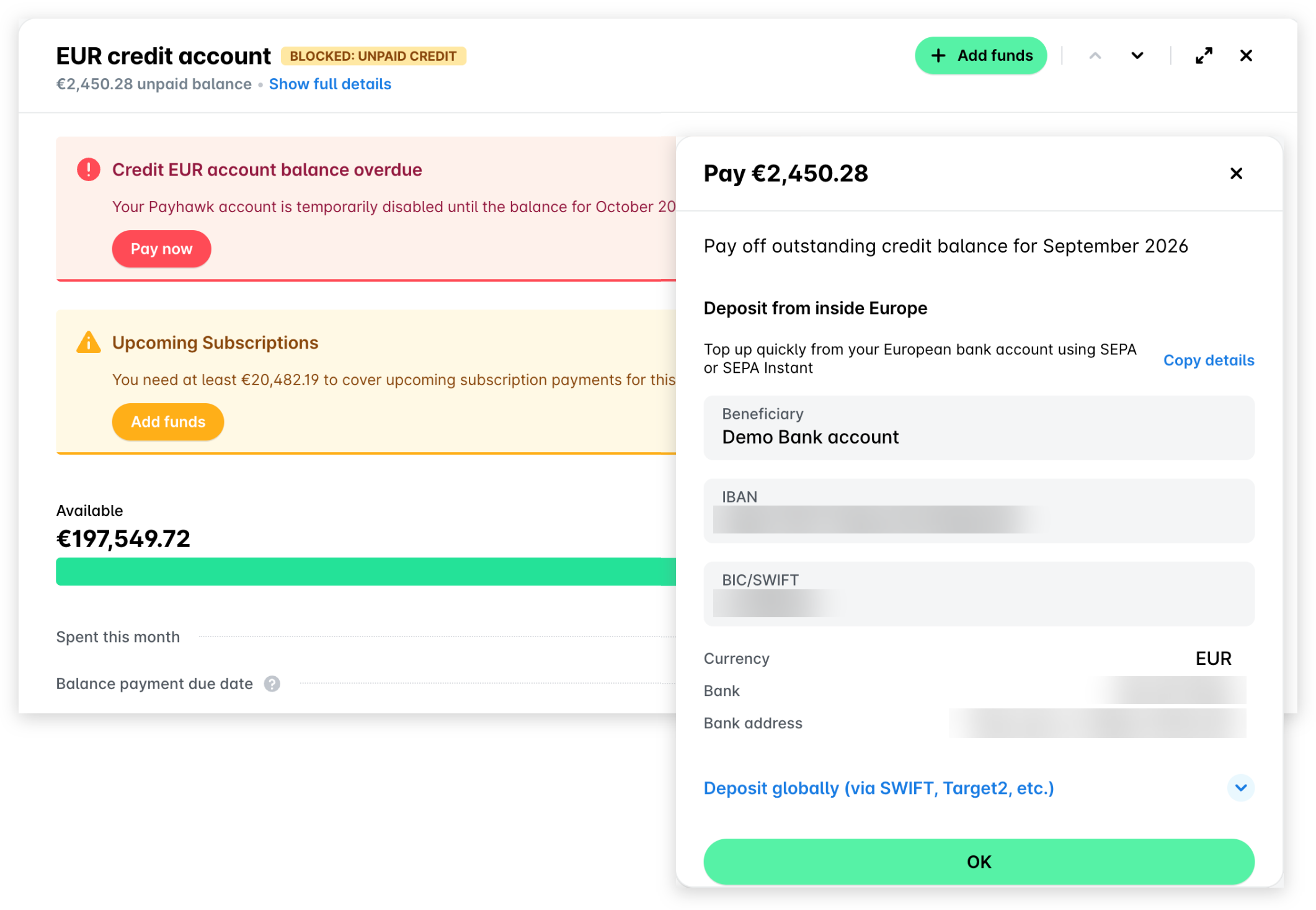
Click on the Pay now or + Add funds button.
As a result, the dialog that opens will display the Payhawk payment details to which you'll need to pay the due amount.
Click on OK to close the dialog.
Setting email notifications for decreasing credit balances
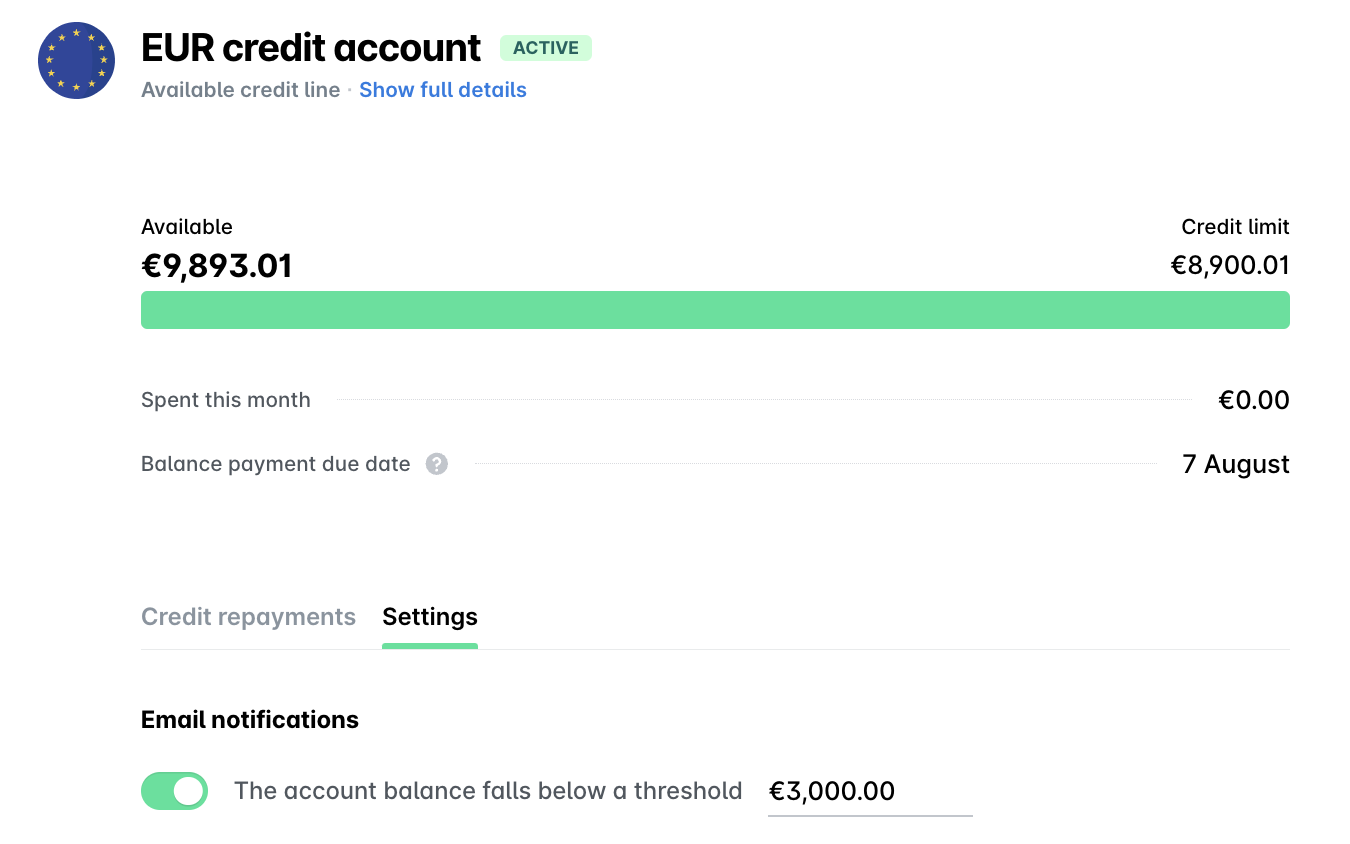
You can request the system to send you an automatic email notification if your credit balance falls below an amount threshold you have defined.
Open the app switcher in the top-left corner and go to Funds and select the account for repayment by clicking on it.
On the Settings tab, switch on the Email notification toggle button and define the threshold.
Useful resources