A defined workflow may depend on a role or role extension that is not available - for example, no Team Manager for a specific team or no Custom Field Manager for a specific custom field value.
In such cases, you can rely on the default workflow fallback mechanisms Payhawk provides or define your custom ones.
Fallbacks act as backup approvers when the defined approver is not available. To let other people approve in the same step, you can also assign multiple approvers to a step, and to hand over your approvals while you are away, enable the out-of-office mode.
System fallback mechanisms
If an approver or a category, team, or custom filed value has been added, removed, or updated, Payhawk will apply the below fallback mechanisms for expense requests by default.
Workflow update | System fallback |
A specific user who is an approver is offboarded. | Regardless of the specific workflow step, the expense requests pending on the approver will be returned and the approval step will be set to Any administrator. |
A Team Manager is added. | The expense request will also be sent out to the new Team Manager. The old request won't be removed. |
A Team field value is changed. | If the expense request is pending on the old Team Manager, it'll also be sent to the new Team Manager. |
A Custom field manager is added. | The expense request will also be sent out to the new Custom field manager. The old request won't be removed. |
A Custom field value is changed. | If the expense request is pending on the old Custom field manager, it'll also be sent to the new Custom field manager. |
If Payhawk cannot identify an approver for a defined workflow and no custom fallback is set, the expense request will be forwarded to all users with the built-in Payhawk Administrator role. Users with a custom role do not receive it, even if that role includes administrator permissions. To send these requests to other users, set a custom fallback that points to specific users, as described in customizing the fallback behavior.
Customizing the fallback behavior
The default mechanisms of the workflow fallbacks can be customized and set to the individual needs of your company.
To define custom fallback behavior:
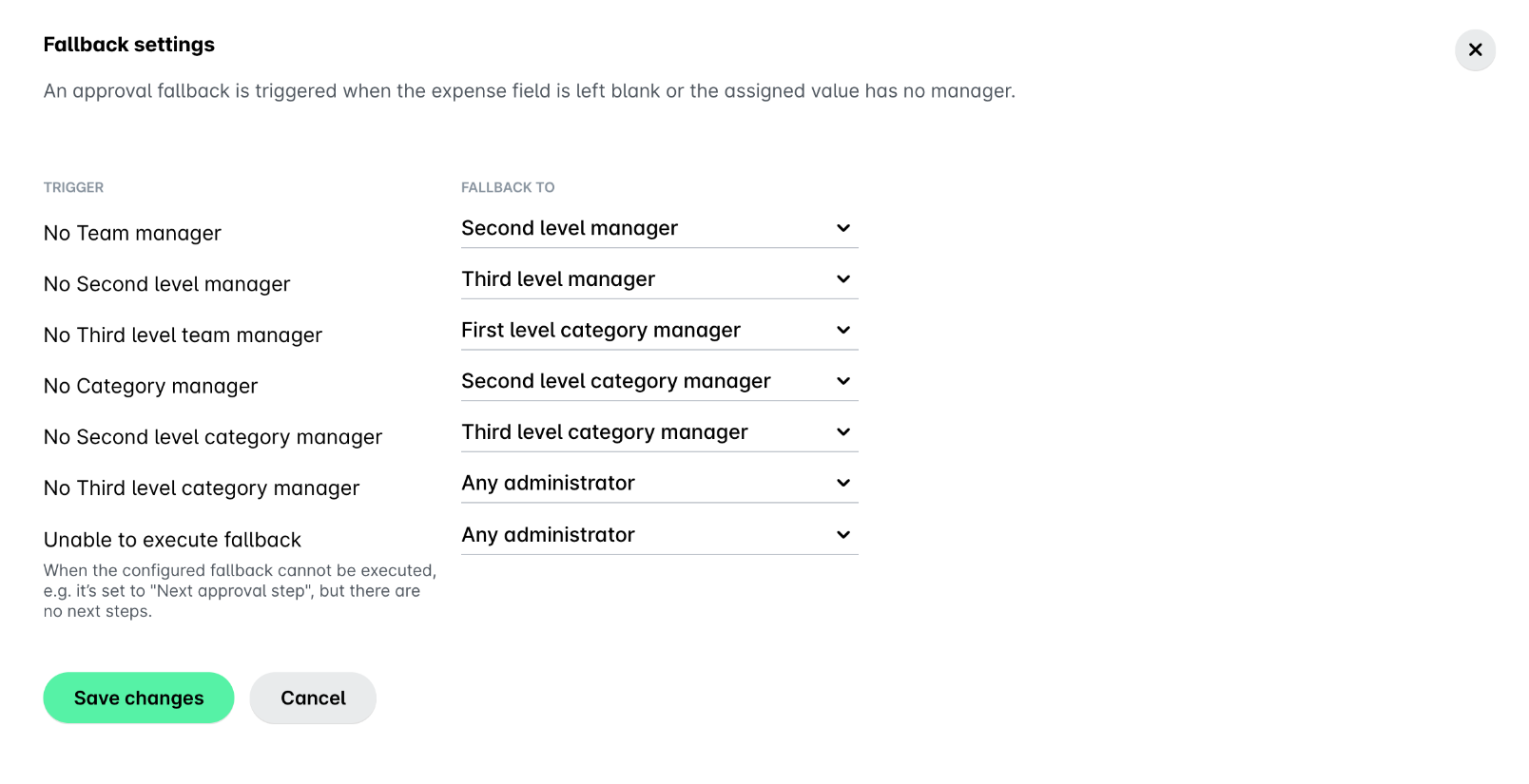
In the Payhawk Web Portal, go to the Settings > Workflows > Advanced tab.
Click on Edit fallbacks.
From the drop-down menus, define the desired fallback behavior.
Click on Save changes.
Payhawk will be unable to execute fallback mechanisms when roles or role extensions are set to rely on each other in a loop, creating an endless cycle with no resolution (cyclical fallback behavior). For example, if Role A falls back to Role B, Role B falls back to Role C, and Role C falls back to Role A.
In such cases, Payhawk will send an approval request based on the defined custom role.
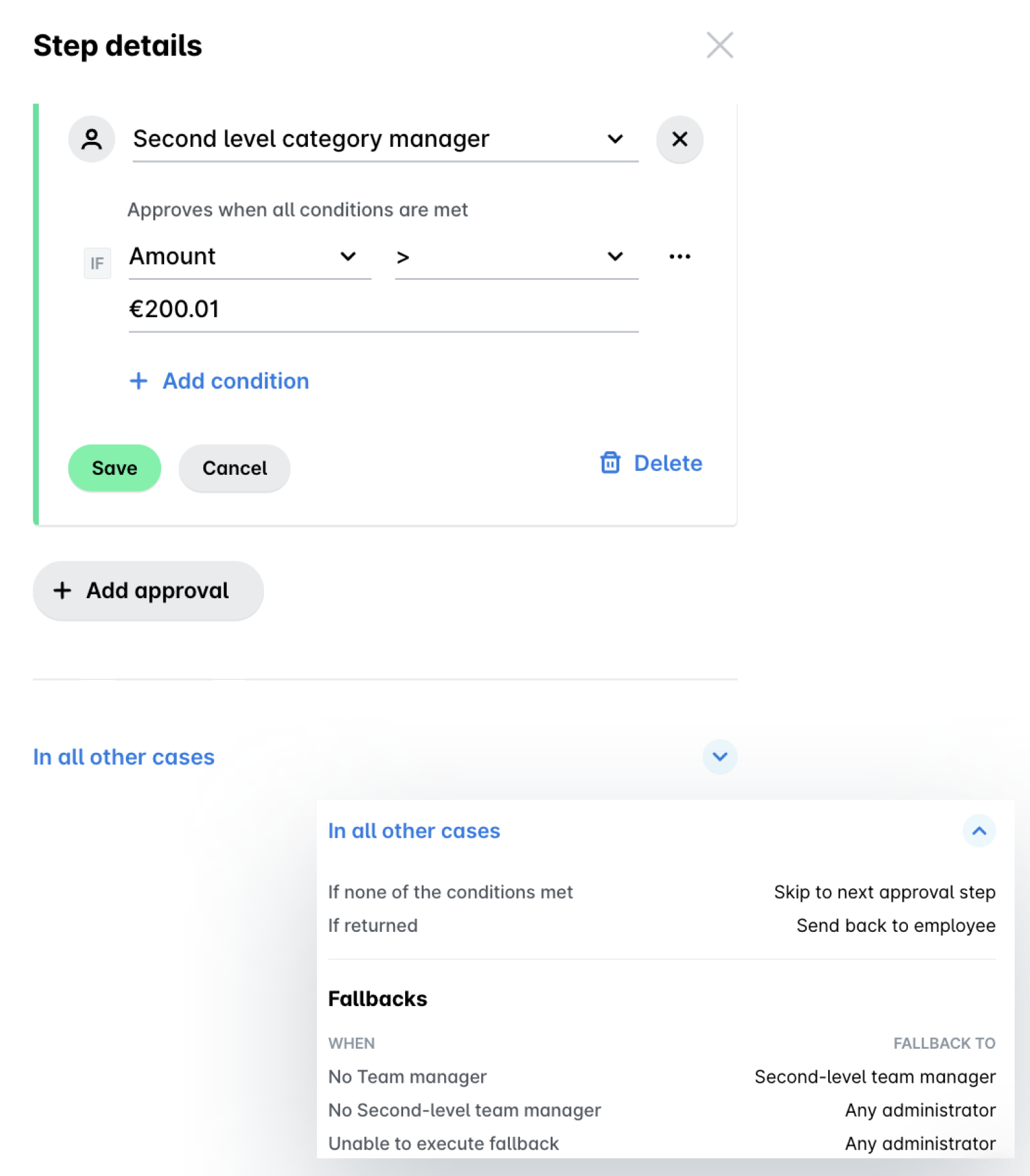
Viewing the currently defined workflow fallbacks
You can view the currently defined workflow fallbacks under each step in its edit mode.
Useful resources