Employees can track the progress of approval workflows in the Activity section of an expense, with Workflow selected in the Show filter. This log shows the steps completed by specific roles, role extensions, or individuals, as well as any fallback approvals triggered in the workflow.
Workflow history for fallbacks
If an expense field tied to a pending workflow is updated, Payhawk will log the change. In such cases, the system will ask the employee to confirm the update and will send the expense back for re-approval.
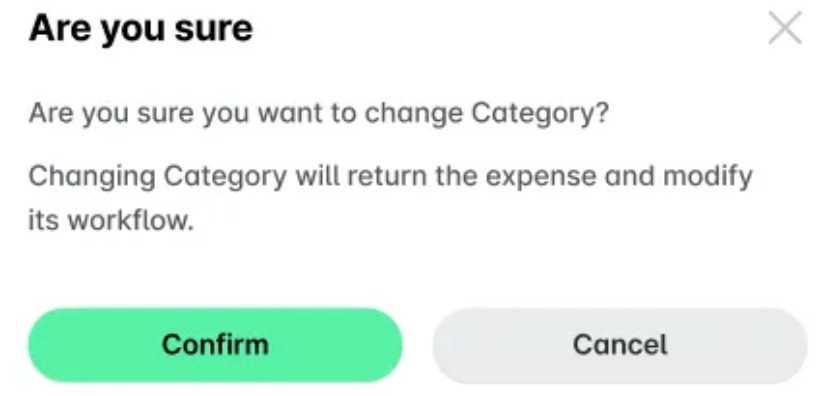
Payhawk will also log a workflow update whenever a fallback is triggered. Workflow history logs for fallbacks will be created in the following cases:
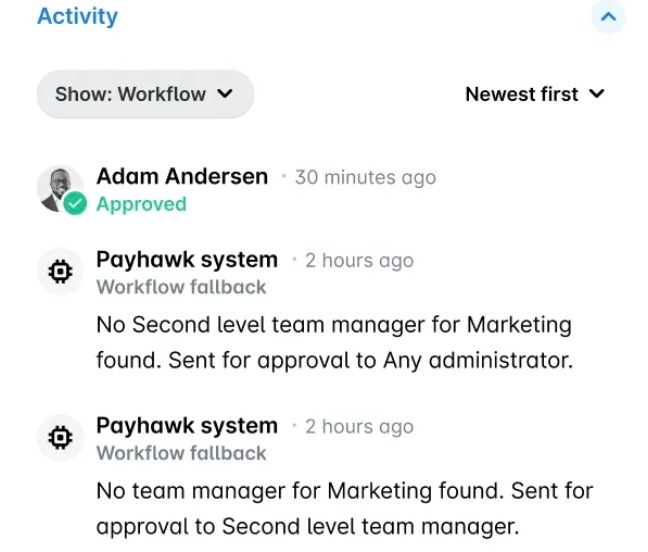
The approval workflow is pending, but no Team field manager, Custom field manager, or Category manager could be identified.
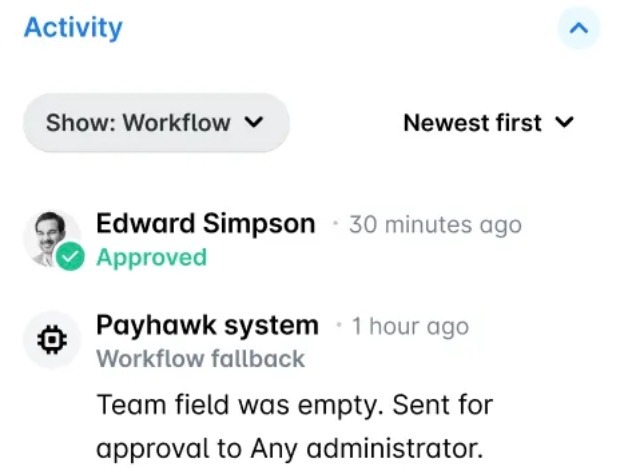
The Team, Category, or Custom field required for the approval workflow is empty.
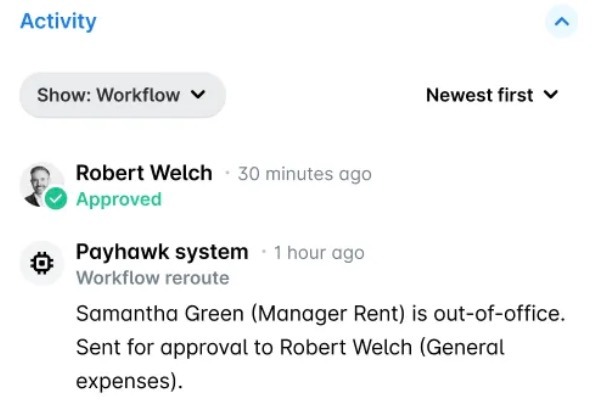
Approval has been delegated to another employee, such as when the original approver is out of office.
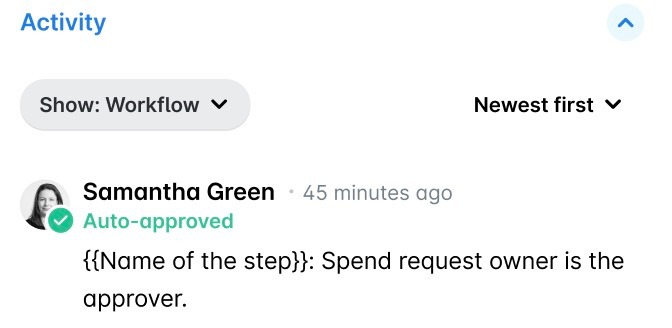
The expense is automatically approved, for example, when the expense owner is also the approver.
Skipping approval
When a step displays Approval skipped: No approval conditions matched, the expense didn’t meet any of the conditions set on that step, such as its amount range, category, team, or custom field value. The step didn’t apply, so the expense moved to the next step, or was approved if no later step applied. This is expected when a step only covers certain expenses.
For example, a step limited to amounts up to EUR 20,000 is skipped for an expense of EUR 34,540. For expenses with several line items, the system checks the conditions for each line item, so a step can be skipped for some lines and apply to others. To find out why a step was skipped, compare the values of the expense with the conditions of the step in Settings > Workflows.
Useful resources