As an approver in your company's workflows, you can approve and return expense reports to their expense owners in the Payhawk Web Portal.
Approving expense reports from Spend
Approvers assigned as approvers in your company’s workflows can approve expense reports.
Approving an expense report also approves all the individual expenses it contains. These expenses will then be submitted according to the defined workflow.
You can still approve the included expenses individually. The entire report will be automatically approved once the final expense in the report has been approved.
To approve an expense report:
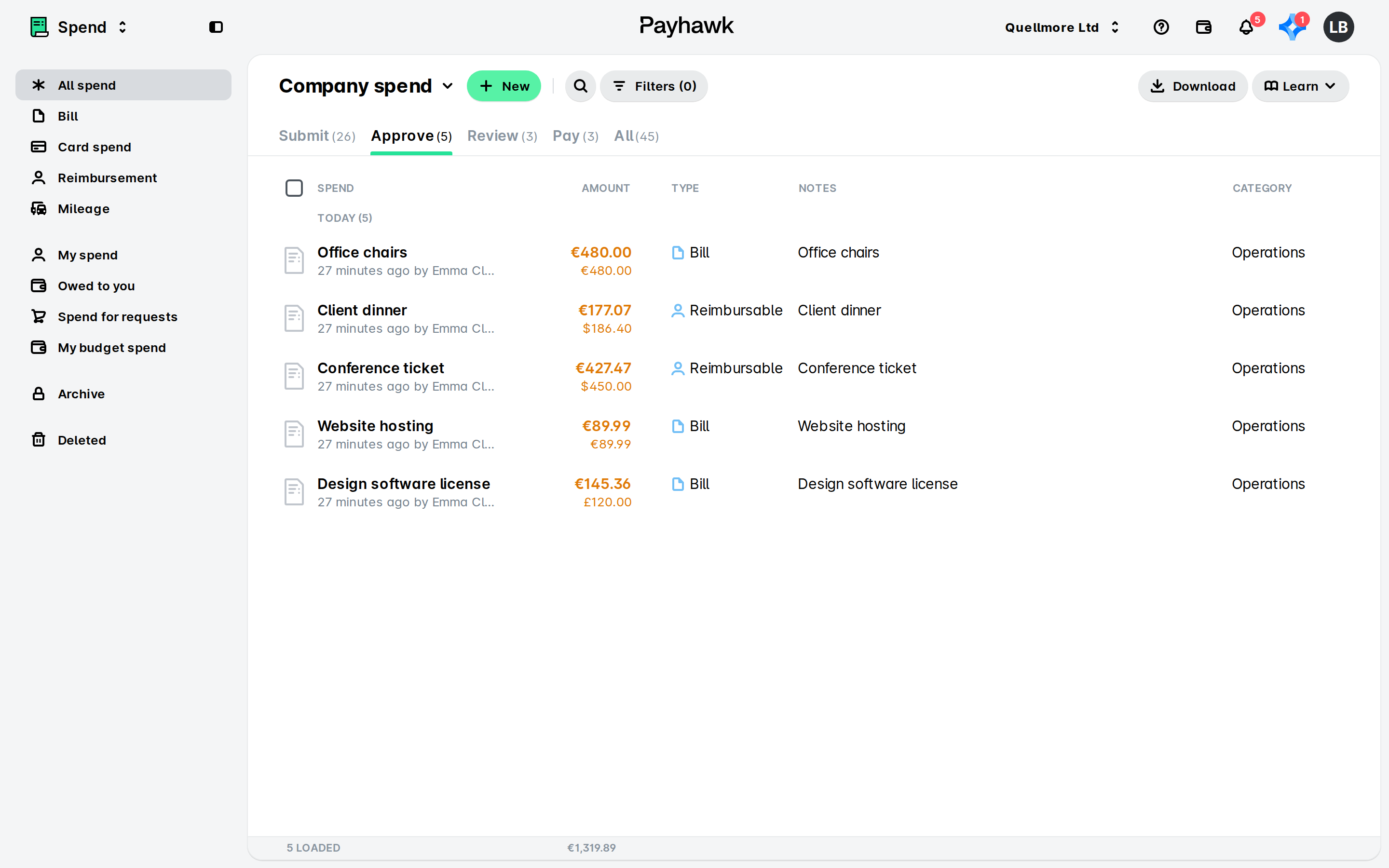
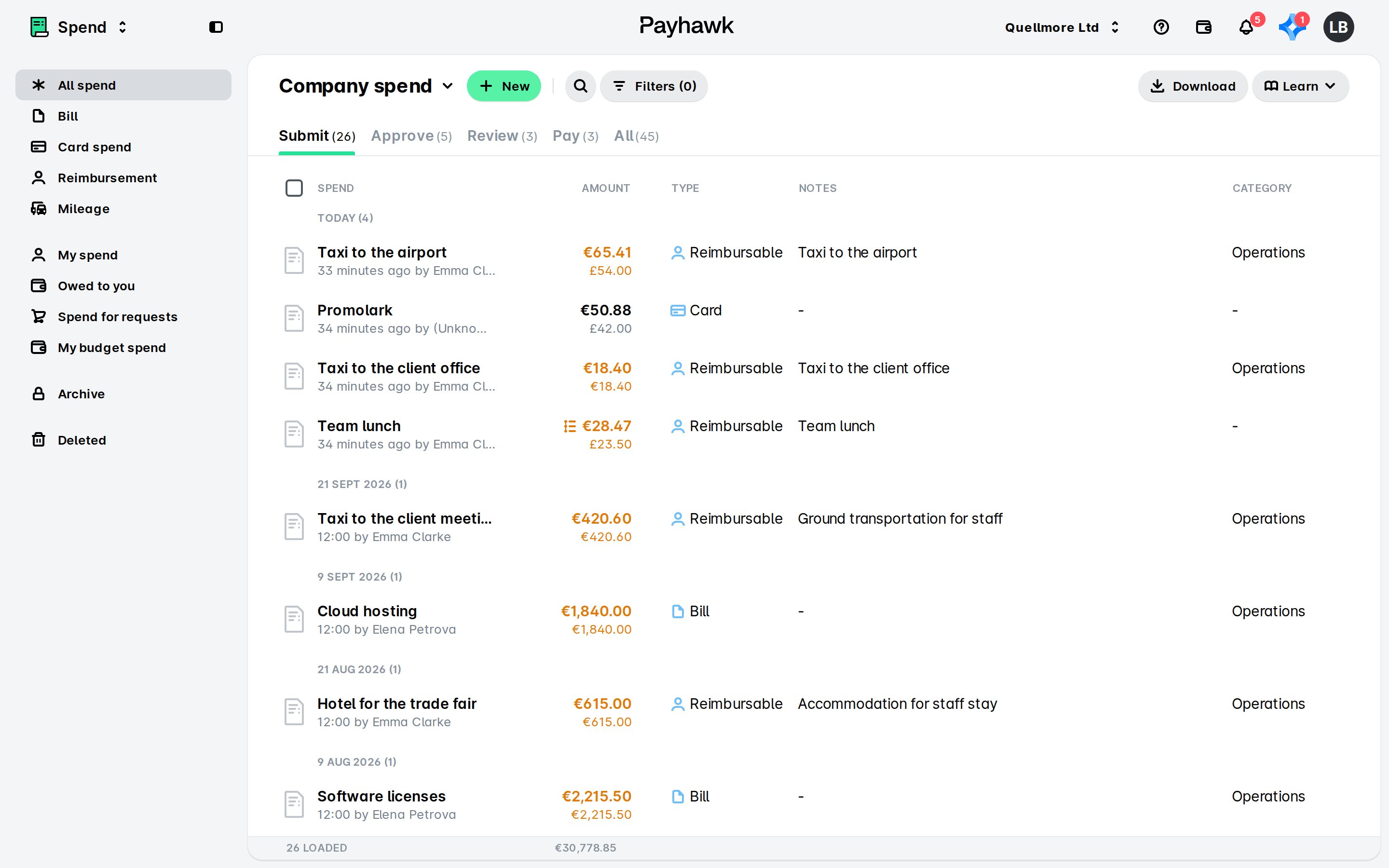
In the Payhawk Web Portal, go to Spend > Approve.
Select the desired report.
Click on Approve report.
Approving expense reports from the Payhawk Inbox
To approve an expense report from your Payhawk Inbox in the Payhawk Web Portal:
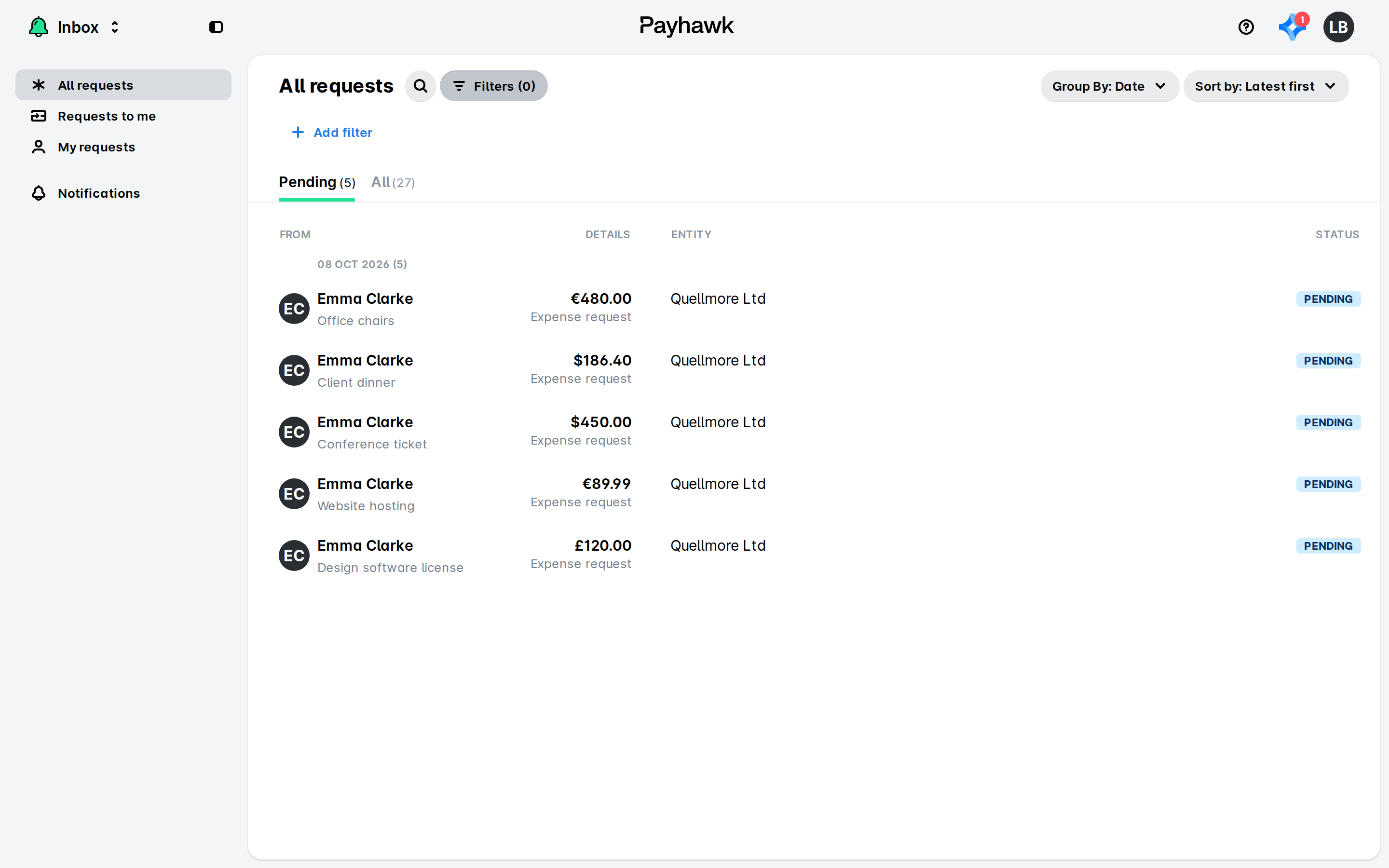
Go to Inbox > Requests to me > Pending.
Select the desired expense report.
Click on Approve.
Approving a report with expenses assigned to different approvers
When an expense report contains expenses that route to different approvers (for example, based on a custom field such as Cost center), each approver sees the entire report, not only the expenses assigned to them.
Expenses handled by other approvers stay visible, grouped separately under Expenses approved by others, so they always have the full context of the report.
The total amount of the report stays visible to every approver, not only the portion assigned to each of them. In their Payhawk Inbox, approvers can also see how much of the report they need to approve.
In Spend, approvers can see all the expenses they have access to, based on their Team Manager or Custom Field Manager permissions.
Returning expense reports to employees from Spend
Returning an expense report to its owner will also return all the expenses it contains.
The included expenses can still be returned to the employee individually.
The employee will receive a push notification and an email when an expense report is returned.
The reason for the return is logged in the Activity section. It shows as a comment when Comments is selected in the Show filter, and as a workflow entry when Workflow is selected.
Returning an expense to its owner after it has been reviewed is restricted to users assigned to the Review step in your workflow.
For example:
If only Payhawk Accountants are assigned to the Review step, only they can return reviewed expenses.
To allow Payhawk Administrators or other roles to return reviewed expenses, update your workflow to include them in the Review step.
Returning approved expense reports to employees
If you are assigned as an expense approver, you can return an expense report to the expense owner in the following way:
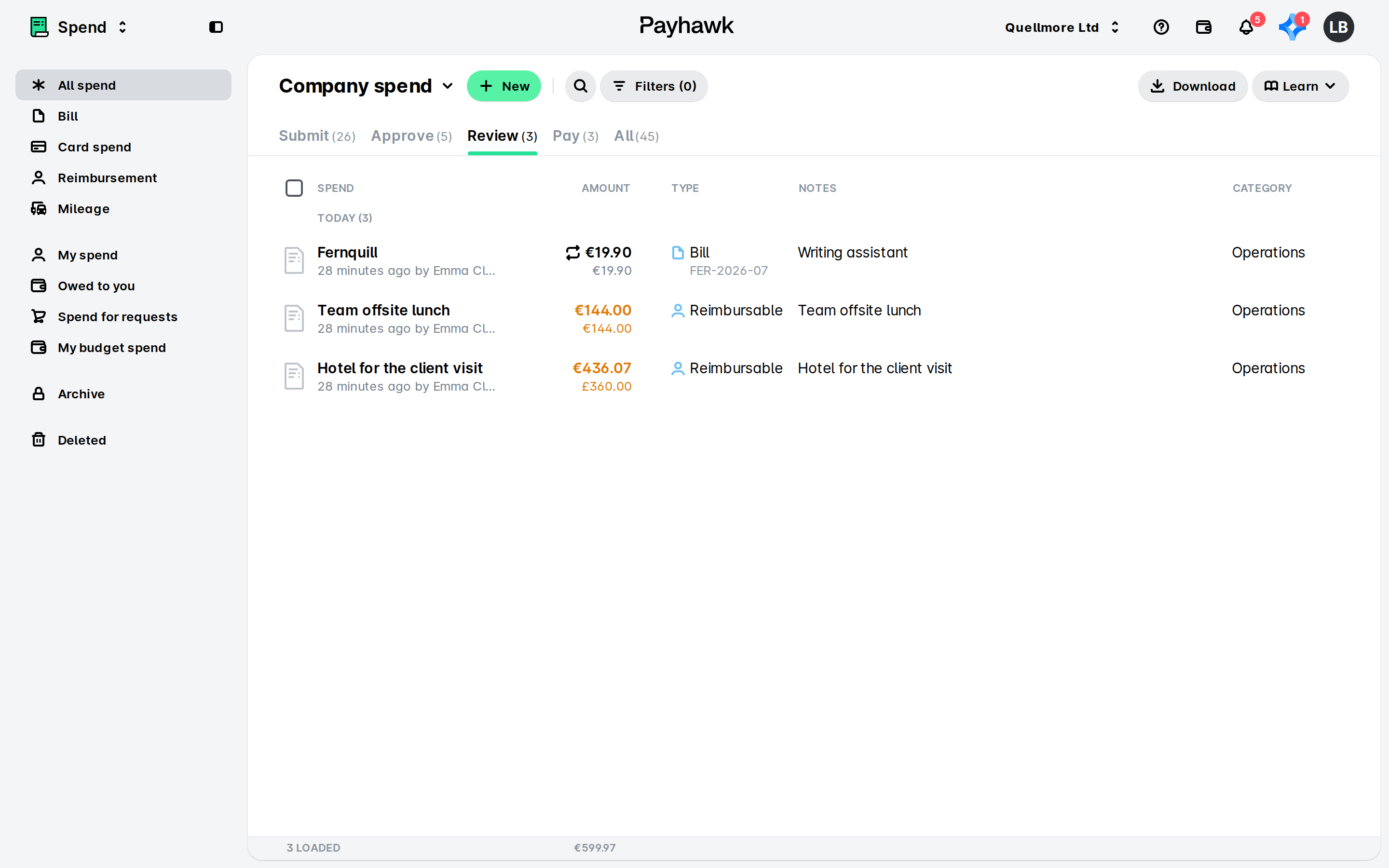
In the Payhawk Web Portal, go to Spend > Review.
Select the desired report.
Click on its three-dot menu and select Return to employee.
In the dialog that opens:
Under Comment, enter the reason for your action.
Click on Return.
Returning reviewed expense reports to employees
If you are assigned as an expense reviewer, you can return an expense report to the expense owner in the following way:
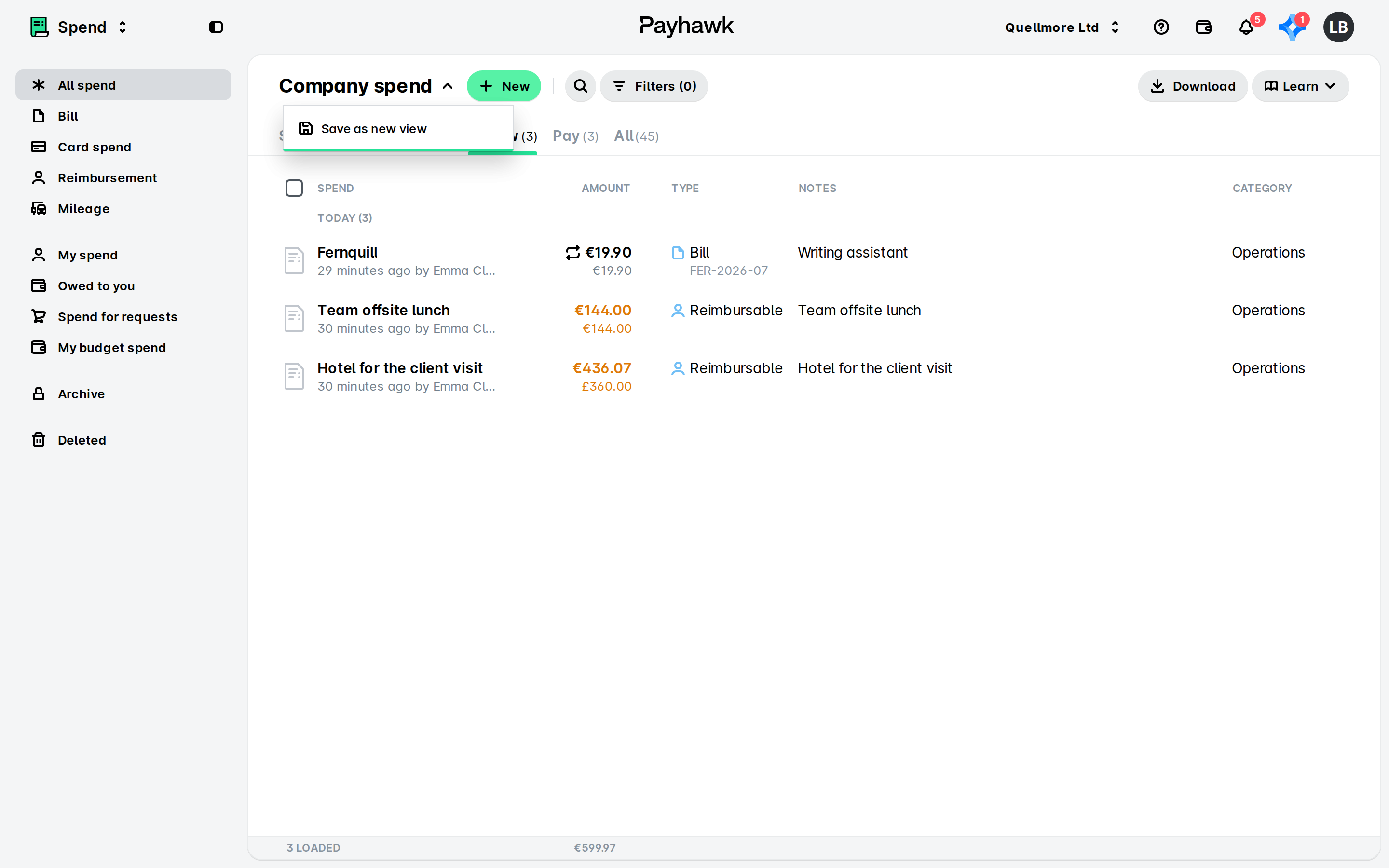
In the Payhawk Web Portal, go to Spend > All.
Select the desired report.
Click on its three-dot menu and select Return to employee.
In the dialog that opens:
Enter the reason for your action.
Click on Return.
Returning expense reports to employees from the Payhawk Inbox
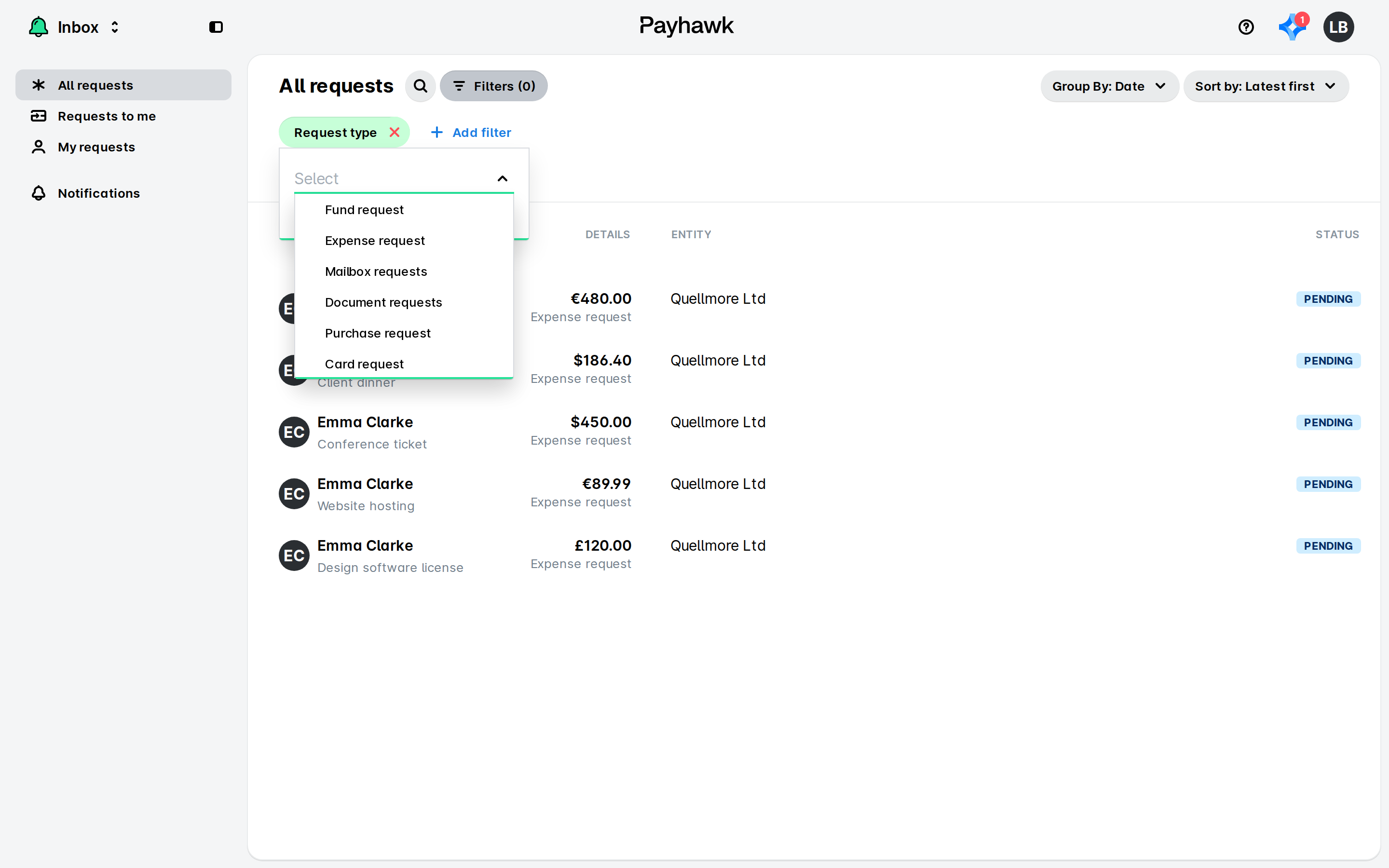
If you are assigned as an expense approver, you can return an expense report to an employee from your Payhawk Inbox, if the expense report is currently pending approval.
To return an expense report to its owner from your Payhawk Inbox in the Payhawk Web Portal:
Go to Inbox > Requests to me > Pending.
Select the desired expense report.
Click on Return.
On the screen that opens:
Under Comment, enter the reason for your action and any details you expect the employee to provide before re-submitting the expense.
Click on Return.
Returning expense reports for review
As a Payhawk Administrator, you can return both unpaid and paid expense reports for review.
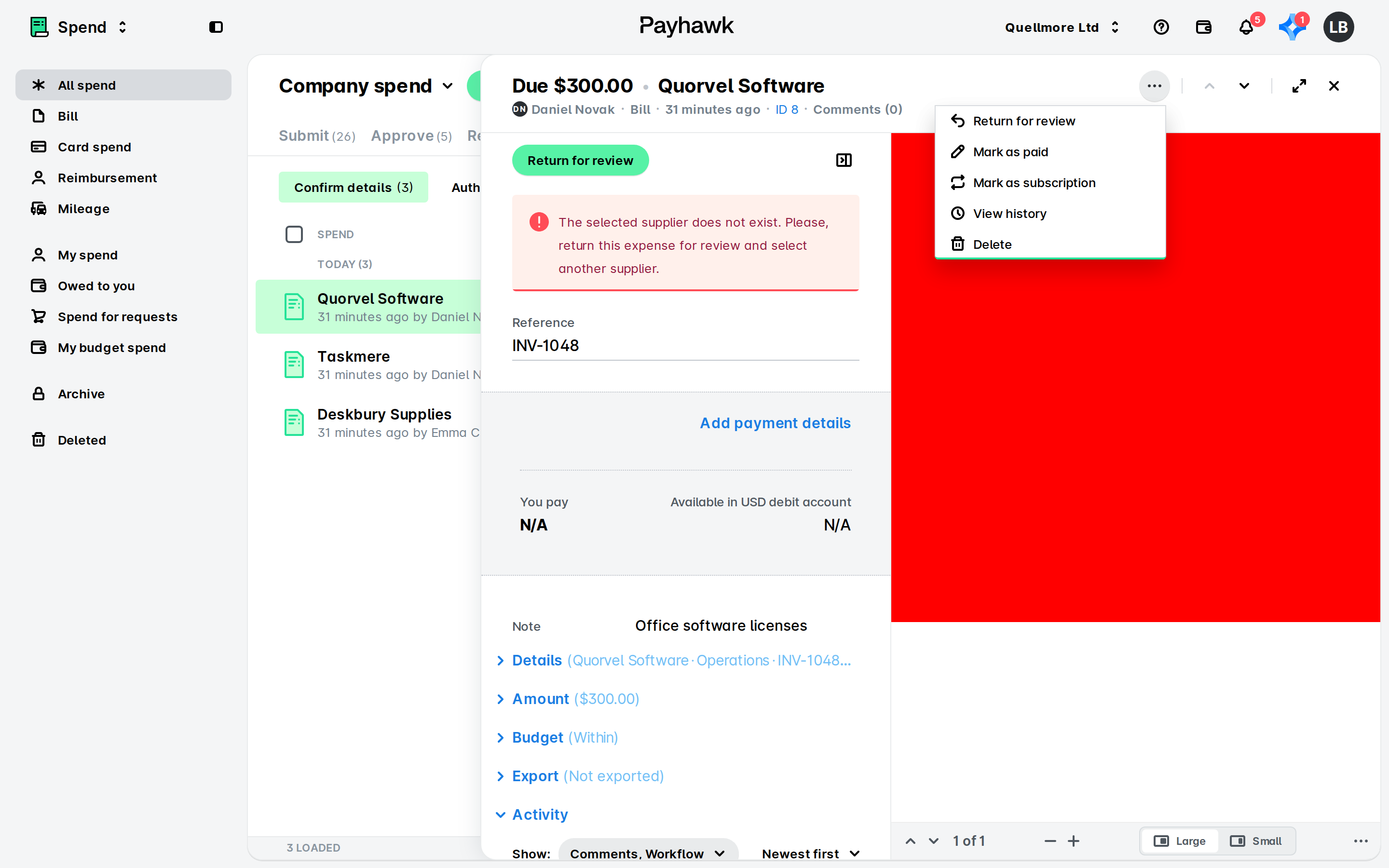
Once an expense report has been reviewed (but not yet paid), you can return it for review in the following way:
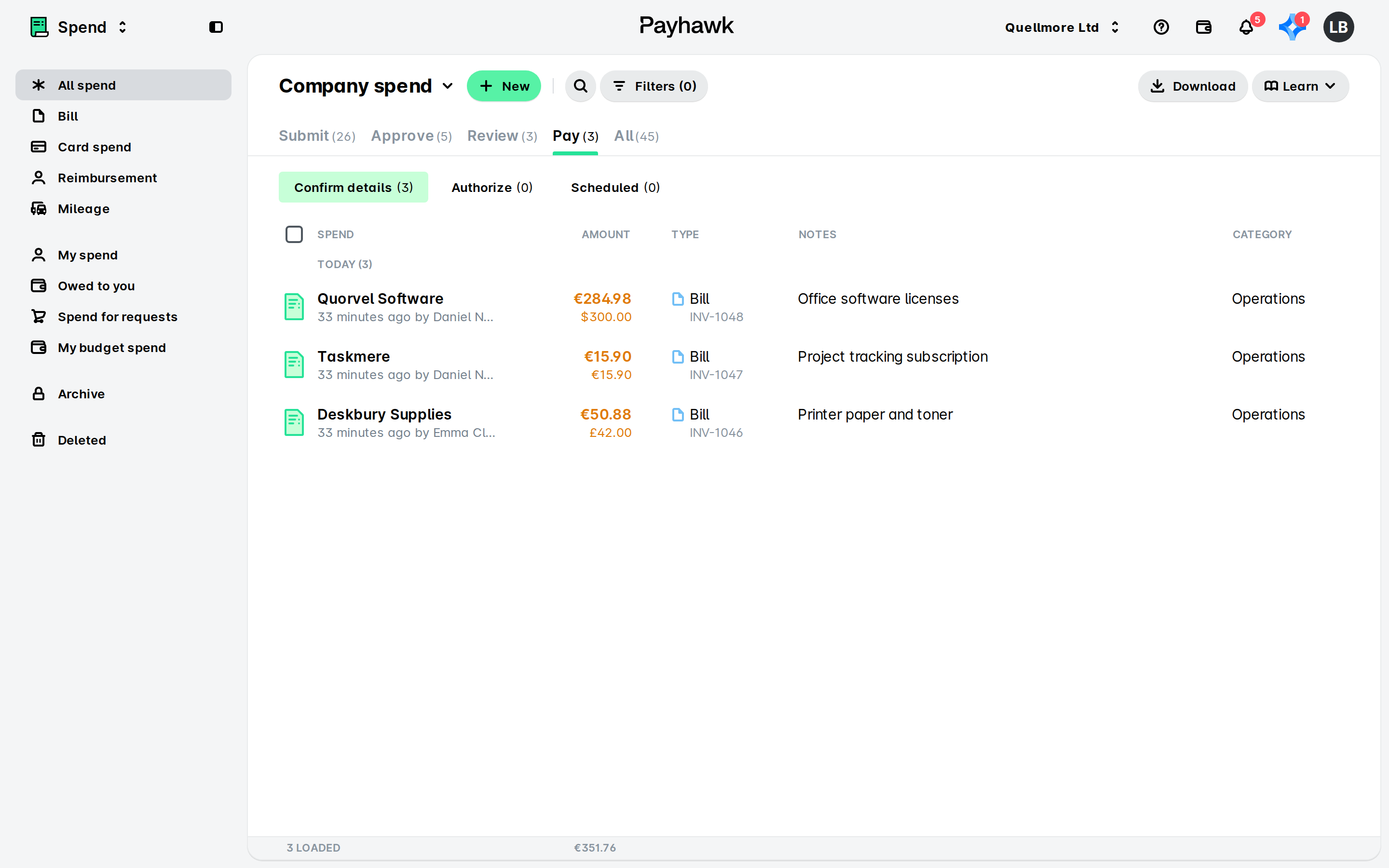
In the Payhawk Web Portal, go to Spend > Pay > Confirm details.
Select the desired report.
Click on its three-dot menu and select Return for review.
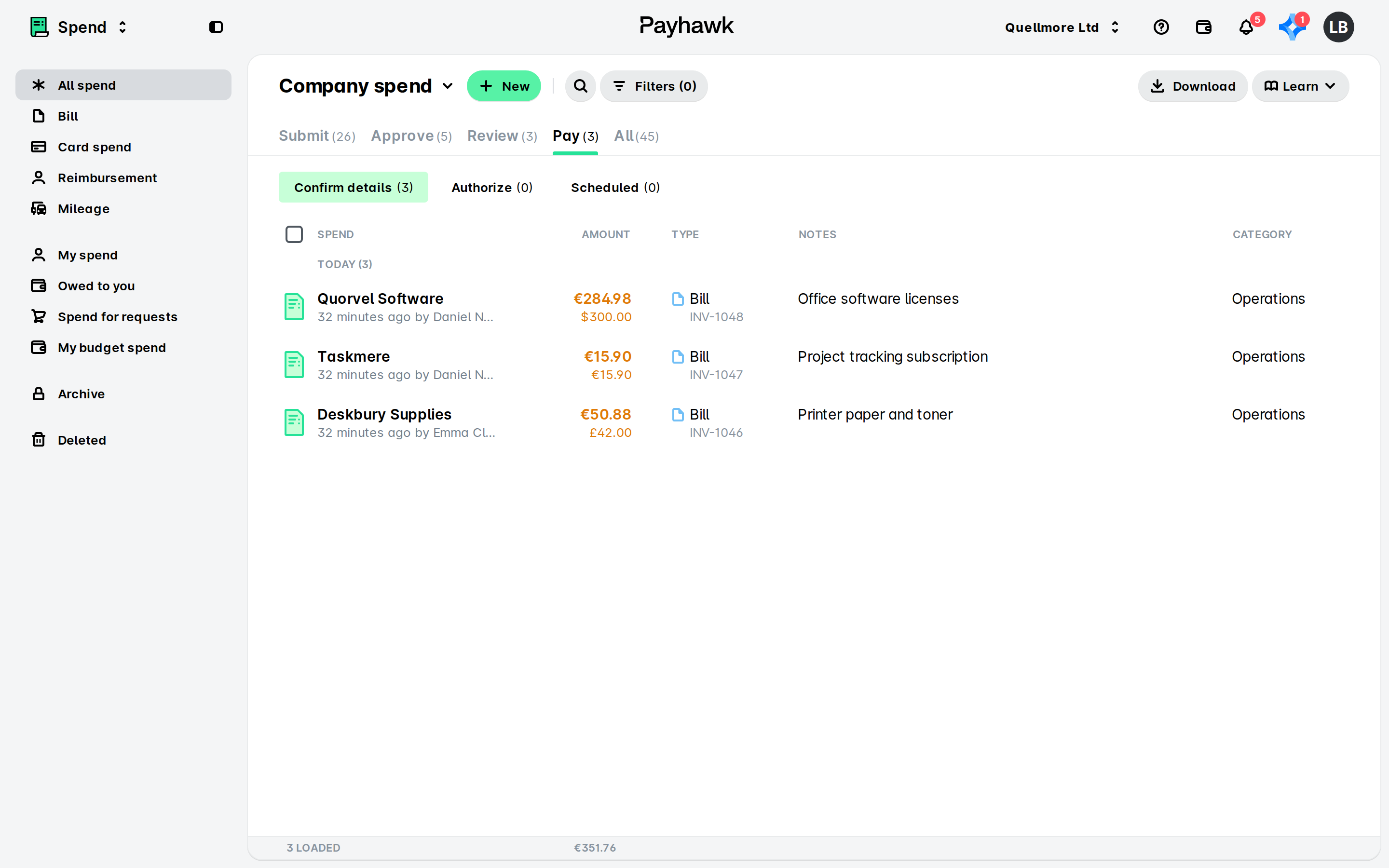
If the payment details of the report have been confirmed:
In the Payhawk Web Portal, go to Spend > Pay > Authorise.
Select the desired report.
Click on its three-dot menu and select Return for review.
To return an expense report for review after it's been paid:
In the Payhawk Web Portal, go to Spend > All.
Select the desired report.
Click on Return for review.
Returning expense report expenses
As an approver in your company's workflow, you can return individual expenses from an expense report after the report has been approved, reviewed, or its details have been confirmed.
Once an expense has been reviewed and processed by your company’s Payhawk Administrator, it becomes locked and cannot be edited or returned by regular users. Any changes, such as adding an invoice, must be performed by your Payhawk Administrator or anyone with review permissions.
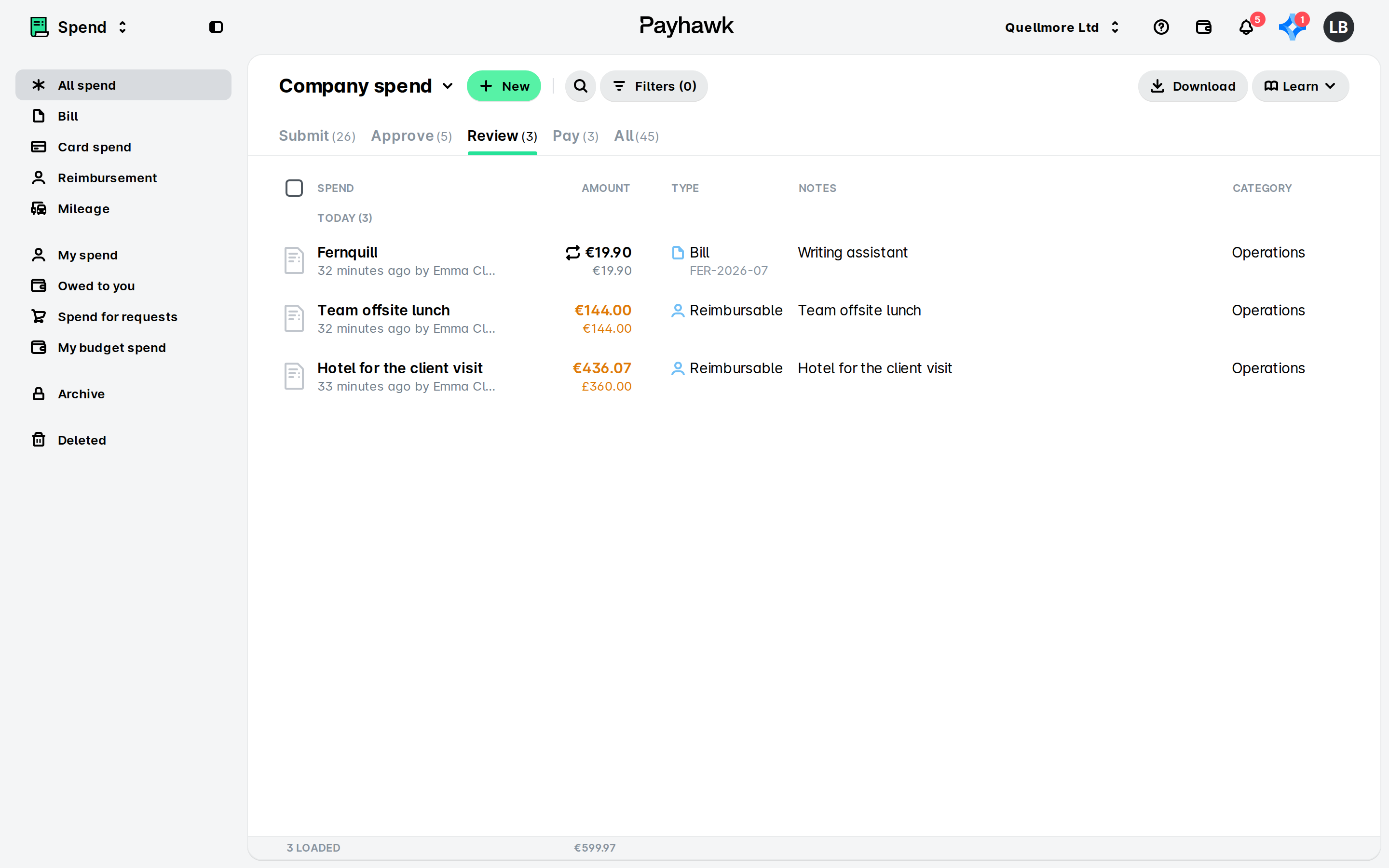
Once an expense report has been approved, you can return an expense from that report for approval in the following way:
In the Payhawk Web Portal, go to Spend > Review tab.
Select the desired expense report by clicking on it.
Select the desired expense by clicking on it.
Click on its three-dot menu and select the Return to employee option. As a result, the expense report moves to the Submit tab, and the status of the affected expense changes to To approve, while the statuses of the remaining expenses in the report remain unchanged.
Once an expense report has been reviewed, you can return an expense from that report for review in the following way:
In the Payhawk Web Portal, go to Spend > Pay > Confirm details tab.
Select the desired expense report by clicking on it.
Select the desired expense by clicking on it.
Click on its three-dot menu and select the Return for review option. As a result, the expense report moves to the Review tab, and the status of the affected expense changes to To review, while the statuses of the remaining expenses in the report remain unchanged.
Once the details of an expense report have been confirmed, you can return an expense from that report for details confirmation in the following way:
In the Payhawk Web Portal, go to Spend > Pay > Authorize tab.
Select the desired expense report by clicking on it.
Select the desired expense by clicking on it.
Click on its three-dot menu and select the Return for details confirmation option. As a result, the expense report moves to the Pay > Confirm details tab, and the affected expense status changes to To confirm, while the statuses of the remaining expenses in the report remain unchanged.
Useful resources