As a Payhawk administrator, you can restrict access to the shared card limit for some employees by blocking their linked cards at any time. You can also unblock the card from the system whenever required.
Blocking cards linked to a team card
To block (freeze) a linked card to a Payhawk team card:
Open the app switcher in the top-left corner and go to Cards > Team cards, and select the desired team card by clicking on it.
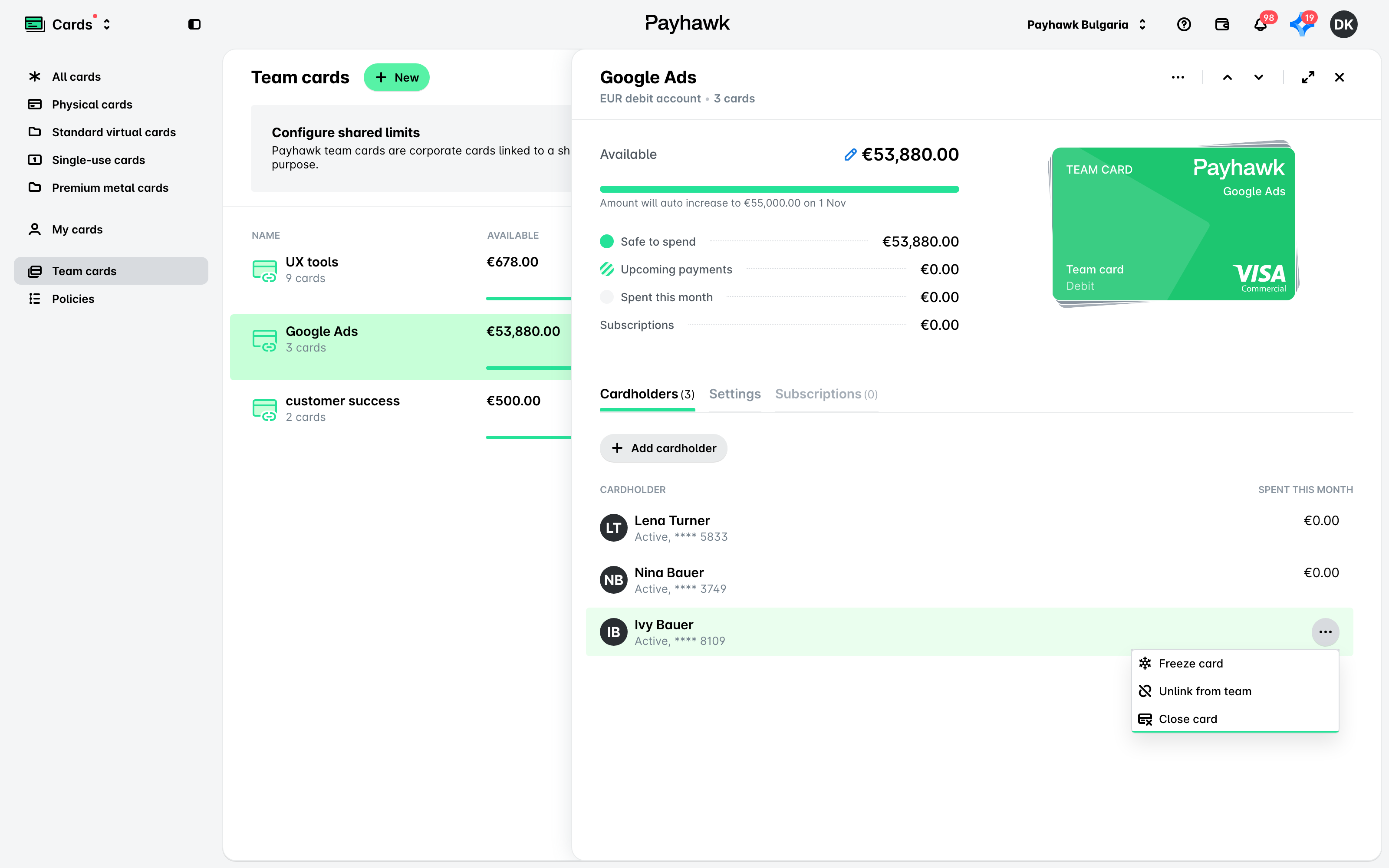
Under the Cardholders tab, hover over the card you want to block. As a result, its three-dot menu will become visible.
Click on the Freeze card option. As a result, the card will display a Blocked by admin label.
Unblocking cards linked to a team card
To unblock (unfreeze) a card linked to a team card:
Open the app switcher in the top-left corner and go to Cards > Team cards, and select the desired team card by clicking on it
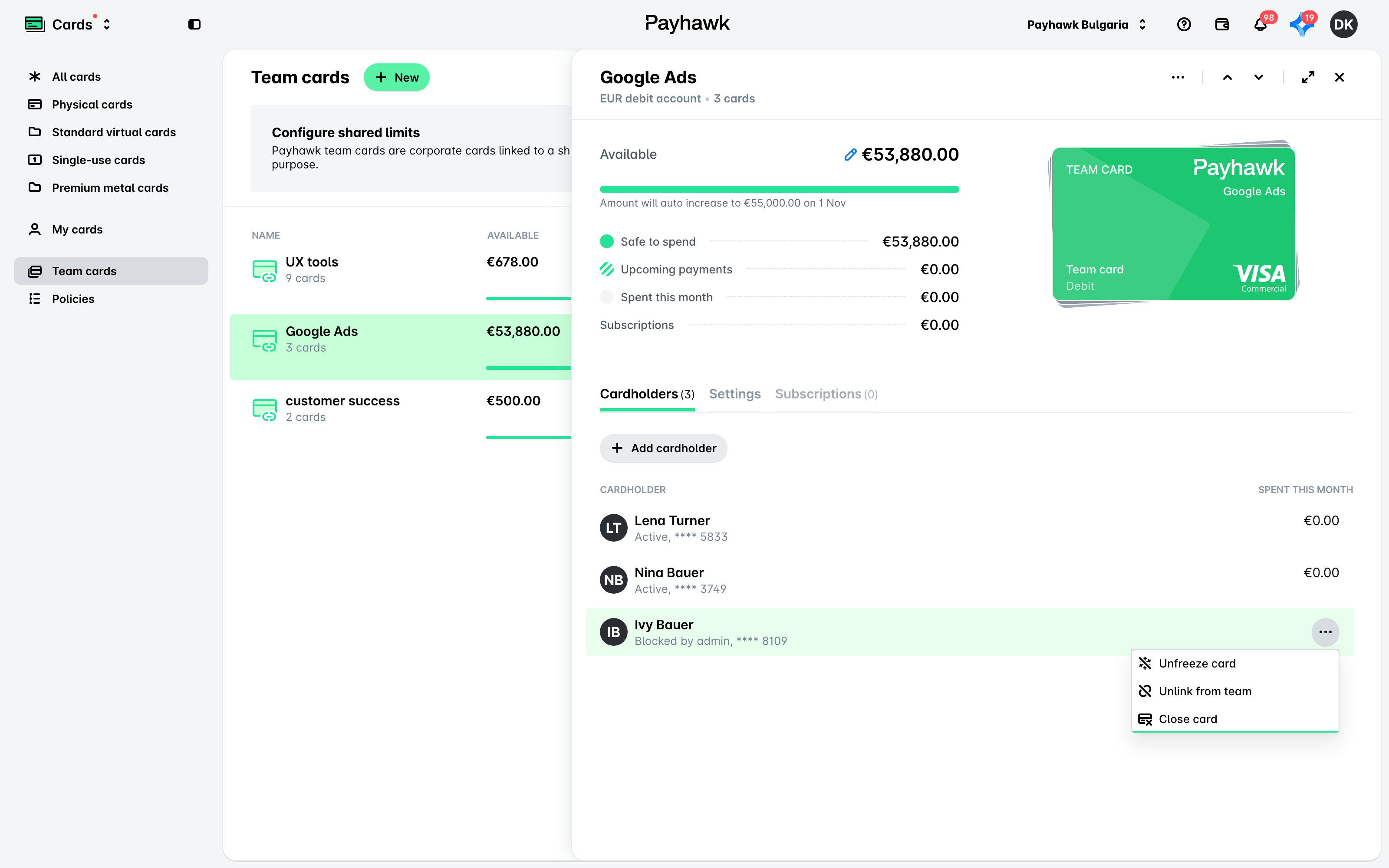
Under the Cardholders tab, hover over the card you want to unblock. As a result, its three-dot menu will become visible.
Click on the Unfreeze card option. As a result, the card will display an Active label.
Closing employees' cards linked to a team card
You can close an employee's card directly from the team card itself:
Open the app switcher in the top-left corner and go to Cards > Team cards, and select the desired team card by clicking on it.
Under the Cardholders tab, hover over the card you want to close. As a result, its three-dot menu will become visible.
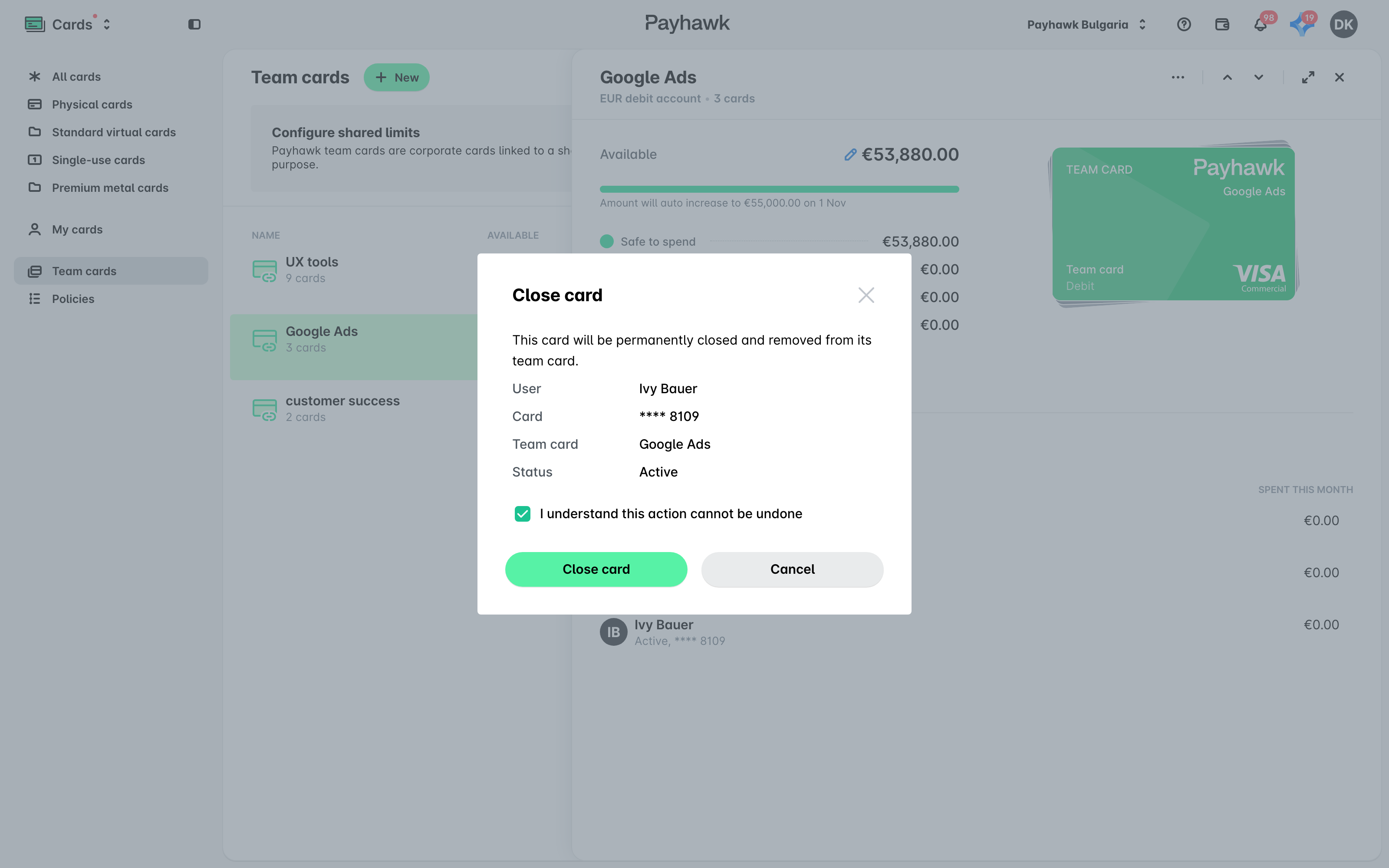
Click on the Close card option.
In the dialog that opens, select the confirmation checkbox and click on Close card.
Useful resources