In Payhawk, you can link more existing or newly-issued cards to a specific team card thus including them in the shared card limit.
You can link employees' cards to team cards if they have the same funding source.
Linking existing cards to a team card
To link an employee's card to a team card by using the options of the team card:
In the Payhawk Web Portal, open the app switcher in the top-left corner and go to Cards > Team cards.
Select the desired team card by clicking on it.
Go to the Cardholders tab.
Click on the + Add cardholder button.
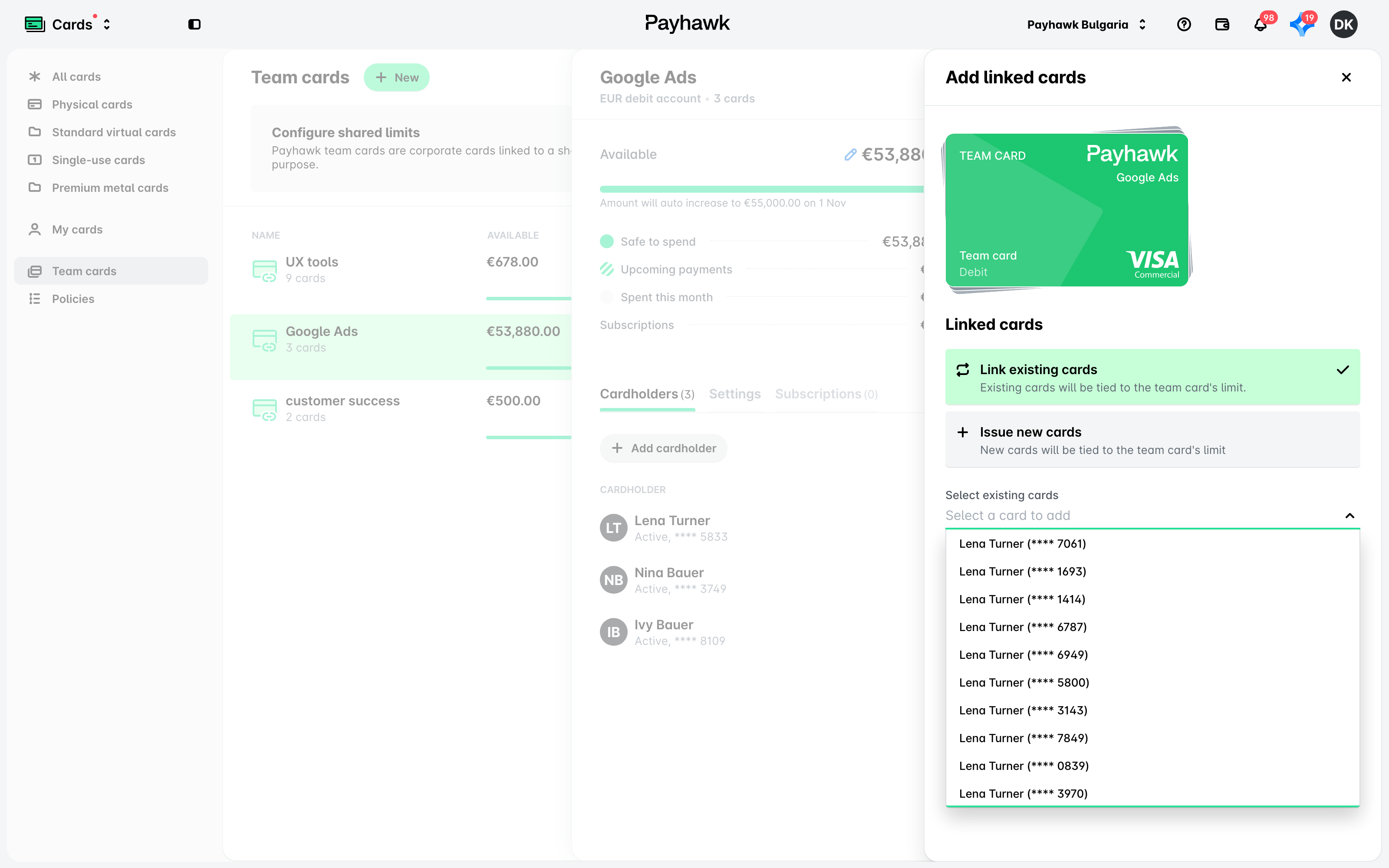
In the dialog that opens, select Link existing cards.
From the drop-down menu, select the required existing cards of the employees who will share the limit of the team card.
Click on Link cards to confirm your choice.
Alternatively, you can link an existing employee's card to a team card from the card itself:
Open the app switcher in the top-left corner and go to Cards.
Select the desired employee's card.
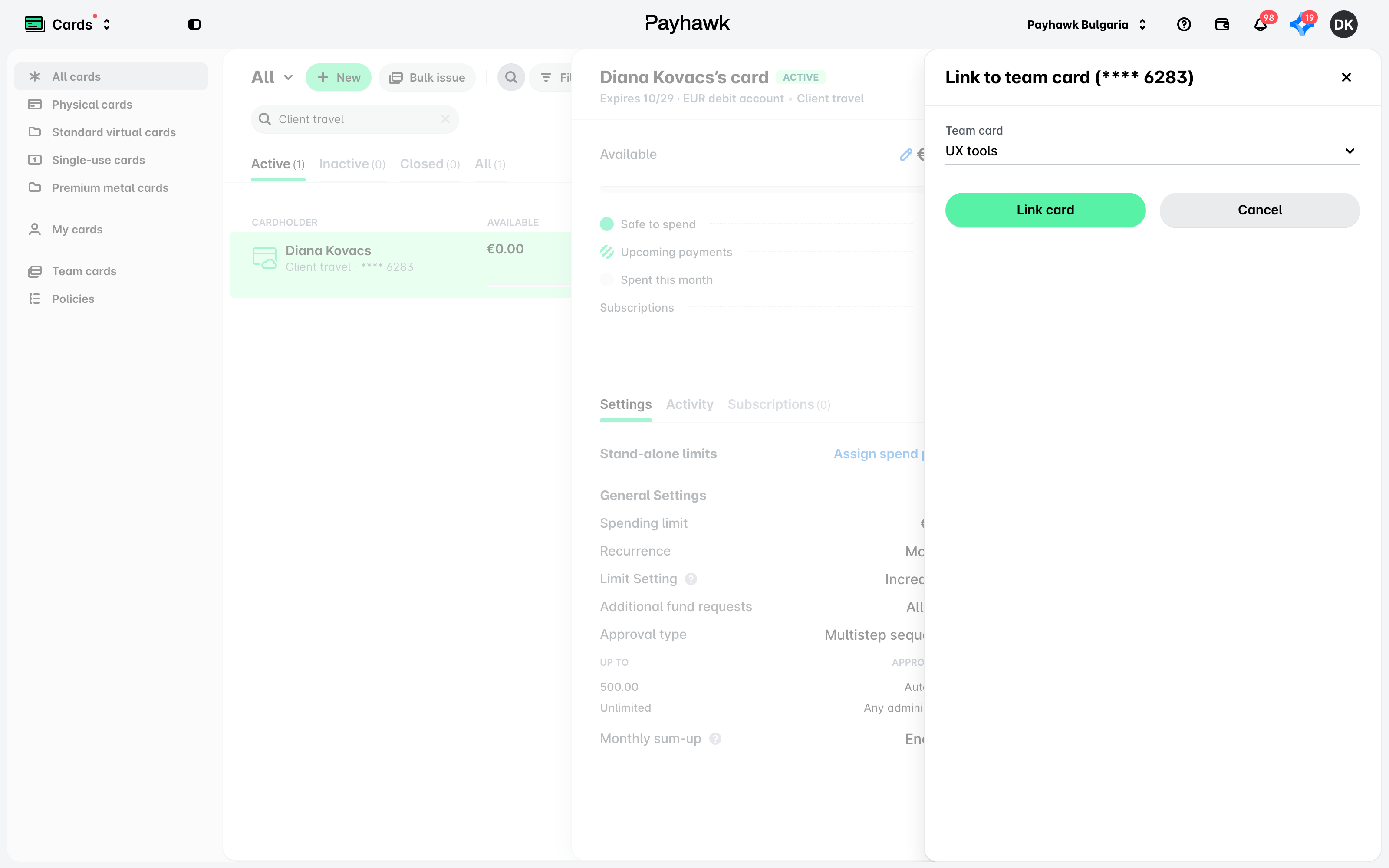
Click on its three-dot menu and select the Link to team card option.
From the drop-down list, select the team card you need.
Click on Link card.
Issuing and linking new cards to a team card
To issue new cards and link them to the existing team card:
Under the Cardholders tab of the desired team card, click on the + Add cardholder button.
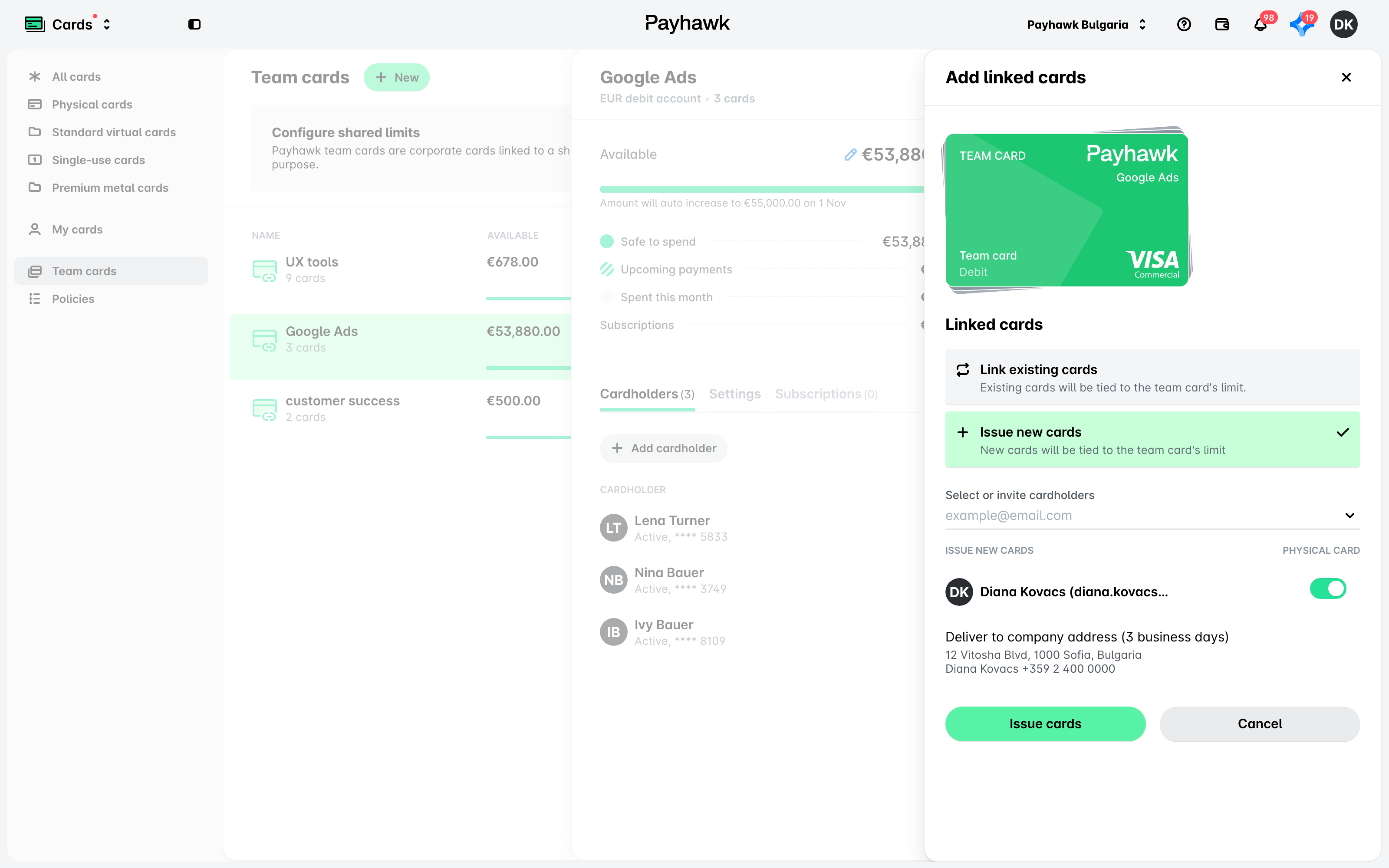
Select Issue new cards.
From the drop-down menu, select the employees for whom you will issue new cards that will be linked to this team card.
Against each selected employee, select whether the card will be physical by switching on the toggle button. The toggle button is switched off by default.
If you have opted for physical cards, the switched-on toggle button will automatically load your company address for card delivery.
Click on Issue cards to confirm your choice.
Unlinking cards from a team card
If for some reason, you don't need a card to be linked to a certain team card limit, you can unlink it from the team card.
To unlink a card from a team card:
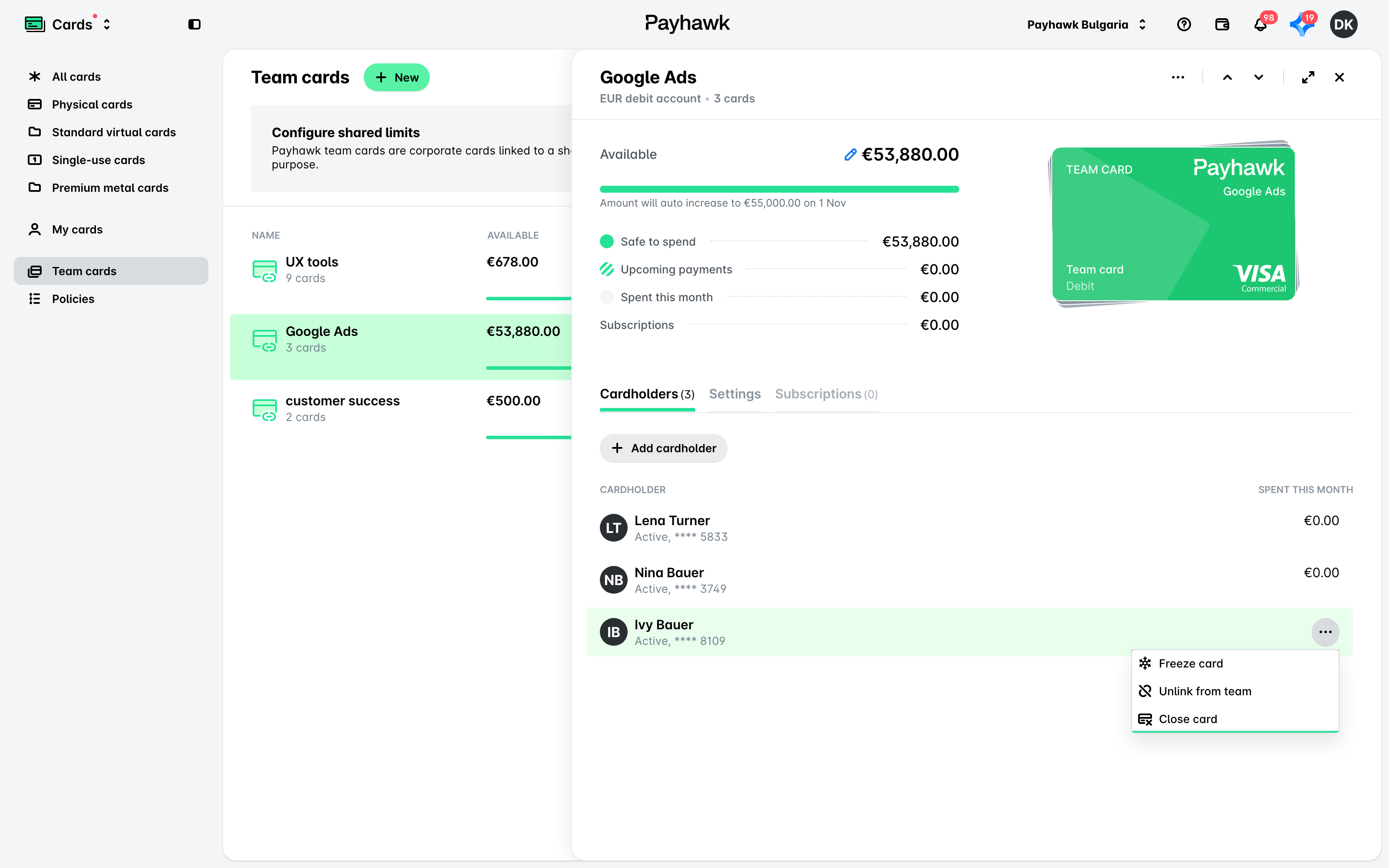
Under Cards > Team cards > Cardholders (opened from the app switcher in the top-left corner), hover over the card you want to unlink. As a result, its three dots menu will become visible.
Click on the Unlink from team option. As a result, the unlinked card will again be visible with all other individual cards under All cards.
Useful resources