The Activity section of an expense lets you view any comments on that expense, its workflow, export history, and change log, with a Show filter that lets you tick any combination of these to see exactly the events you need. Thus, you can see all historic events related to that expense.
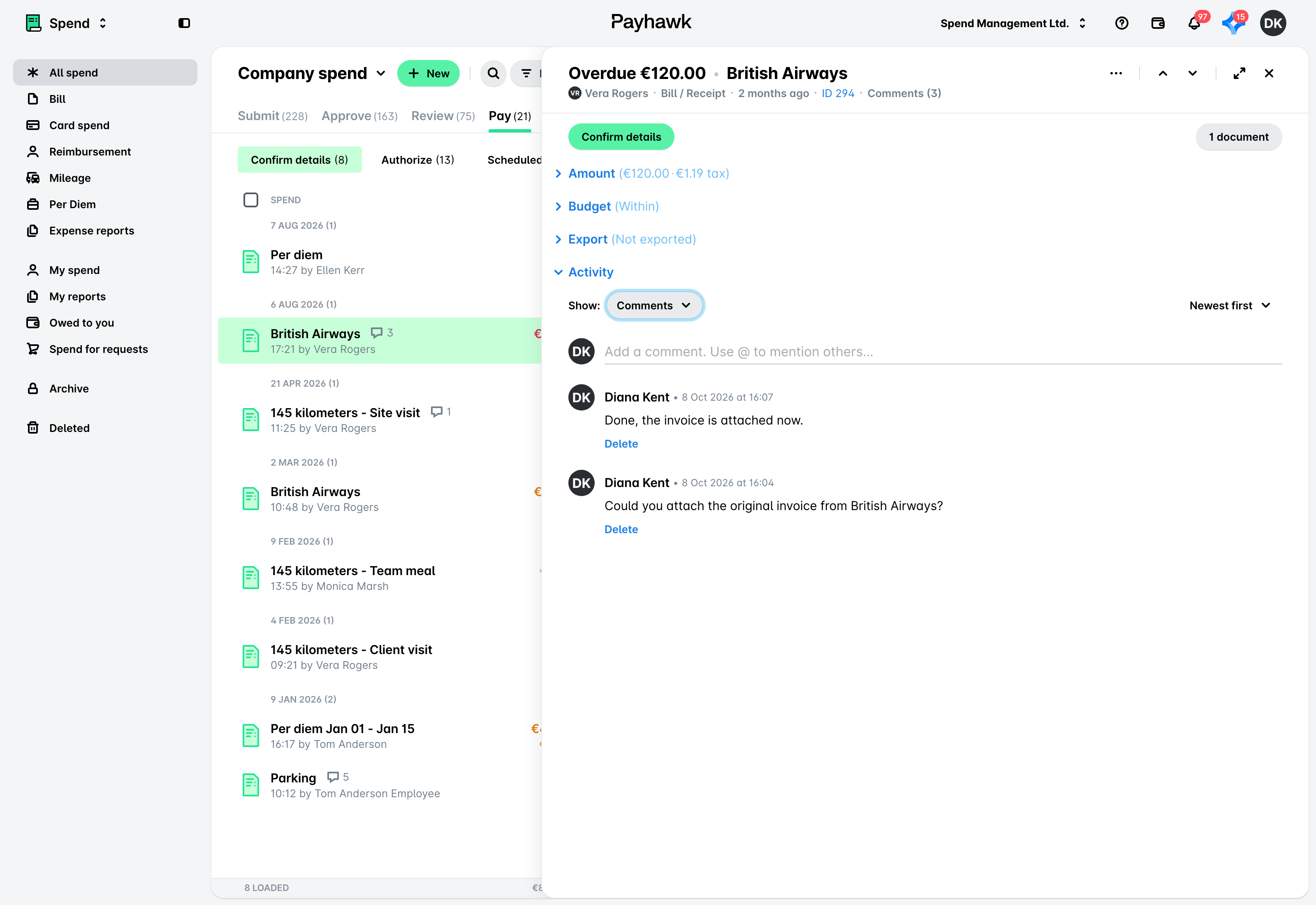
Viewing expense comments in the Web Portal
To view the comments for an expense or expense request:
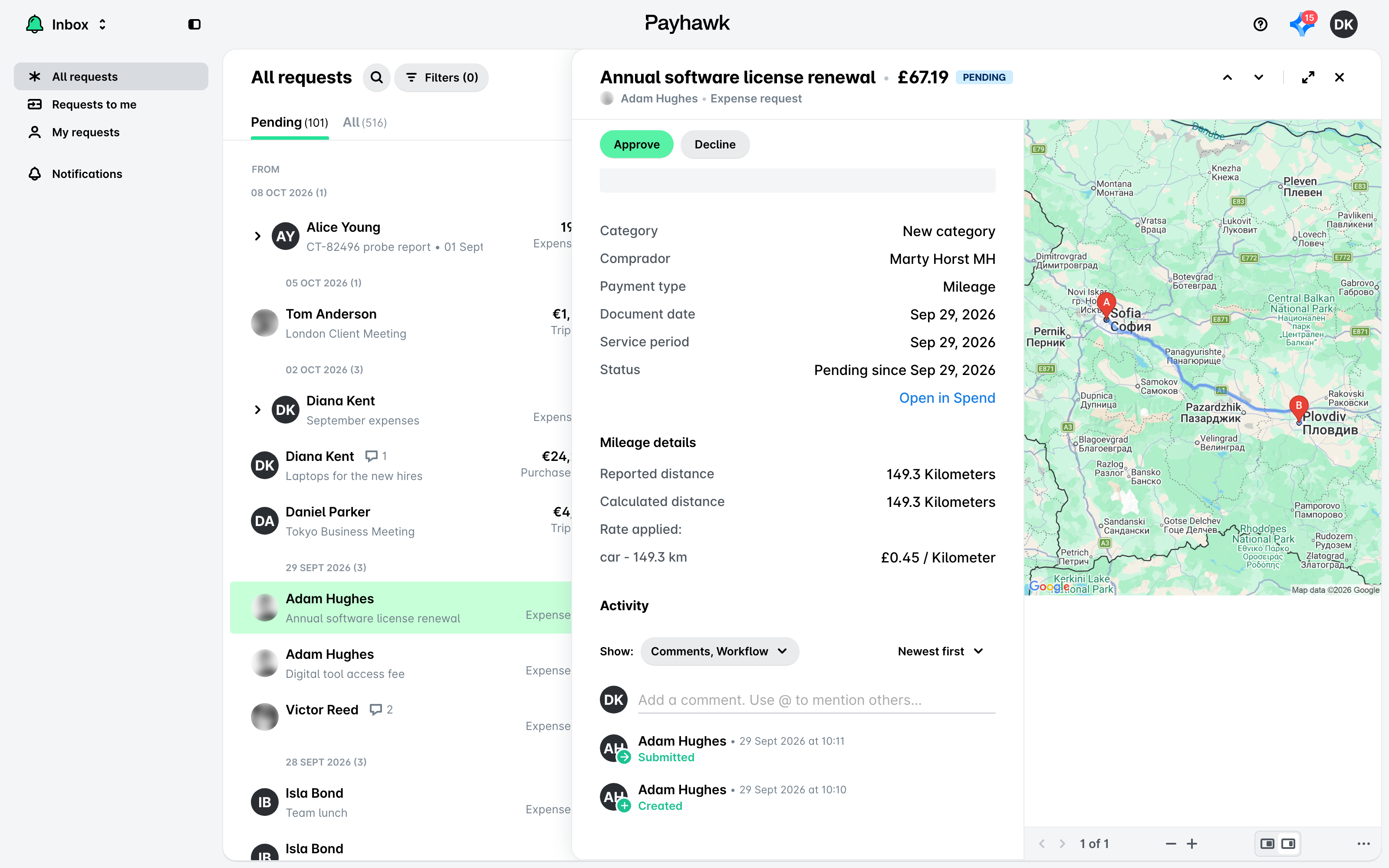
Open its Activity section. By default, Show is set to Comments, Workflow. Leave Comments ticked and untick Workflow if you only want to see comments.
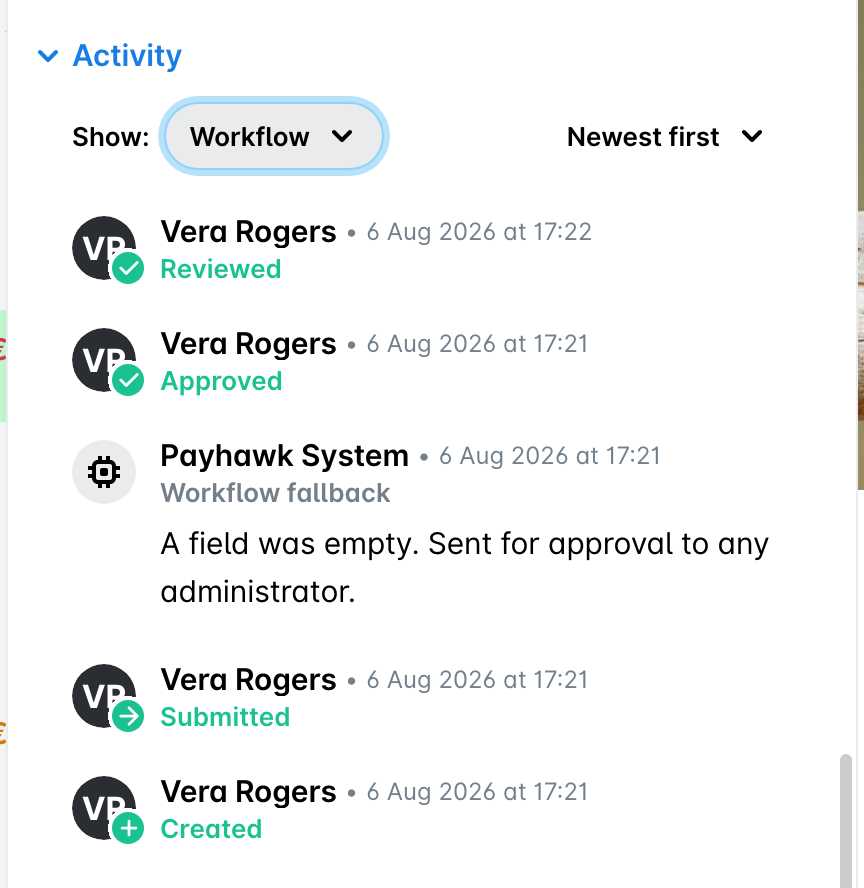
Viewing expense workflow in the Web Portal
You can view the workflow of an expense or expense request by opening its Activity section and ticking Workflow in the Show filter. Untick Comments if you only want to see the workflow.
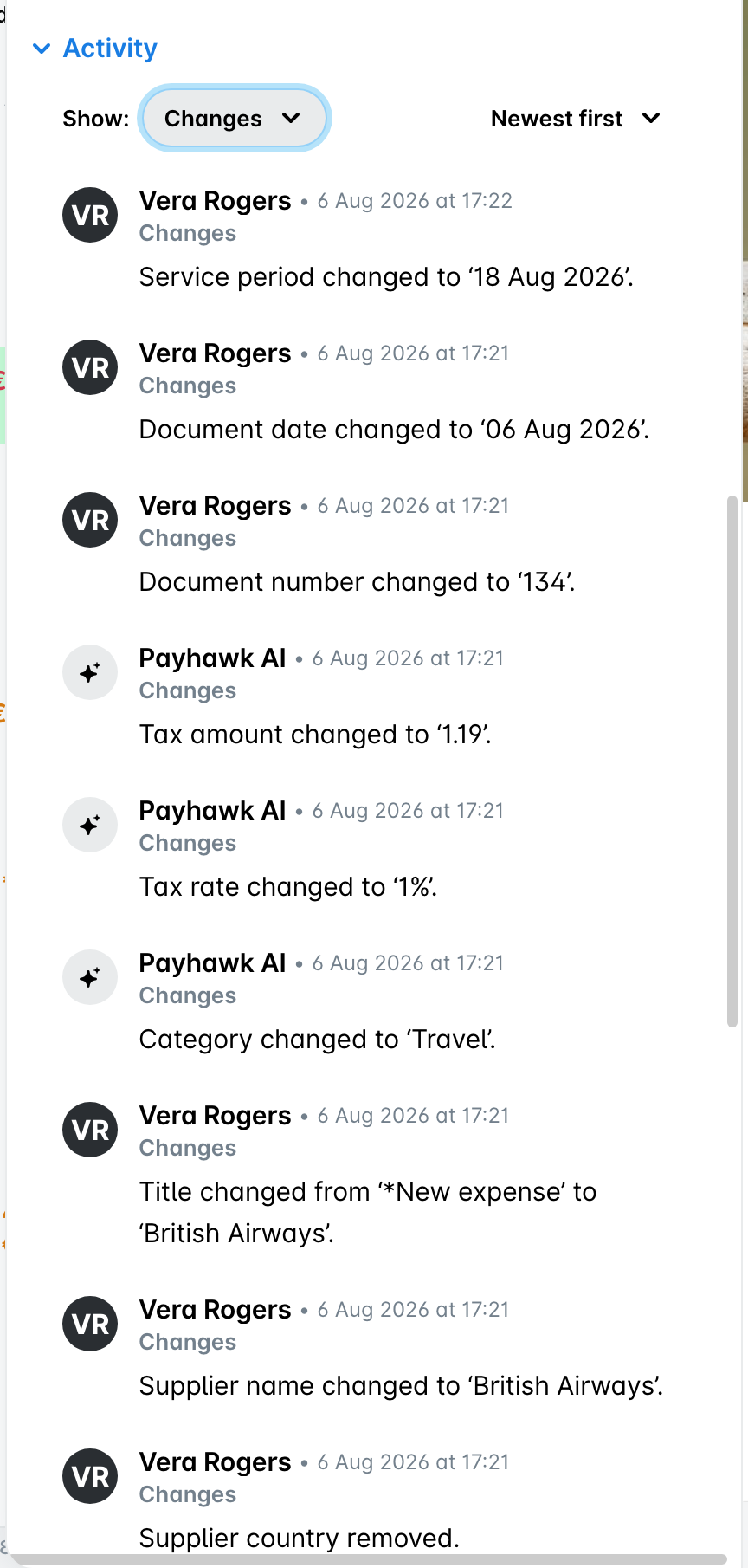
Viewing expense history in the Web Portal
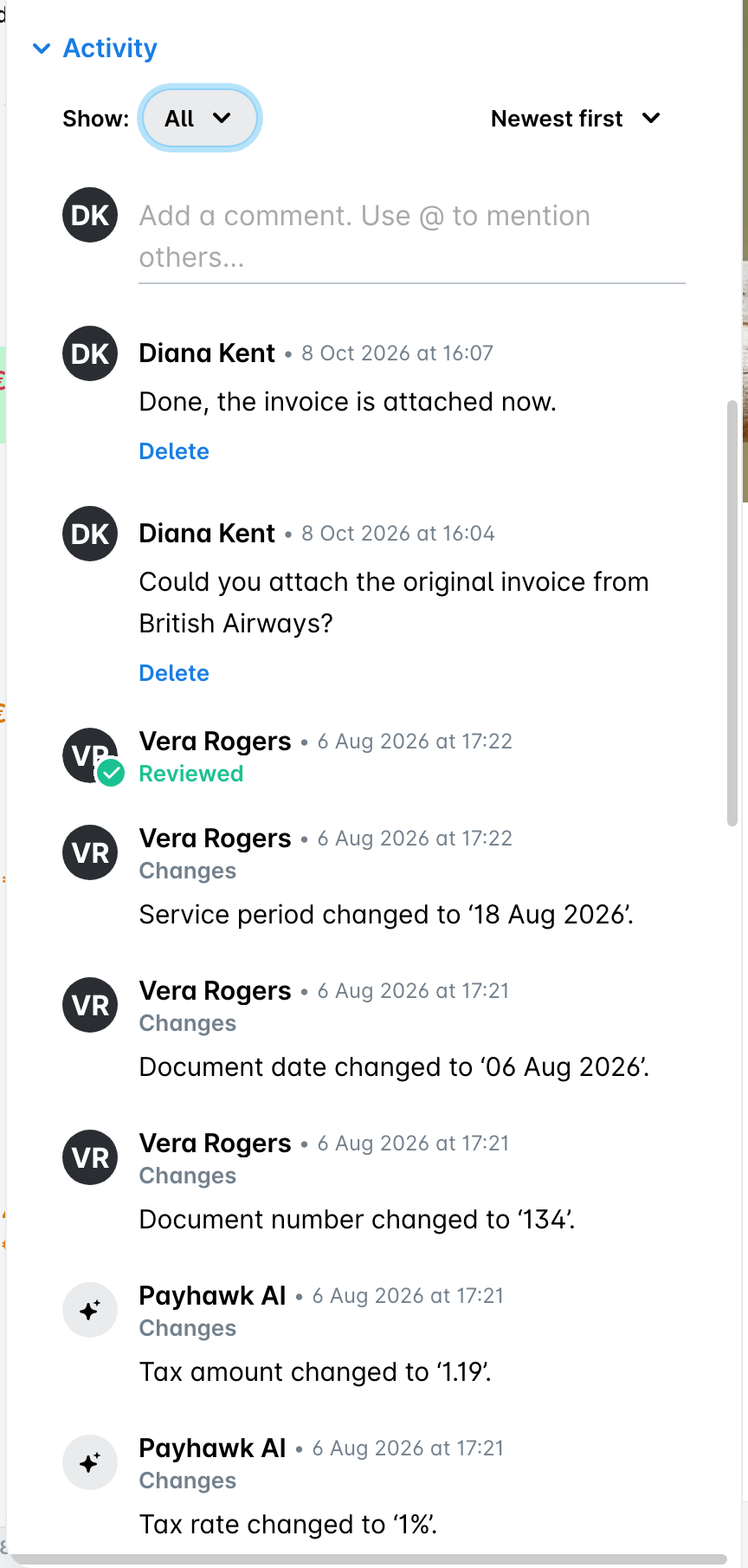
You can view the changes that were made to the expense by opening its Activity section and ticking Changes in the Show filter. For deleted expenses, the Changes log also shows when the expense was marked as deleted as well as the full history of the expense before its deletion. For more details, see the article about deleting and viewing deleted expenses.
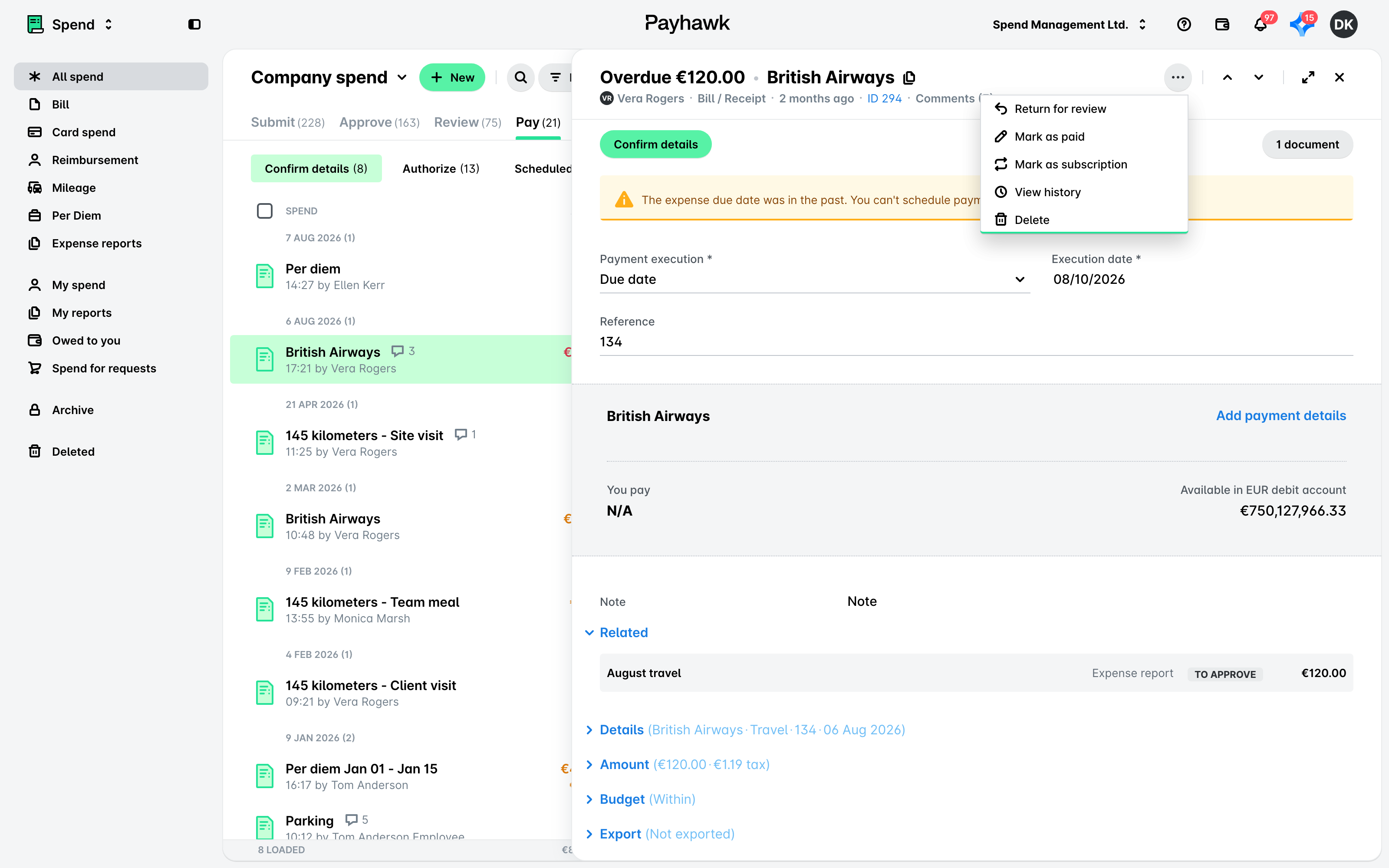
Alternatively, open the expense's three-dot menu and select View history. You'll be directed to the Activity section with Show set to All.
Viewing the export history of expenses in the Web Portal
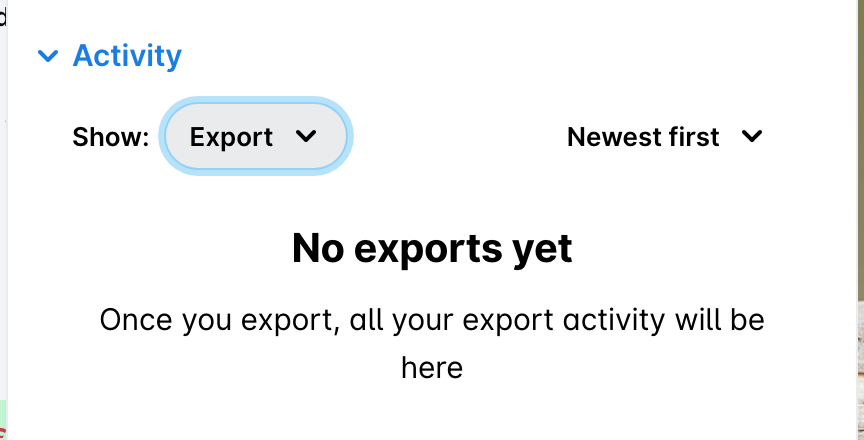
You can view the export history of an expense by opening its Activity section and ticking Export in the Show filter.
Viewing all expense activities in the Web Portal
To view all combined activities for an expense, open its Activity section and tick every option in the Show filter: Comments, Workflow, Export, and Changes. Once everything is ticked, the Show button itself reads All.
You can also view all expense activity in the Payhawk Web Portal from your Inbox.
Viewing comments and expense workflows in the Mobile App
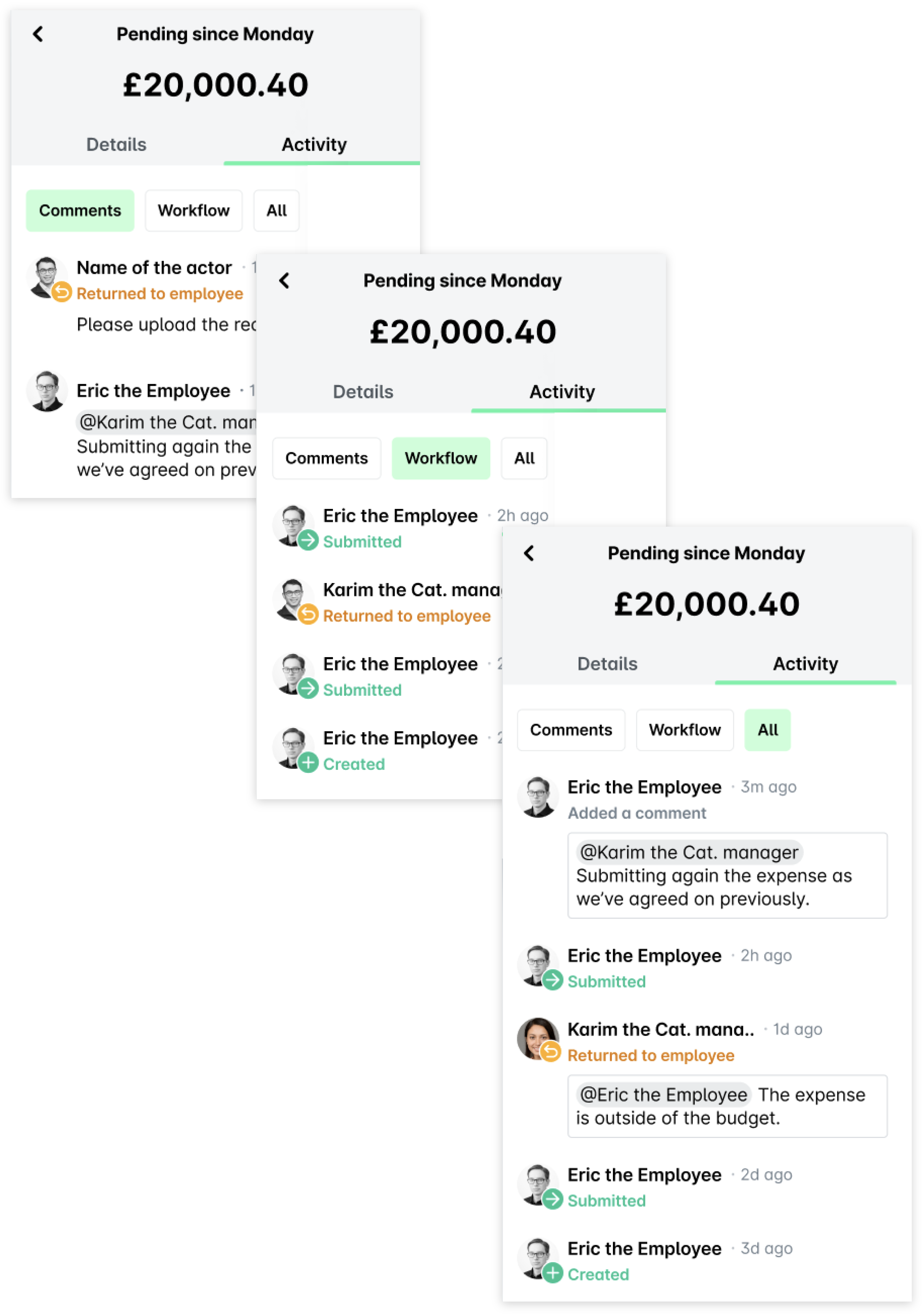
From your Inbox, you can view all comments for an expense (Activity > Comments) and its workflow (Activity > Workflow), or all of these combined (Activity > All).
Sorting activities
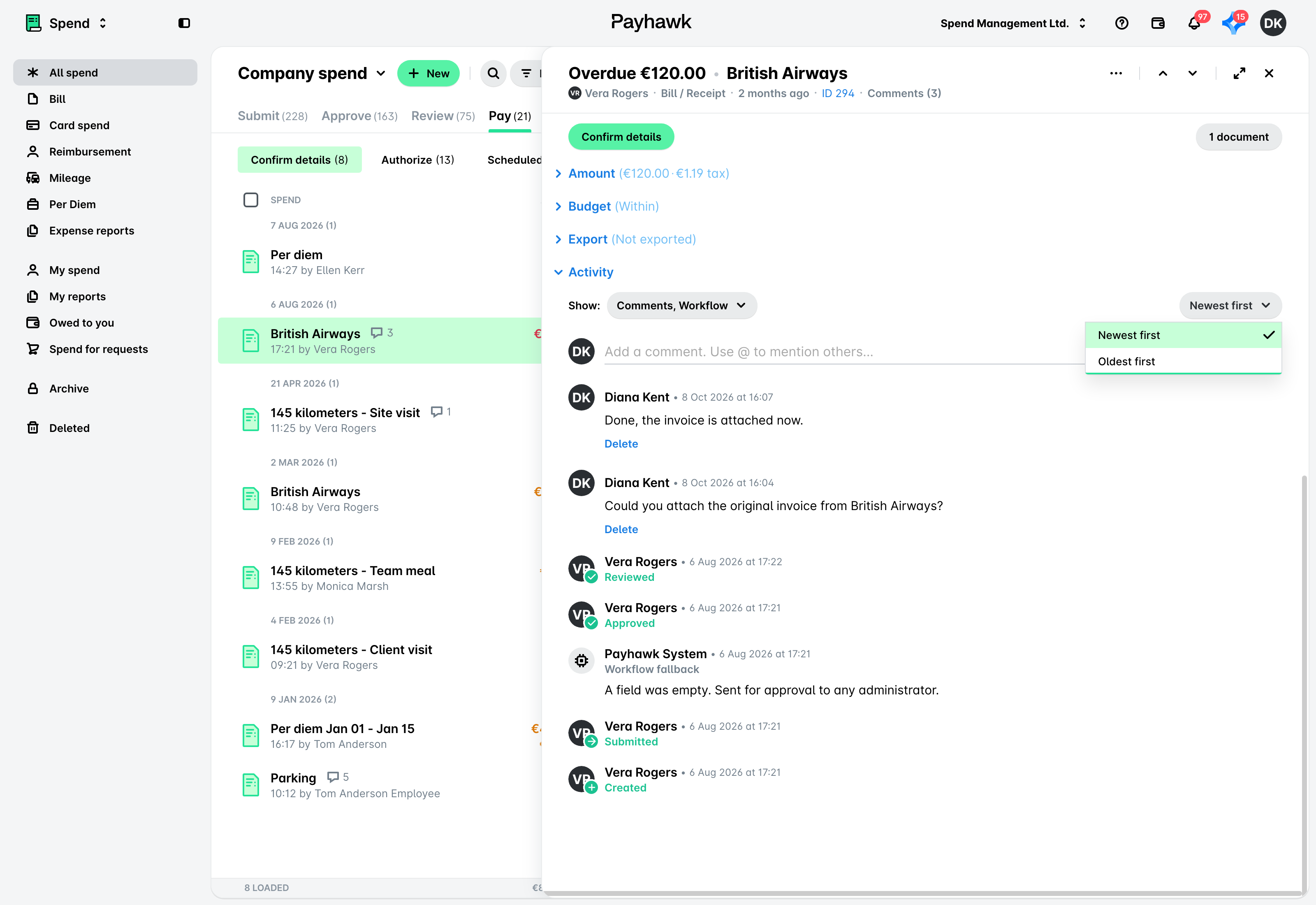
In the Payhawk Web Portal, you can sort the expense activities showing either the newest or the oldest on top.
The sorting order applies to all Activity tabs.
By default, the system shows the newest activities on top.
Updates in the sorting order will be stored for the following user sessions.
In the Payhawk Mobile App, activities cannot be sorted and are displayed starting from the oldest ones.
Useful resources