After you have submitted an expense to the relevant approvers at the company, you can view your expense requests and monitor their status.
Upon submitting an expense request, you'll be notified on mobile and email by Payhawk.
Payhawk notification emails always come from
no-reply@payhawk.com. If you receive an email about an expense request that you don't see in your Payhawk Inbox, don't click on any links in the email and don’t reply to it. Check the full email address of the sender and contact Payhawk Support through the chat.
Notes on expense requests
All your expense requests that have not been reviewed by the approvers yet, will be visible under the Pending tab of your Inbox.
Once a expense entry is approved or returned, it'll move to the All tab of your Inbox. You can then review it and send it for approval again.
Viewing and monitoring expense requests on mobile
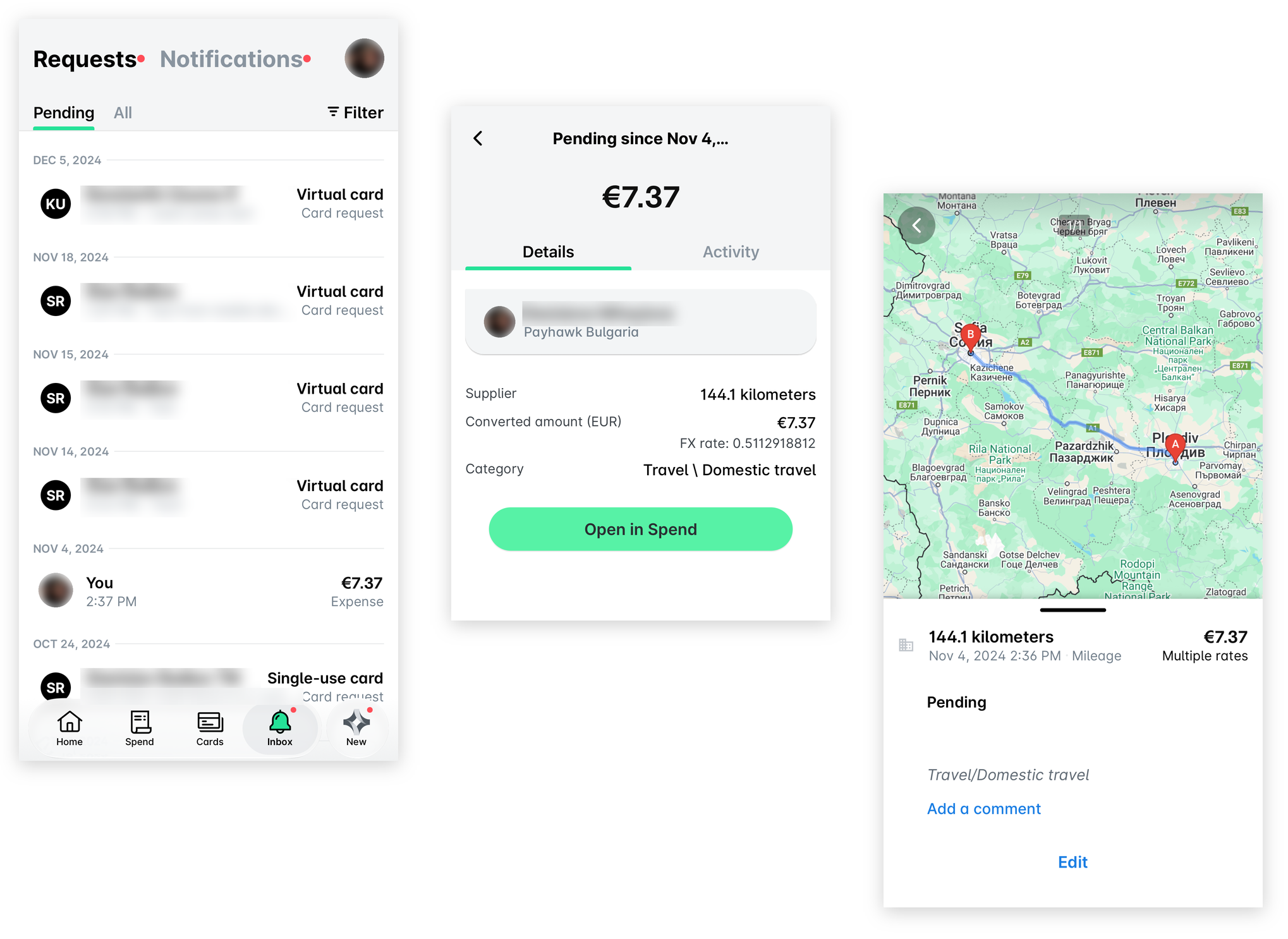
To view your pending or returned expense requests from the Payhawk Mobile App:
In the Payhawk Mobile App, tap the Inbox icon.
Select the desired expense request - in this example, a returned one.
To update your expense as per your approver's requirements, tap the Open in Spend button.
Monitoring the status of your reimbursements on mobile
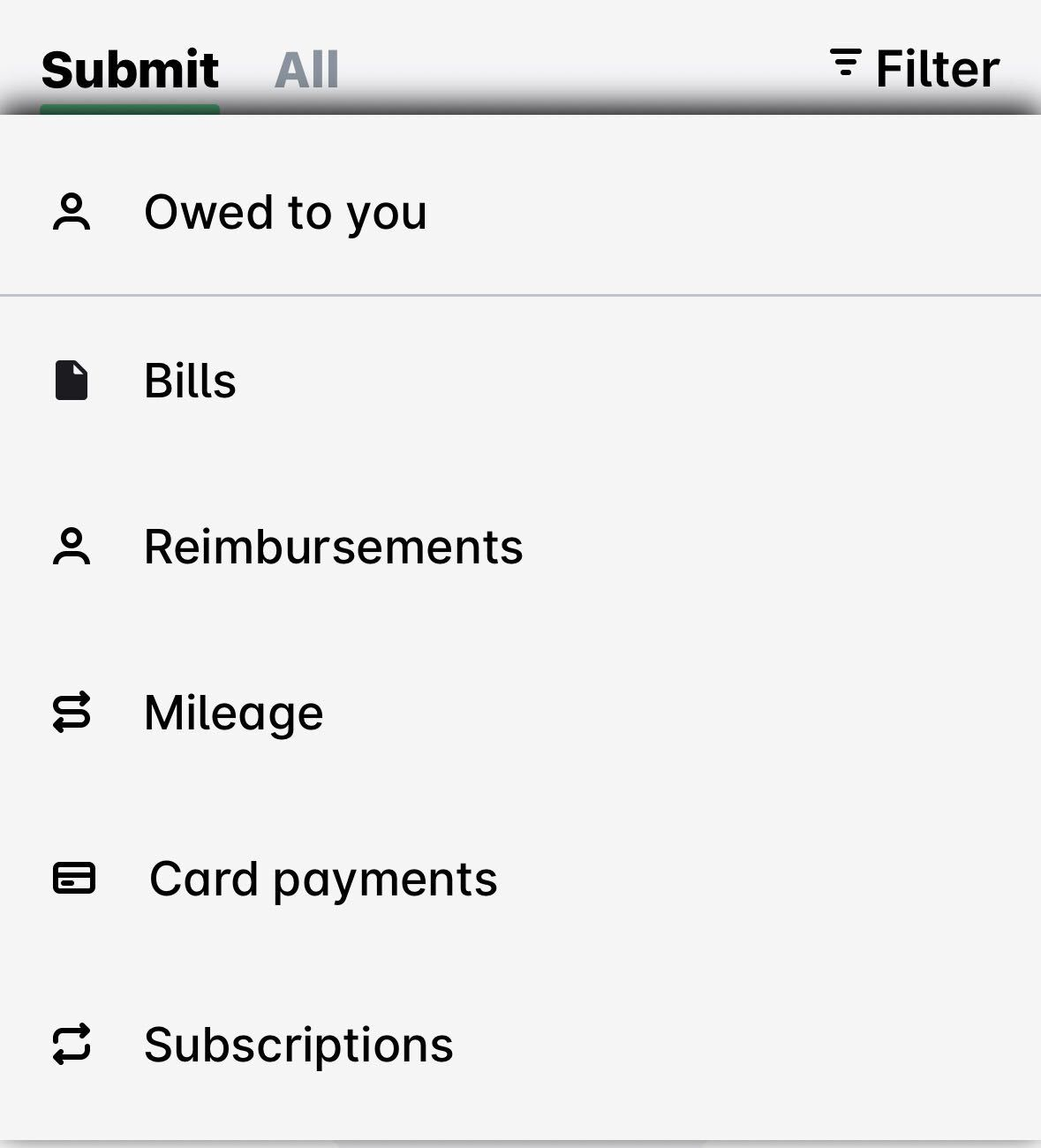
To view your pending reimbursements from the Payhawk Mobile App:
In the Payhawk Mobile App, go to Spend, tap the Filter icon.
Select the Owed to you option. As a result, only your reimbursements will be displayed and you can view their status.
Viewing and monitoring expense requests on the web
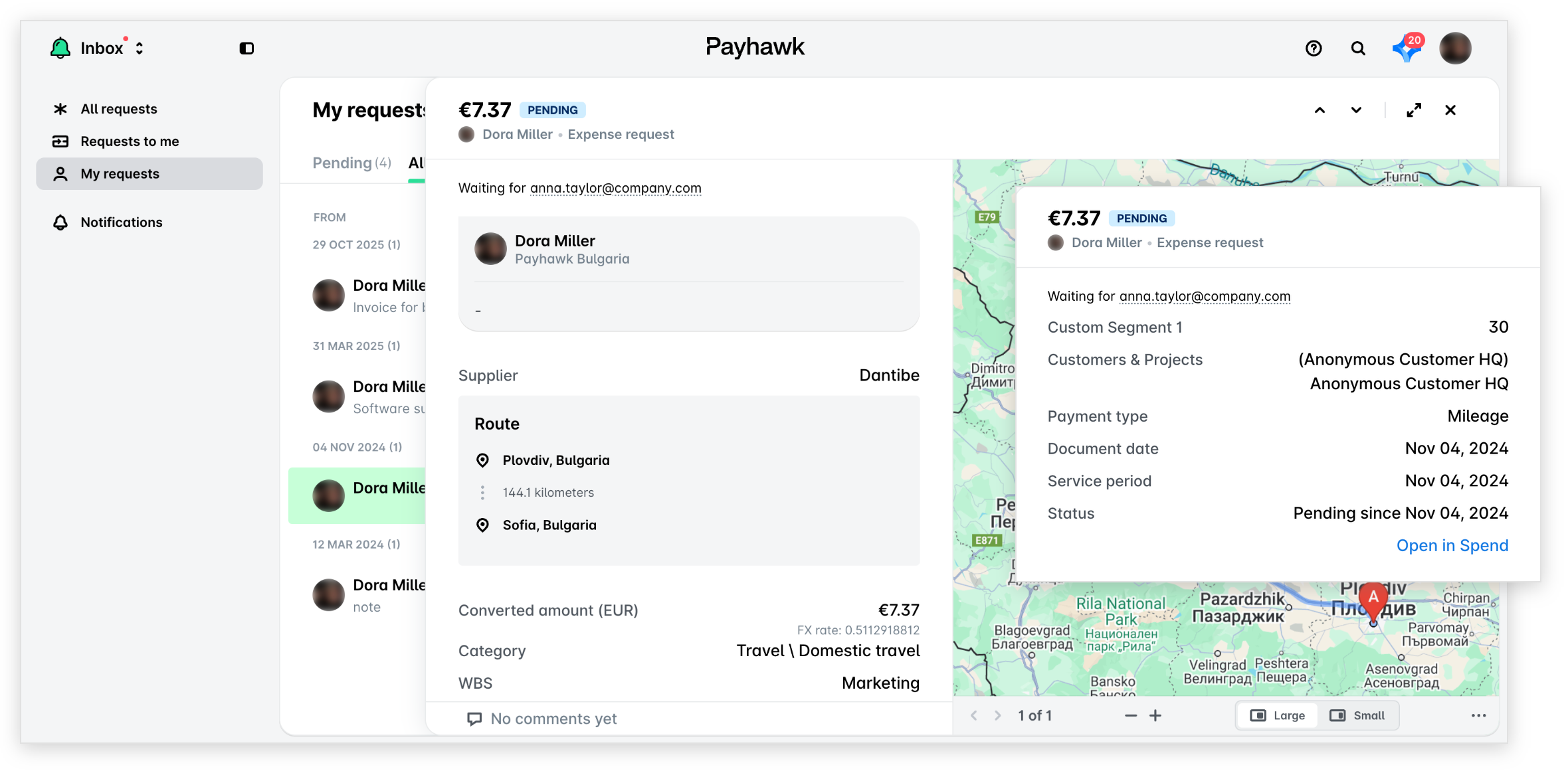
To view your pending or returned expense requests from the Payhawk Web Portal:
In the Payhawk Web Portal, open the app switcher in the top-left corner and go to Inbox.
Select the desired expense request - in this example, a returned one.
To update your expense as per your approver's requirements, click on the Open in Spend button.
Monitoring the status of your reimbursements on the web
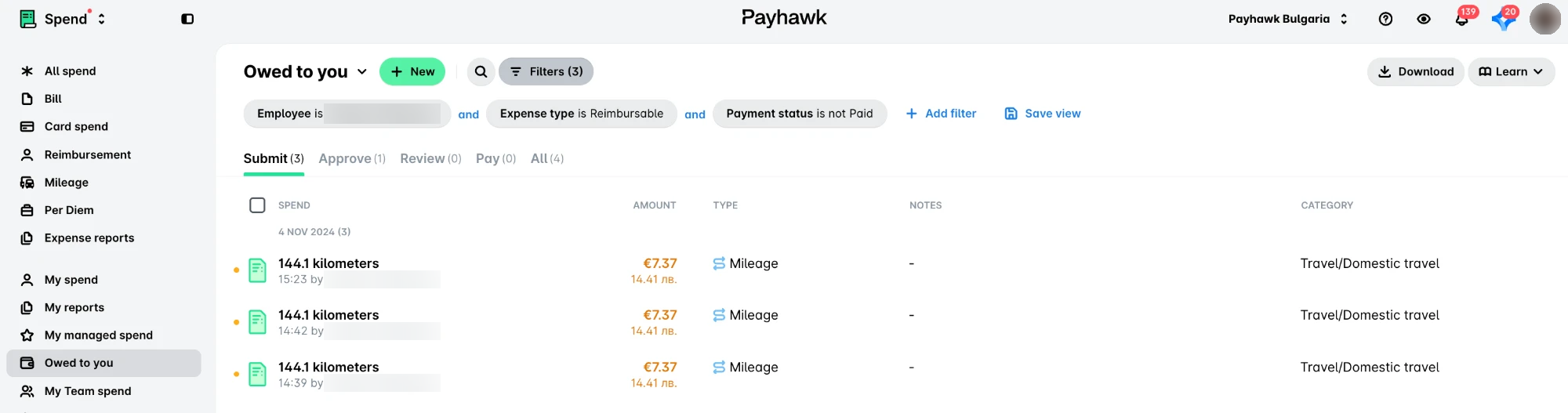
To view your pending reimbursements from the Payhawk Web Portal:
In the Payhawk Web Portal, go to Spend.
From the drop-down menu, select the Owed to you option.
As a result, only your reimbursements will be displayed and you can view their status.
Useful resources