You can create mileage expenses in the Payhawk Web Portal or Payhawk Mobile App and submit them to the relevant approvers according to the defined workflows at your company.
Calculating the route distance
Payhawk uses Google Maps to work out the distance of your trip from the addresses you enter. The distance comes from the fastest driving route between your origin and your destination, including any stops you add along the way.
The mileage type you select, for example, car, motorcycle, or bicycle, sets the reimbursement rate for the expense. It does not change the route: all mileage types are measured on the fastest driving route.
The fastest driving route can be longer than the route you actually took, for example, when it runs over a motorway around a city instead of through it.
If the calculated distance does not match your trip, you can overwrite it. Enter the correct value in the distance field when you create or edit the mileage expense, and your approver sees the value you entered.
Creating and submitting mileage expenses in the Web Portal
To create a mileage expense:
In the Payhawk Web Portal, go to Spend.
Click on the + New button.
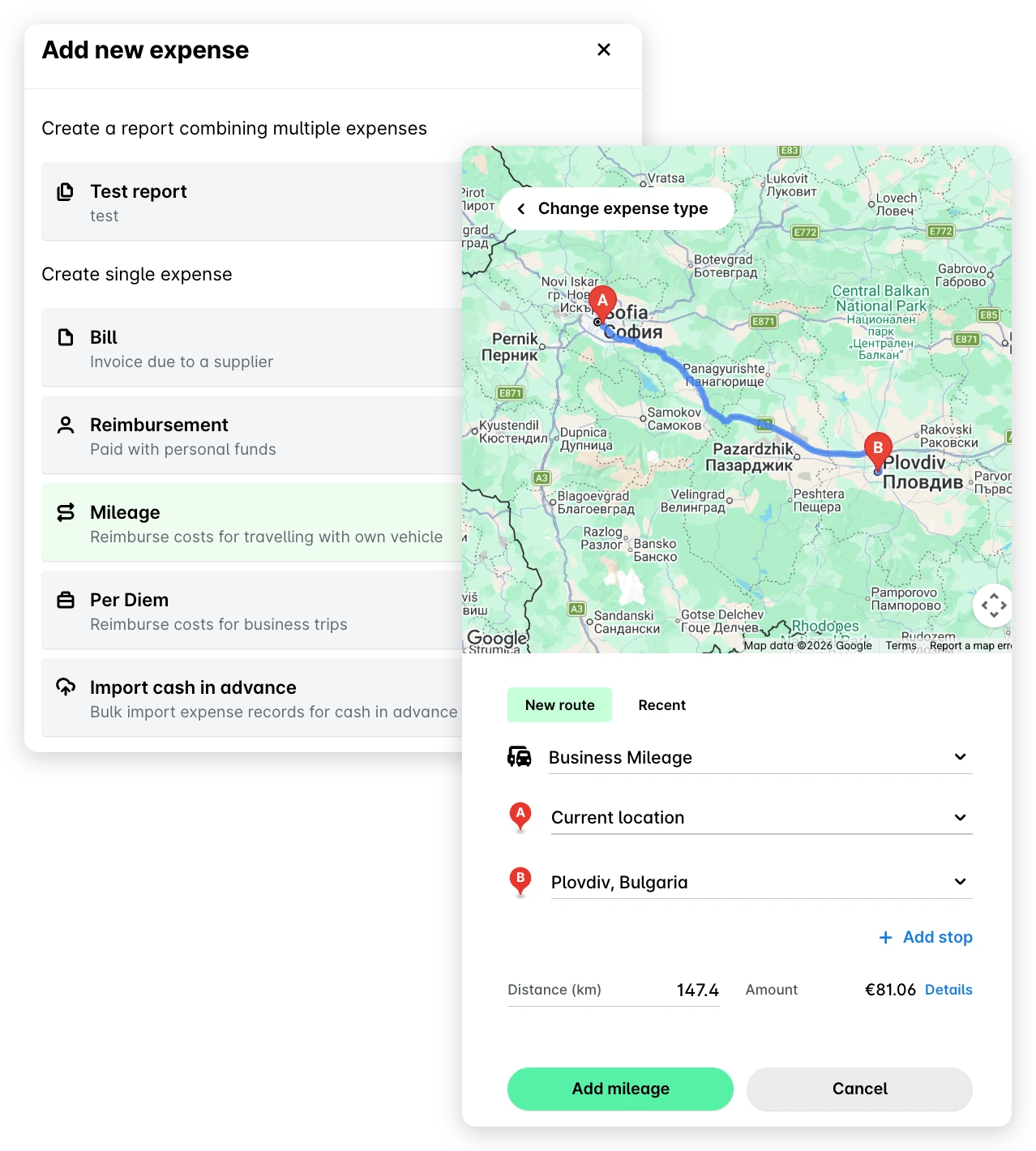
On the screen that loads, select Mileage.
Under New route, enter the details of your trip, including the vehicle information and the street name and number for both your origin and destination.
Click on Add mileage.
Click on Submit.
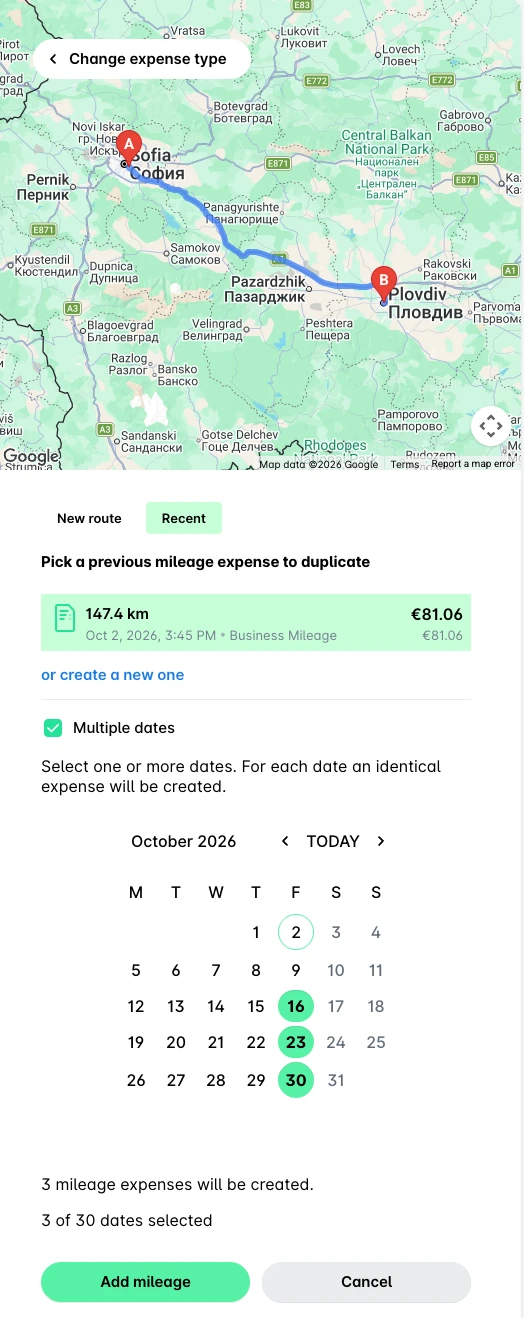
To submit recurring mileage expenses:
Go to Spend, click on the + New button, and select Mileage.
Under Recent, select the expense you want to duplicate.
Select the Multiple dates checkbox.
On the next screen, select the desired dates for the recurrence and click on Add mileage.
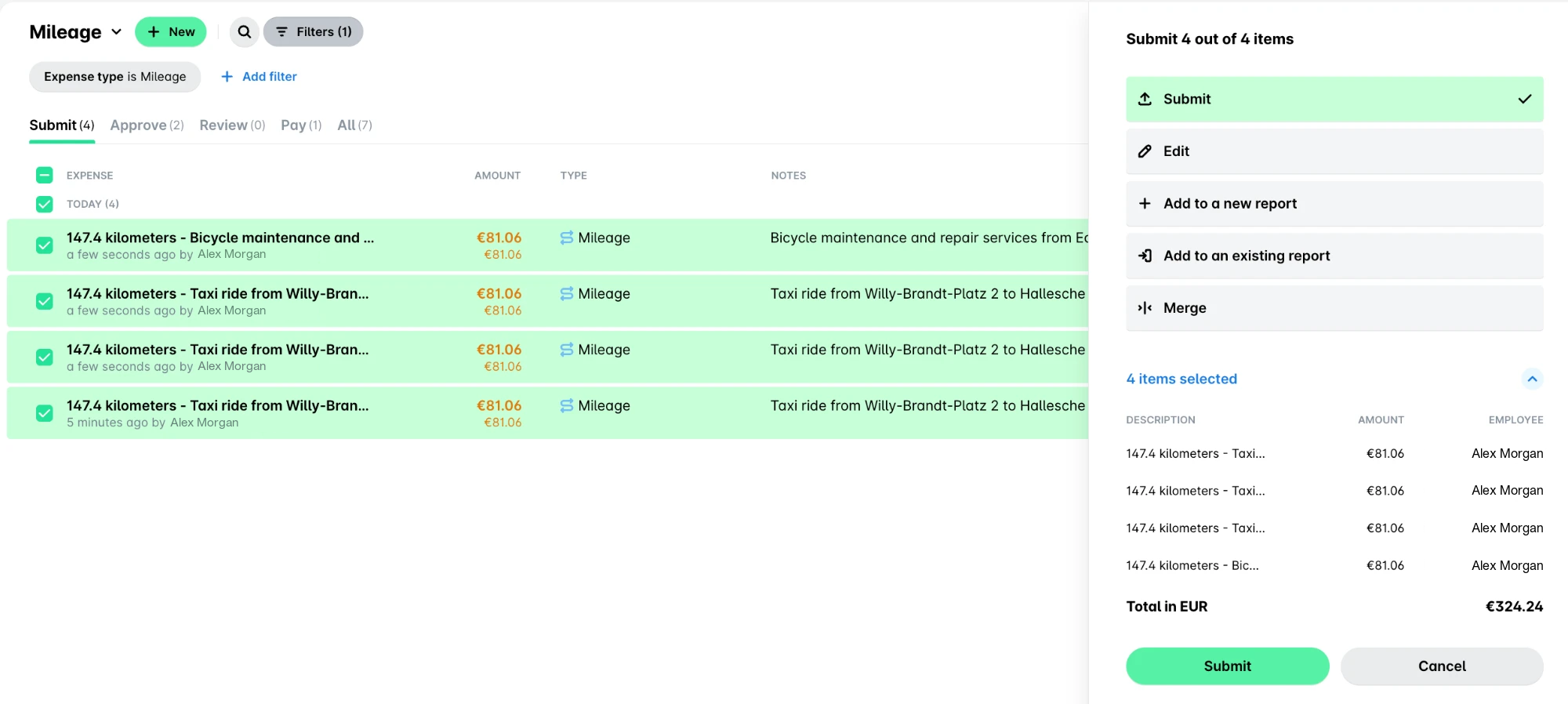
In Spend, select the expenses you want to submit.
Click on Submit.
Creating and submitting mileage expenses in the Mobile App
To create a mileage expense:
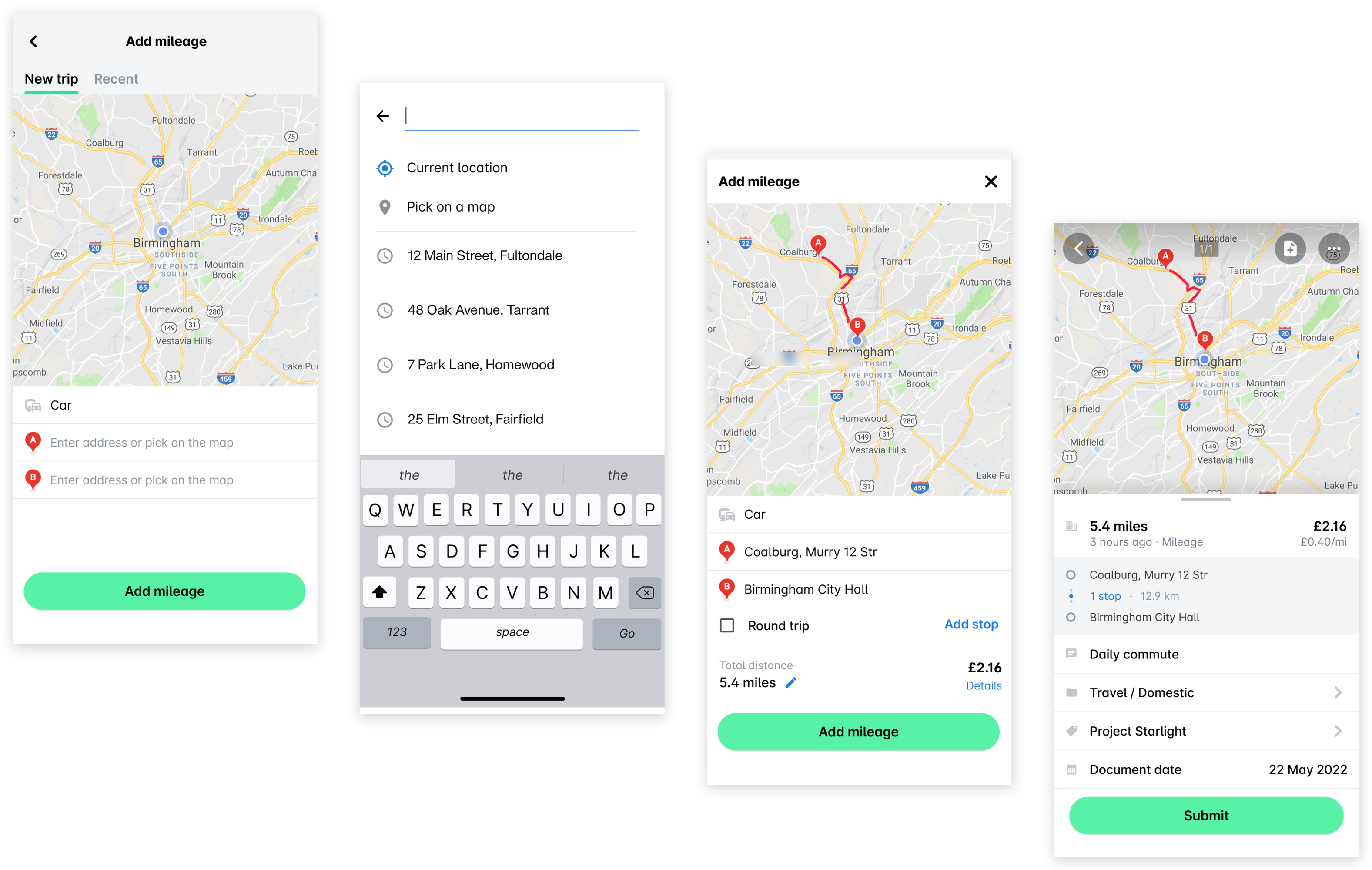
Go to Spend, tap the + (plus) button, and select Mileage.
Enter the details of your trip, including the vehicle information and the street name and number for both your origin and destination.
Tap Add mileage.
Fill in the required details and tap Submit. As a result, an expense request will be automatically submitted to the relevant approvers at your company.
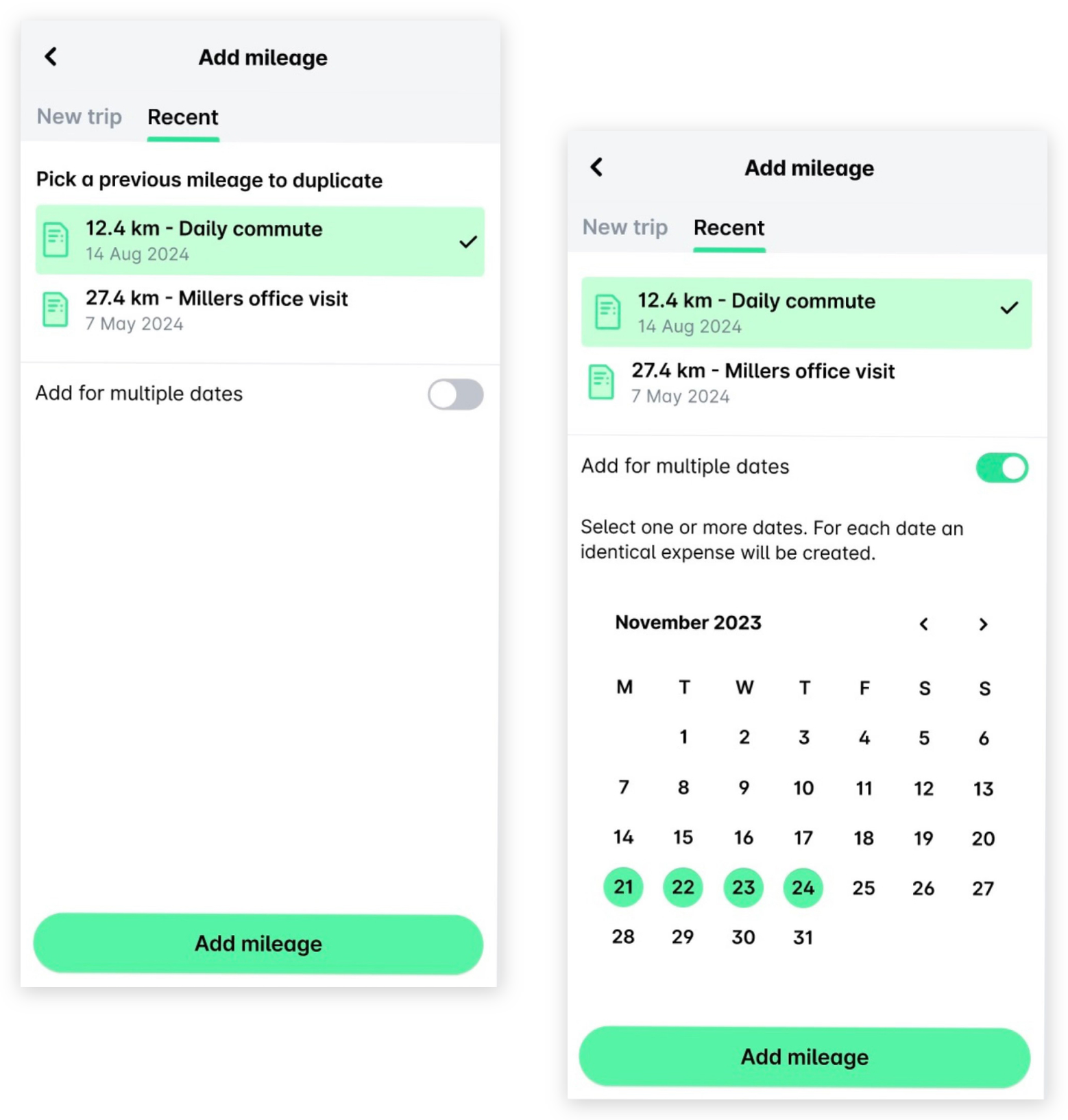
You can also add recurring mileage expenses by selecting a previously submitted mileage expense, specifying the applicable dates for the recurrence (if any), and submitting the recurring expenses in bulk.
Go to Spend, tap the + (plus) button, and select Mileage.
Under Recent, select the expense you want to duplicate.
Switch on the Add for multiple dates toggle.
On the next screen, select the desired dates for the recurrence and click on Add mileage.
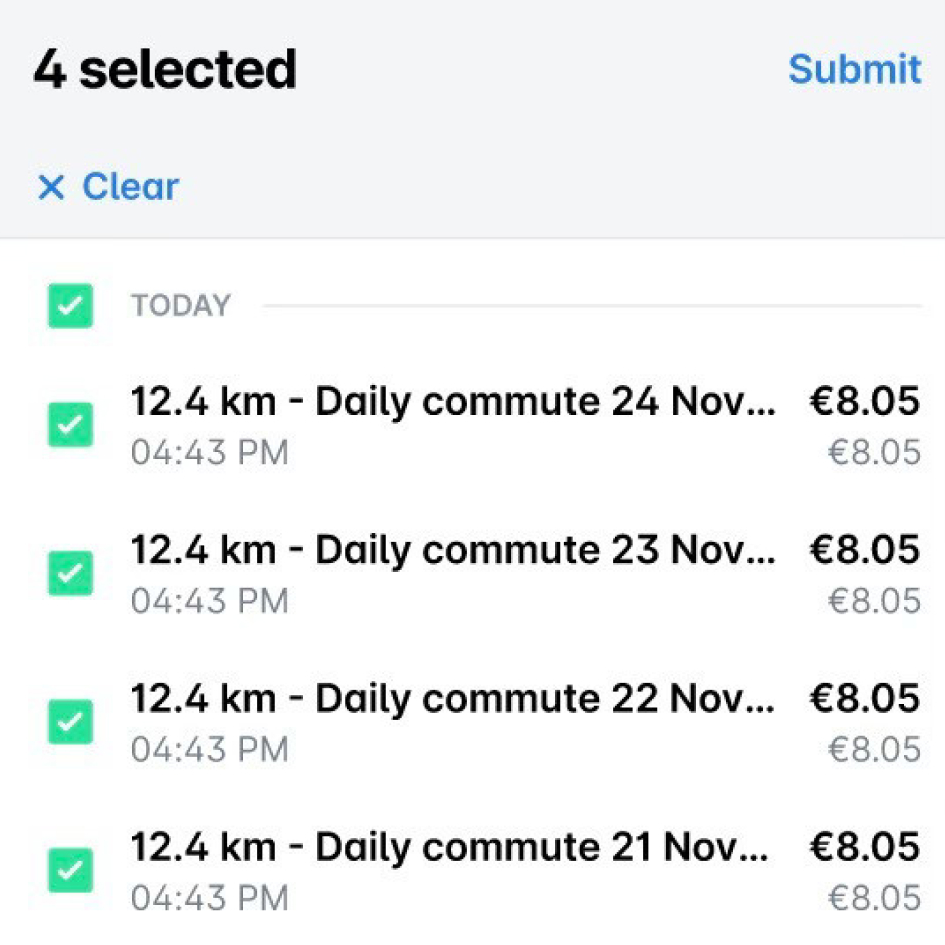
On the Spend screen, select the expenses you want to submit.
Click on Submit.
Useful resources