You can create per diem expenses in the Payhawk Web Portal or Payhawk Mobile App and submit them to the relevant approvers according to the defined workflows at your company.
Creating and submitting per diem expenses in the Web Portal
To create a per diem expense:
In the Payhawk Web Portal, go to Spend.
Click on the + New button.
On the screen that loads, select Per Diem.
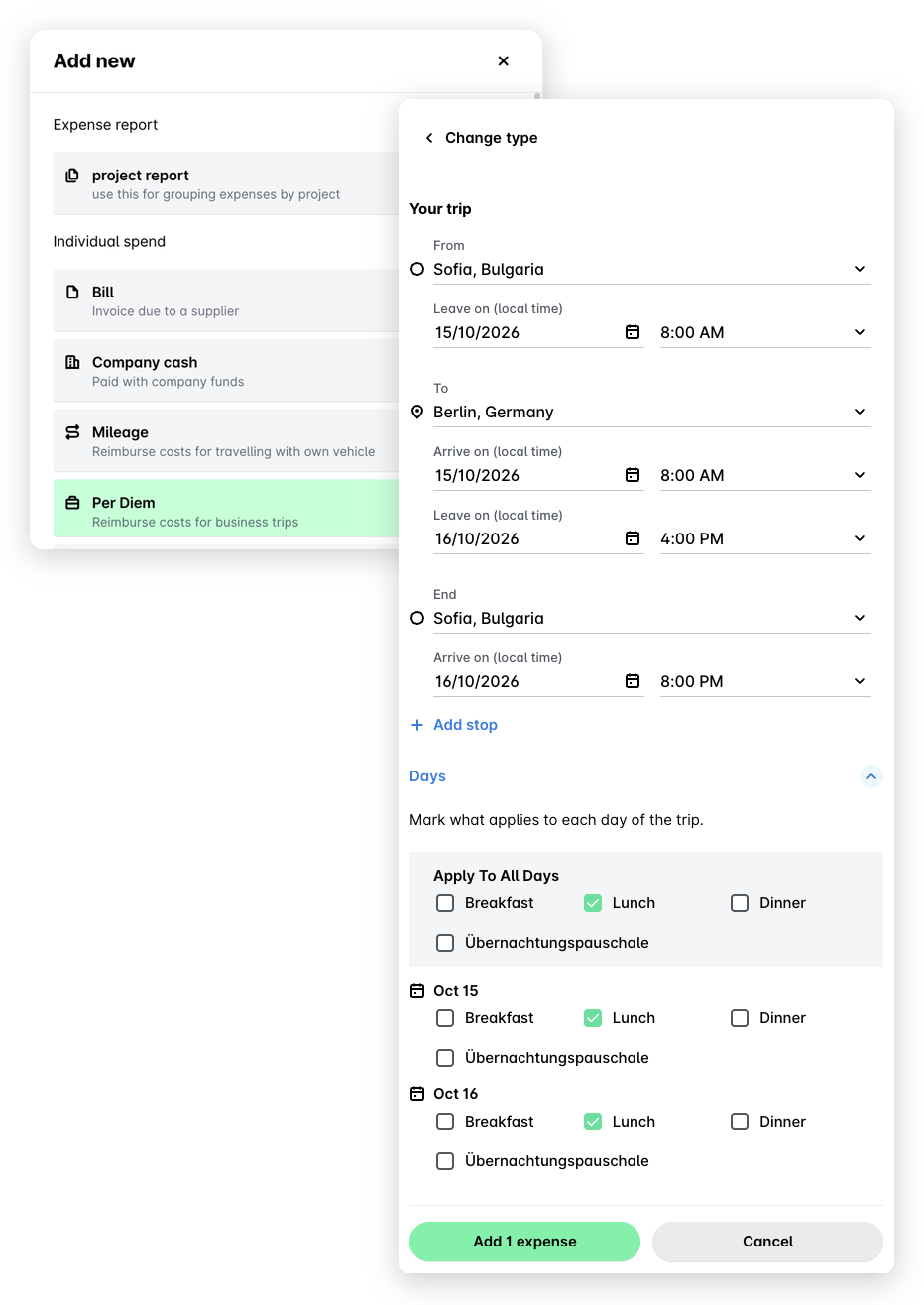
On the next screen, enter the details for your trip and stay, and select the meals that have been included in the price (deductions). Click on Add button.
In the next dialog, upload the document.
Click on Submit.
Creating and submitting per diem expenses in the Mobile App
Make sure you are using Payhawk Mobile App version 4.2.12 or later to access the latest templates.
To create a per diem expense:
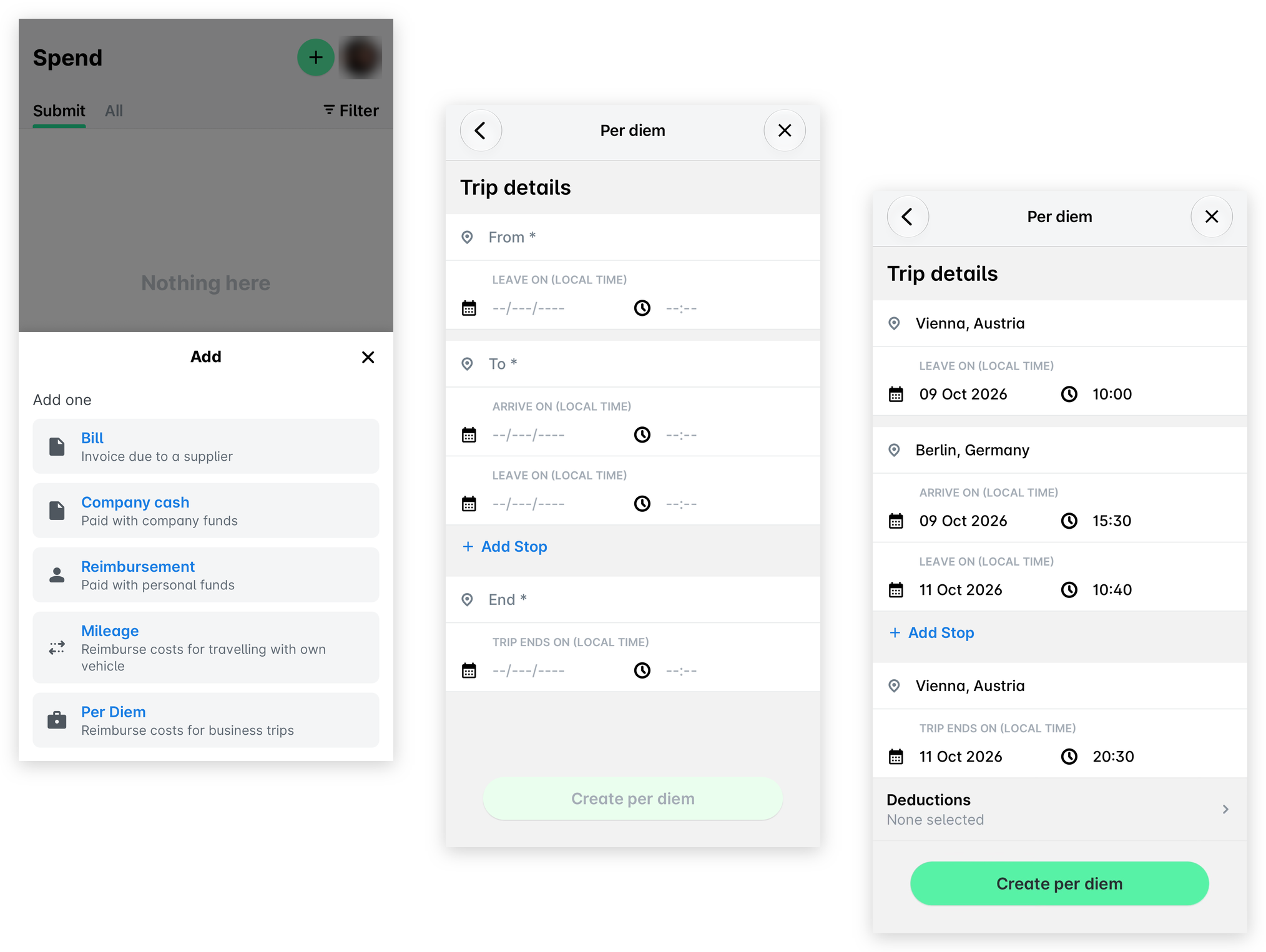
Go to Spend, tap the + (plus) button, and select Per Diem.
Enter the required trip details.
In the Deductions field, select the meals that have been included in the price, if any.
Tap Create per diem. As a result, an expense request will be automatically submitted to the relevant approvers at your company.
Useful resources