You can create bills, reimbursements, and company cash expenses in the Payhawk Web Portal or Payhawk Mobile App and submit them to the relevant approvers according to the defined workflows at your company.
Creating and submitting bills, reimbursements, and company cash in the Web Portal
To create a bill, reimbursement, or company cash expense:
In the Payhawk Web Portal, go to Spend.
Click on the + New button.
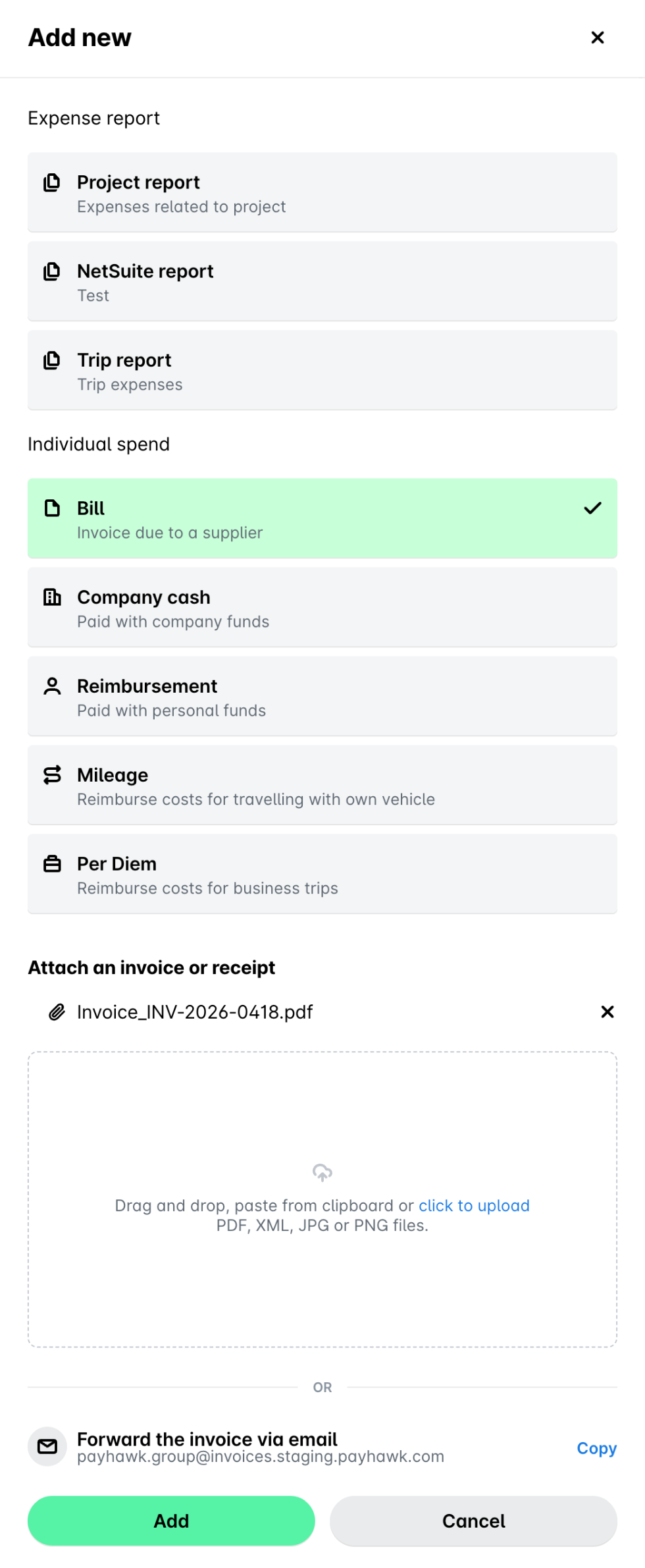
On the screen that loads, select Bill or Reimbursement. For this example, click on Bill.
Note that for reimbursements, the screen will display your current reimbursement details. If they are incorrect, edit them and click on the Save button.
Upload the expense document. Click on the Add button. Note that if you upload more than one expense document, the system will automatically create as many expenses as attached documents uploaded.
Payhawk's data extraction tool will automatically extract the supplier data. Enter the required details, if any.
Click on Submit.
Creating and submitting bills, reimbursements, and company cash in the Mobile App
To create a bill payment, reimbursement, or company cash expense:
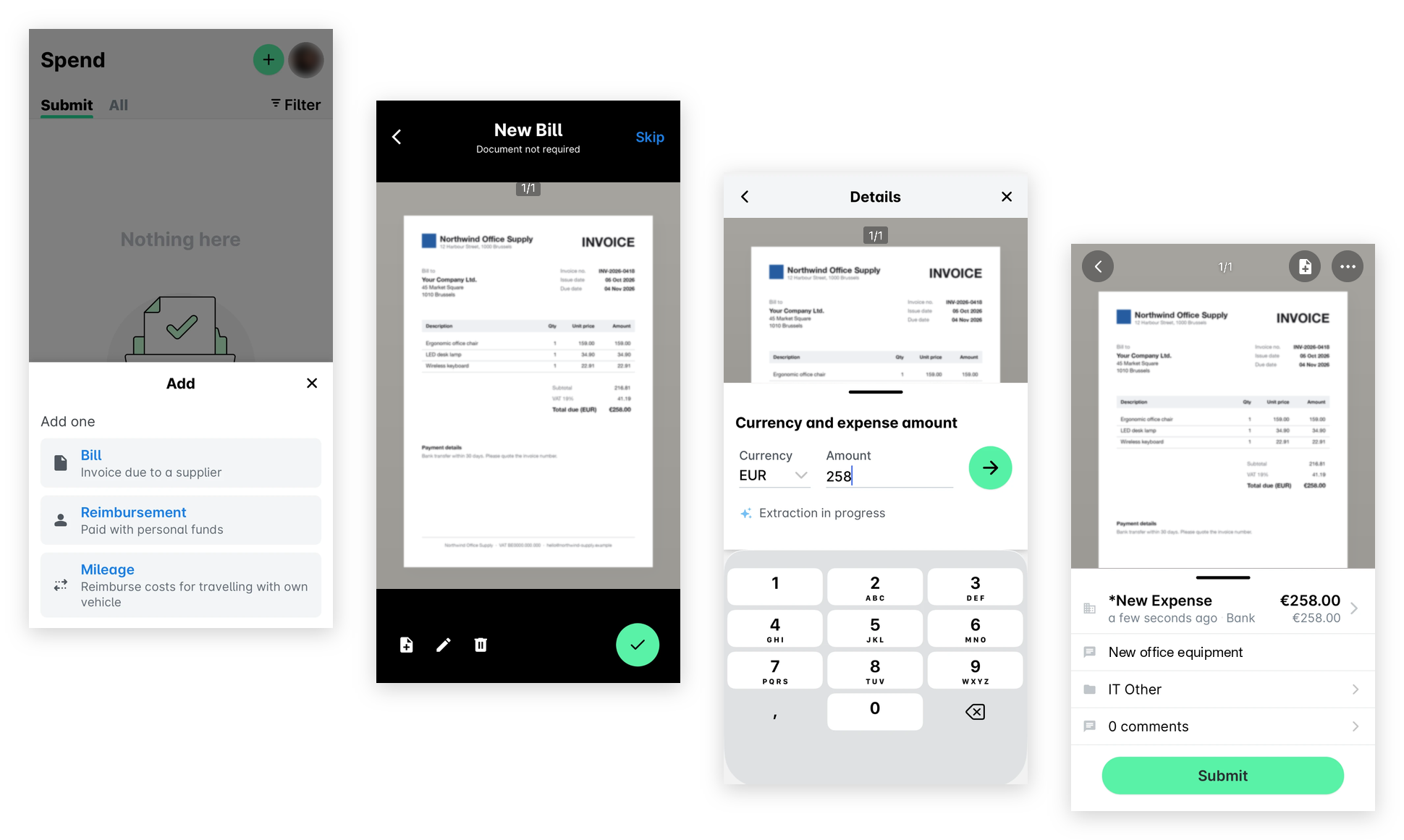
Go to Spend and tap the + (plus) button.
Select Bill or Reimbursement. For this example, tap Bill - the camera of your mobile phone will open.
Take a photo or upload the document and tap the ✔ button.
Fill in the currency and the amount, and tap the → button.
Add the required details and tap the ✔ button. As a result, an expense request will be automatically submitted to the relevant approvers at your company.
Useful resources