You can create card expenses in the Payhawk Web Portal or Payhawk Mobile App and submit them to the relevant approvers according to the defined workflows at your company.
Creating and submitting card expenses in the Web Portal
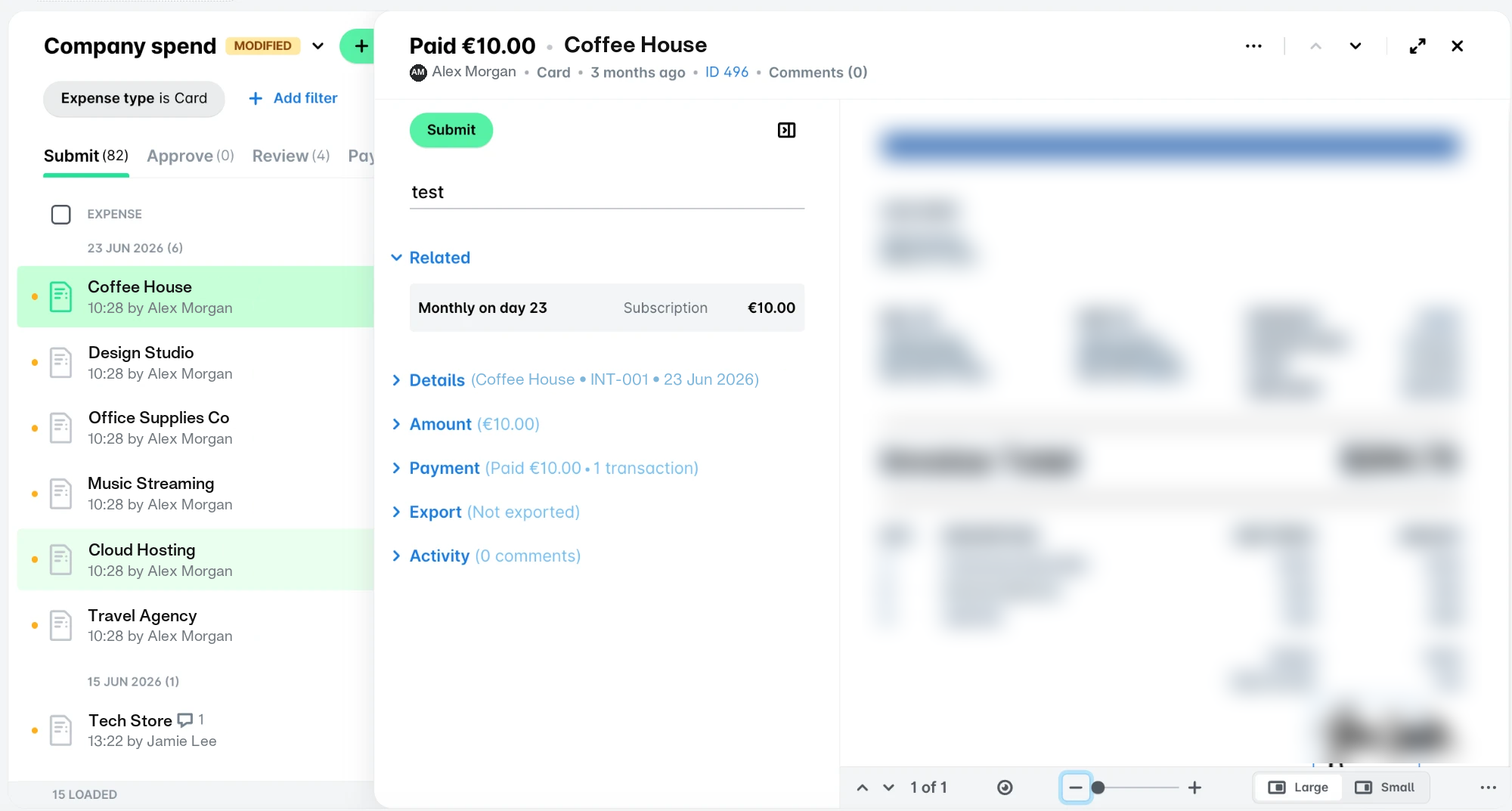
Once you've paid with your corporate card, an expense is automatically created in Payhawk.
To upload documents for card expenses:
In the Payhawk Web Portal, go to the Spend > Submit tab.
Select the expense you need.
Payhawk's data extraction tool will automatically populate the expense data based on the document and the supplier. Review the automatically extracted information and fill out any other fields manually.
Click on Submit.
Creating and submitting card expenses in the Mobile App
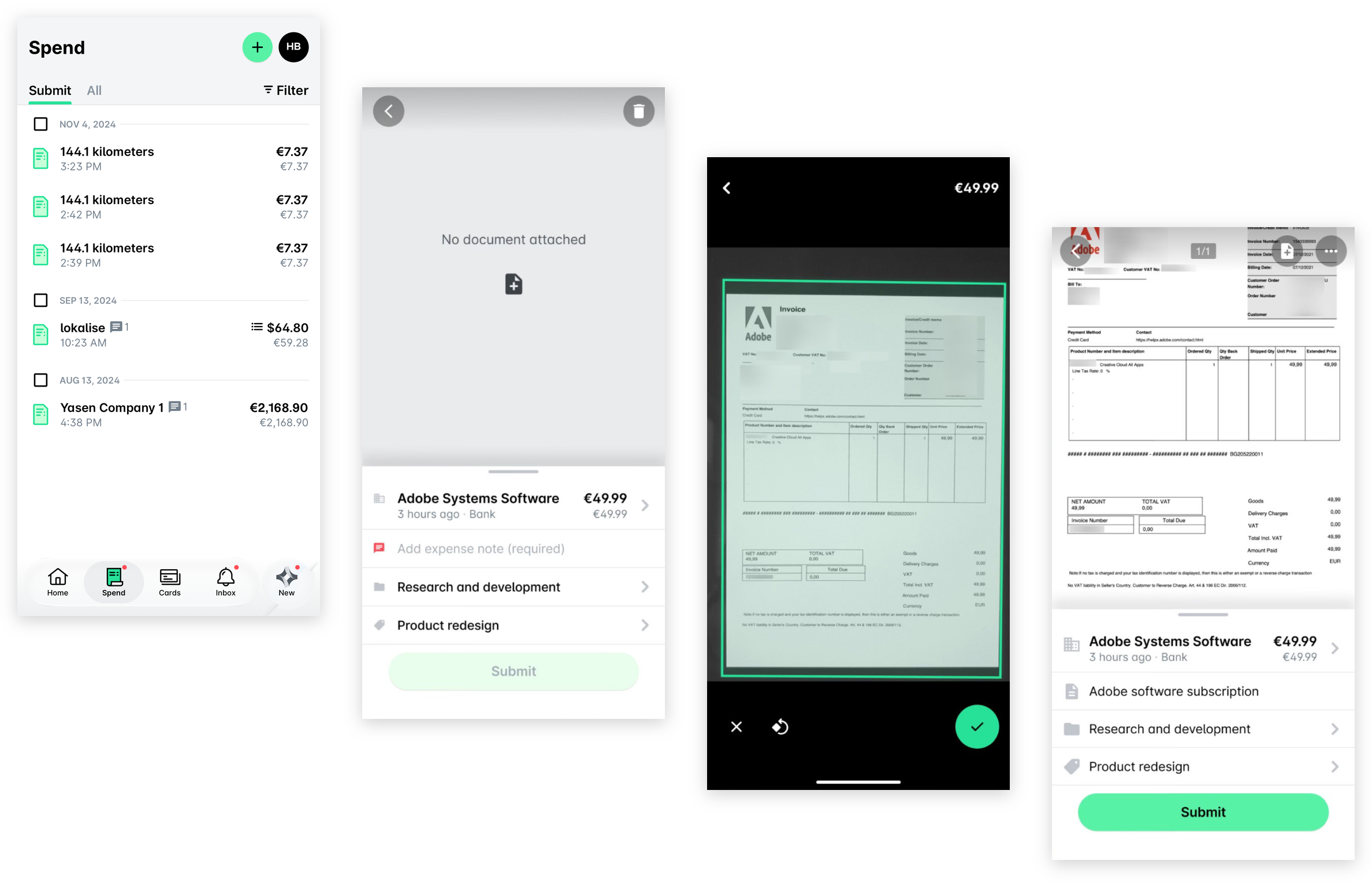
Once you've paid with your corporate card, an expense is automatically created.
To upload documents for card expenses:
Go to Spend > Submit.
Select the desired expense and add a note.
Add the document by tapping the + (plus) icon in the middle of the screen. As a result, your camera will open.
Note that depending on your operating system and phone, you may need to allow Payhawk to use your camera.
Take a photo or upload the document and tap the ✔ button.
Tap the Submit button. As a result, an expense request will be automatically submitted to the relevant approvers at your company.
Useful resources