Apart from manually importing suppliers to Payhawk or populating them automatically by syncing the supplier data with the ERP system, you can also create a supplier from the Suppliers app, search for it in the supplier database, archive it if it's no longer needed, and then restore it if your company needs it again.
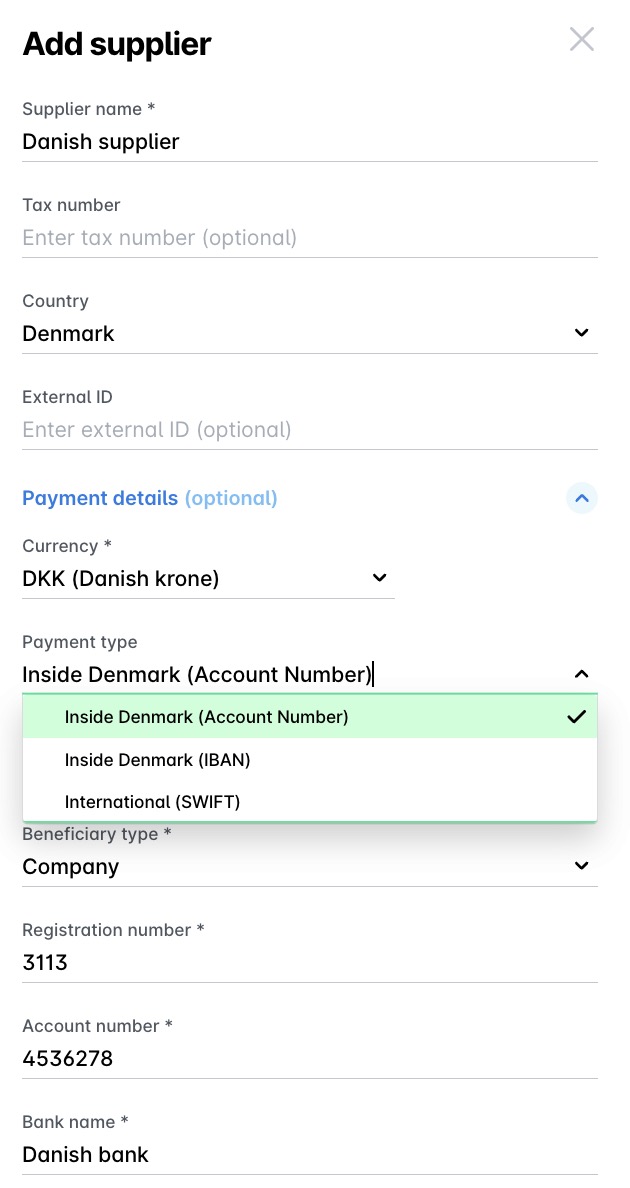
Notes on creating Danish suppliers
For suppliers paid in DKK within Denmark, you can now select the Inside Denmark (Account Number) option and add an account number (instead of an IBAN).
Creating new suppliers
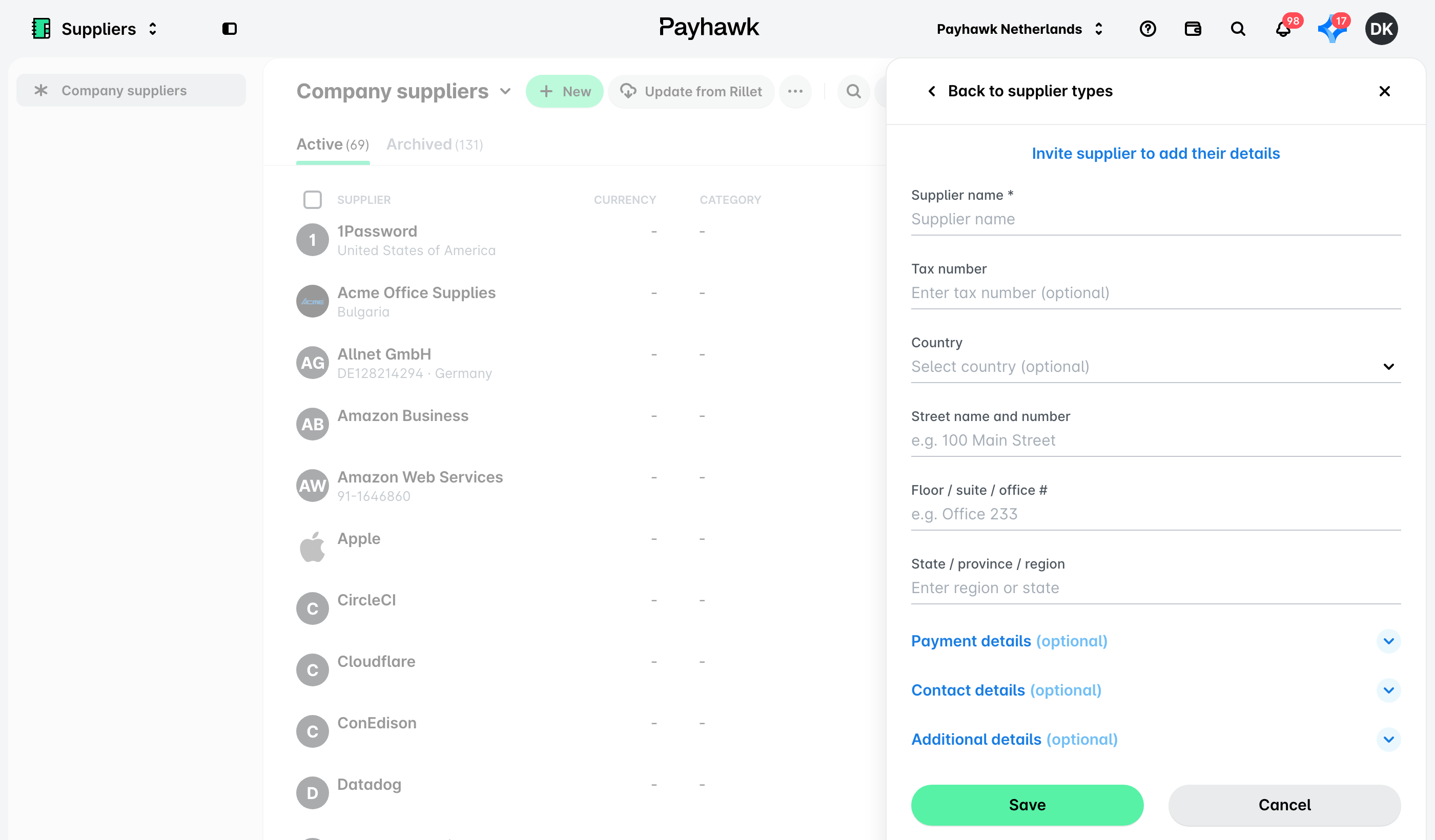
To create a new supplier in Payhawk:
Log in to the Payhawk Web Portal.
Open the app switcher in the top-left corner and go to Suppliers > Company suppliers.
Click on the + New button.
In the dialog that opens, fill in the available data and click on Save. As a result, your supplier is listed under the Suppliers > Active tab.
To create a new entry, you are required to fill in the supplier name only. The other supplier details can be added later on.
Adding new suppliers when uploading expenses
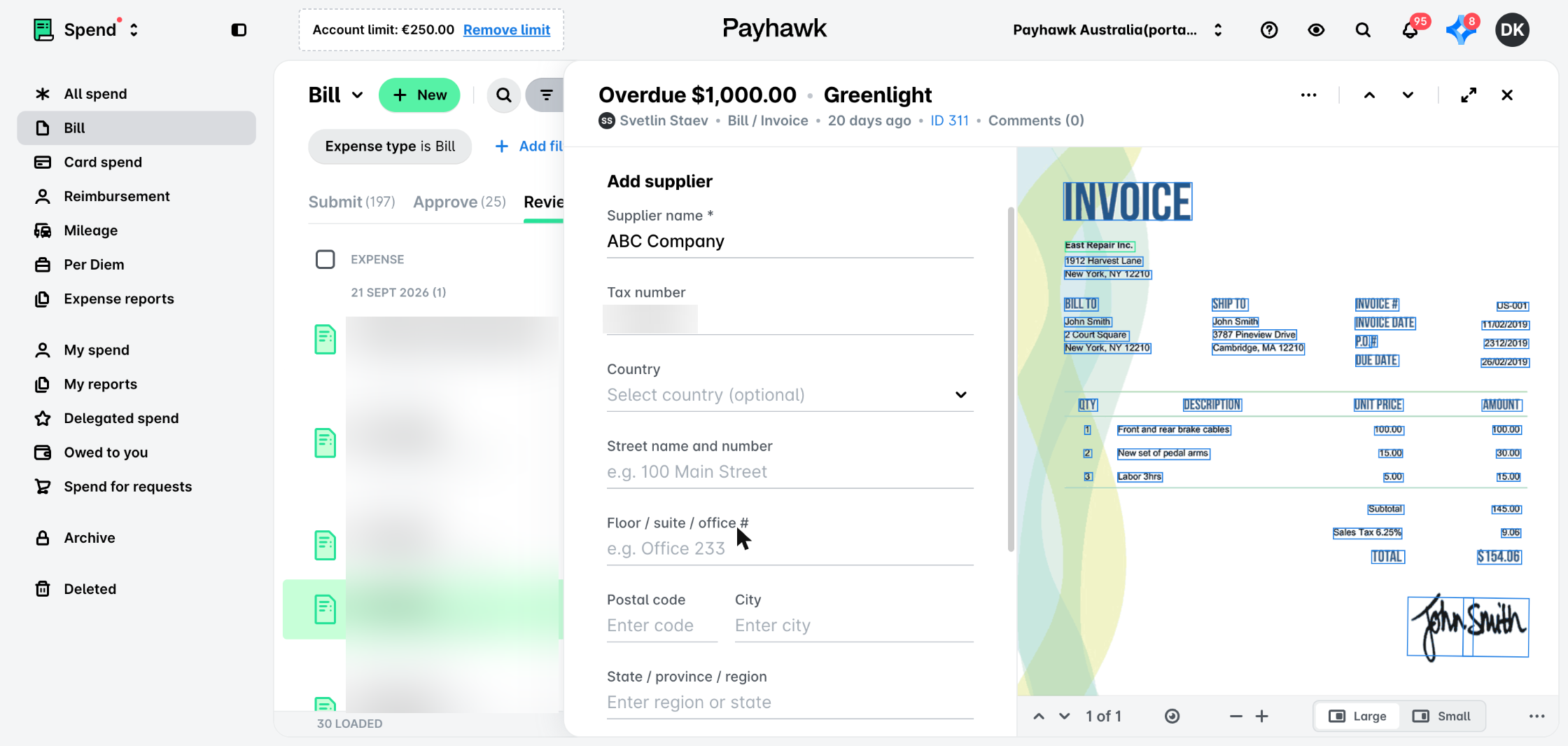
The Payhawk optical character recognition (OCR) tool automatically detects the name of the supplier when an employee uploads an expense. When a Payhawk accountant or administrator opens the expense, the system will prompt them to add this supplier to the account if it's a new supplier.
If the Supplier expense field has been set to Everyone, employees can either select an existing supplier or mark a supplier as new.
If the Supplier expense field has been set to Accountants and Administrators, the Supplier field will be removed from the expense and employees won't be able to see or input any supplier information.
To add a new supplier from the Spend app in Payhawk:
Go to Spend and open the desired expense.
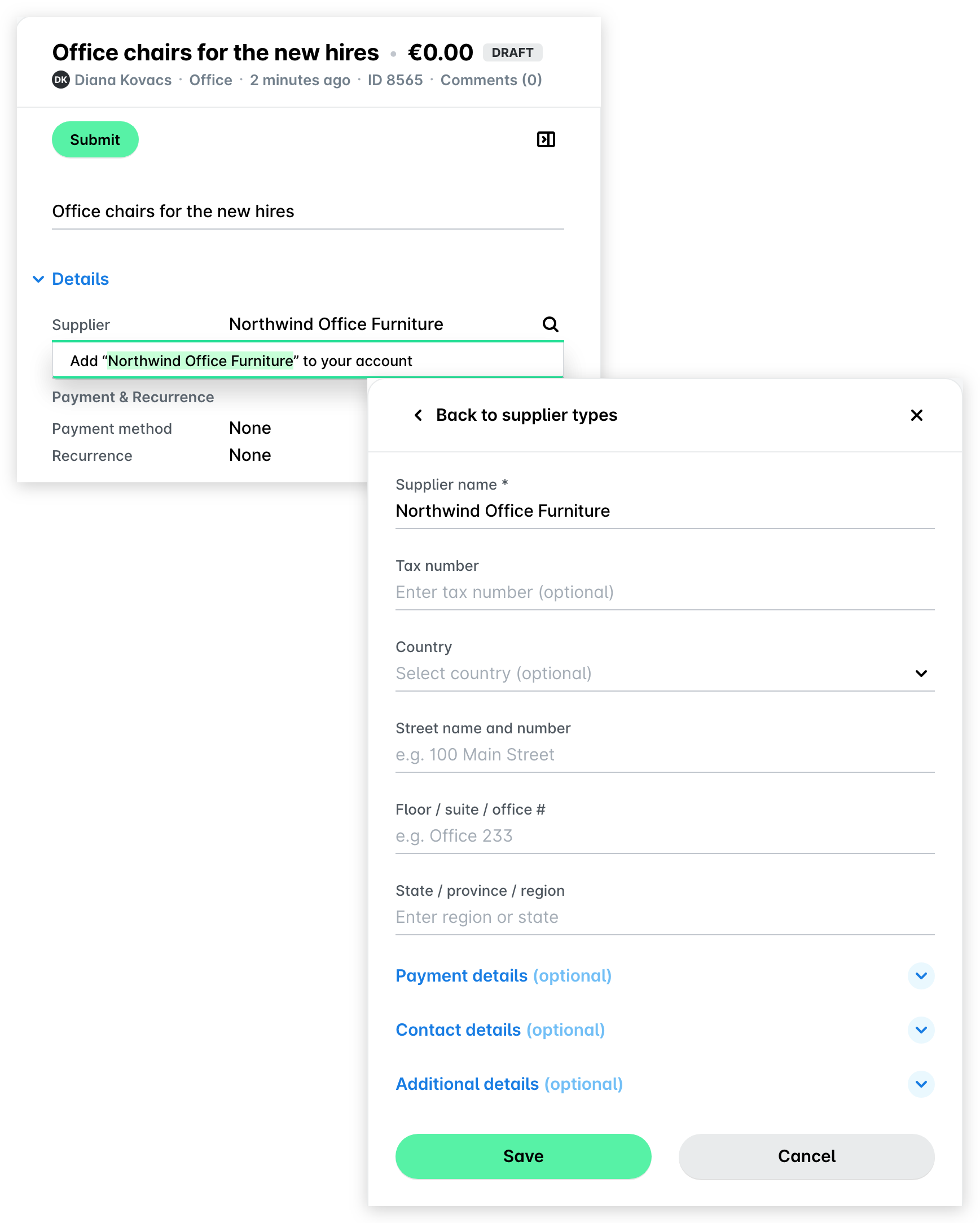
In the Details section, under Supplier, click on the Add supplier to your account link.
In the dialog that opens, Payhawk displays the automatically extracted information about the expense and as a result, some of the supplier fields are already populated.
Fill in any details you need. Click on Save.
Adding new suppliers from purchases
When an employee has submitted a purchase and marked its supplier as new, the system will prompt the Payhawk accountants and administrators to add this supplier to the company's account.
To add a new supplier from a submitted purchase in the Requests app:
In the Payhawk Web Portal, go to the desired purchase.
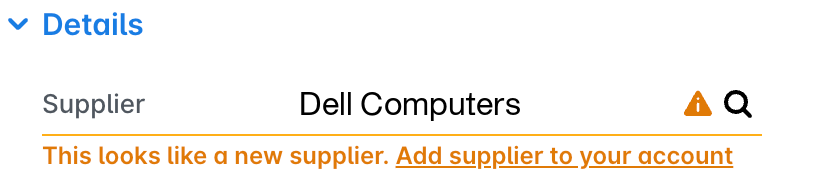
In the Details section, under Supplier, click on the Add supplier to your account link.
In the panel that opens, fill in the supplier details.
Click on Save.
Payhawk accountants and administrators can also add new suppliers when they submit a purchase themselves:
Click on the Add "[supplier]" to your account option.
In the panel that opens, fill in the supplier details.
Click on Save.
Archiving suppliers
If a wrong supplier has been added to the list with active suppliers, an existing supplier has become outdated, or the supplier details are inaccurate and you prefer to keep them out of use instead of deleting them, you can move the supplier under the Suppliers > Archived tab.
To archive a supplier:
Go to Suppliers > Active tab.
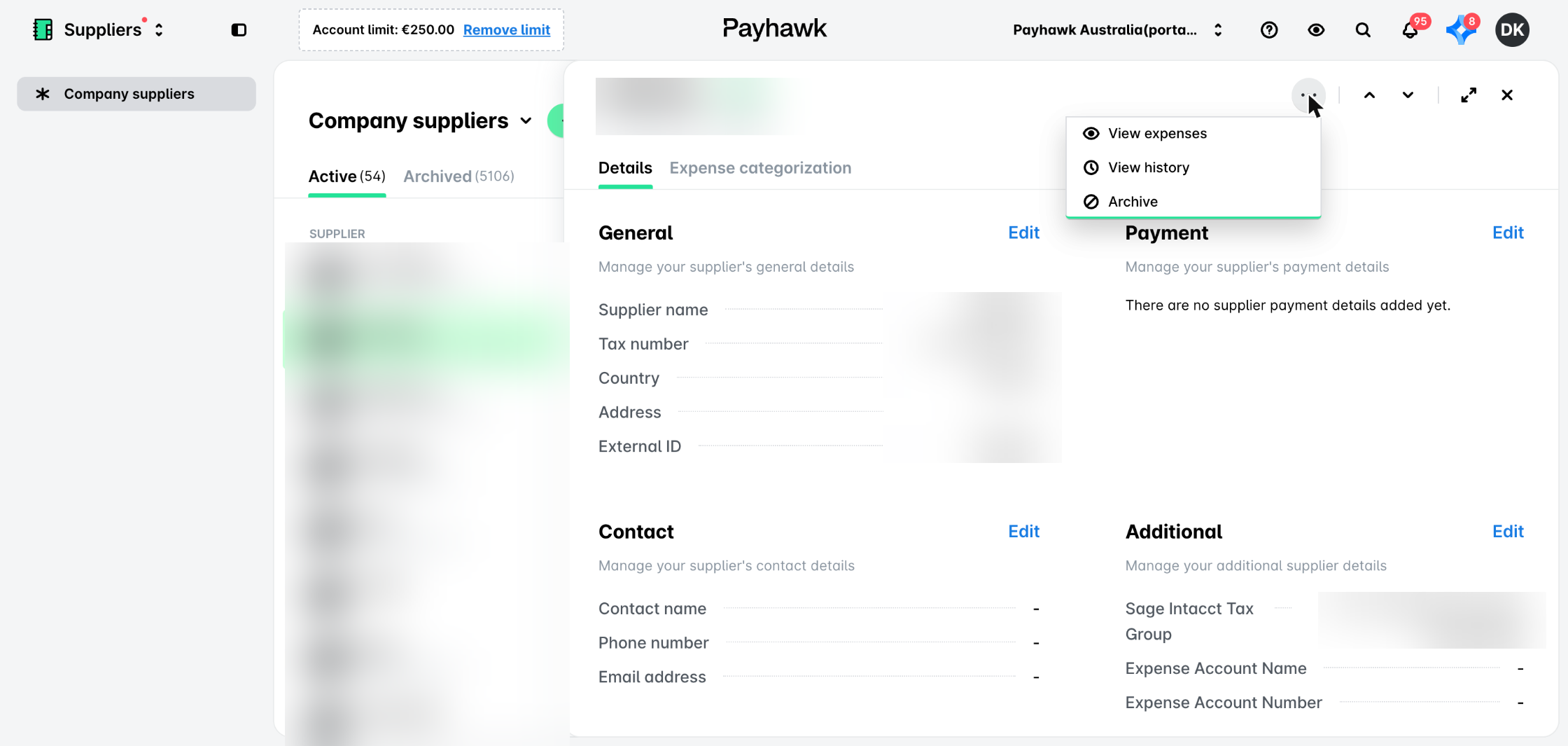
Select the desired supplier by clicking on it.
Click on its three dots menu and select the Archive option. As a result, the supplier will move under the Archived tab.
Restoring archived suppliers
You can still restore a supplier as active, thus enabling edits in its details and expense categorization:
Go to Suppliers > Archived tab.
Select the desired supplier by clicking on it.
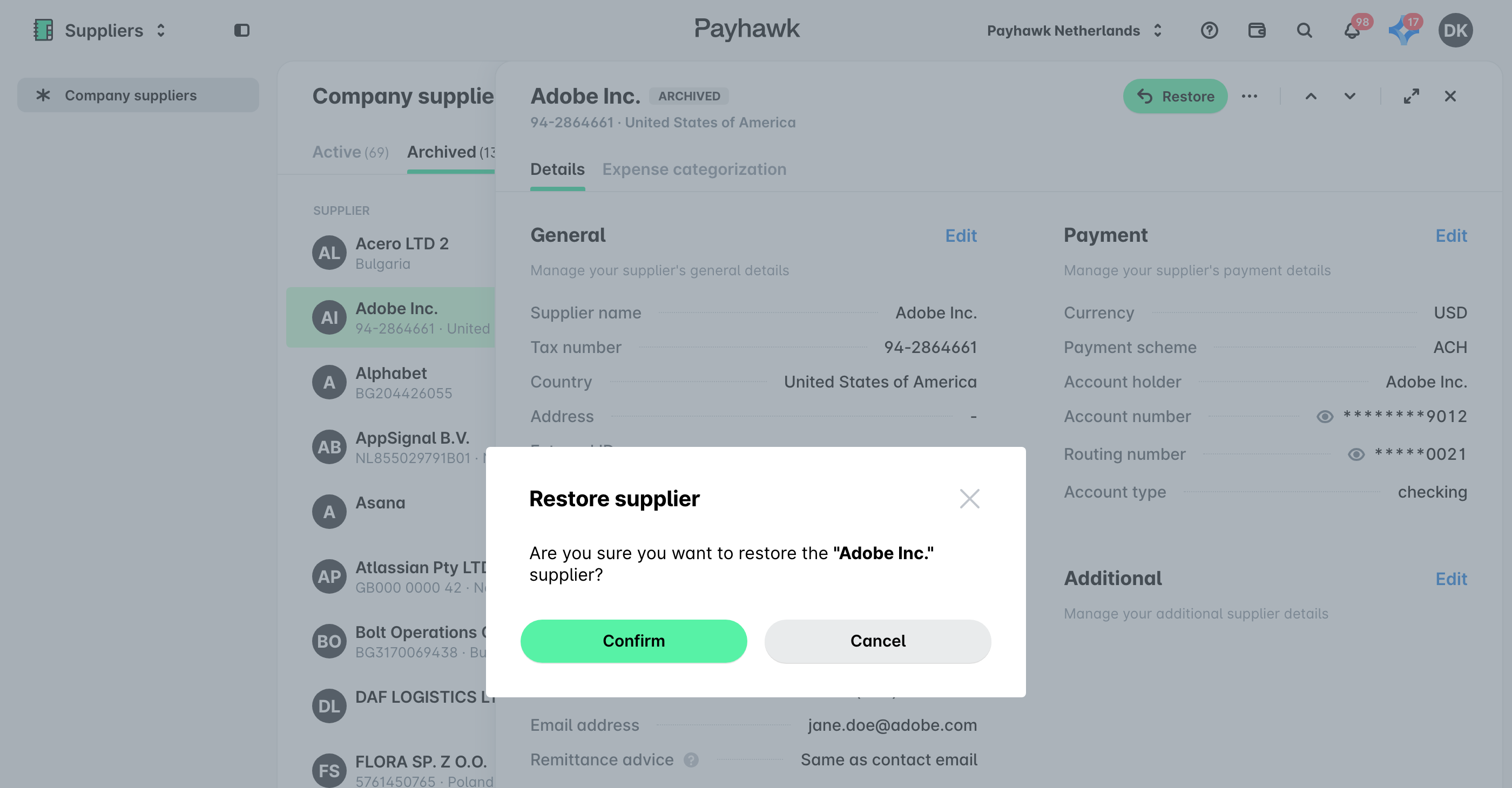
Click on the Restore button.
In the dialog that opens, click on Confirm to confirm your changes. As a result, the supplier has moved from the Suppliers > Archived to the Active tab.
Searching for suppliers
If your supplier list becomes too large but you need to quickly narrow it down to find a specific supplier, you can utilize the search option and filter out the desired company.
To search for a supplier both in the Suppliers > Active and Archived lists:
Log in to the Payhawk Web Portal.
Go to Suppliers.
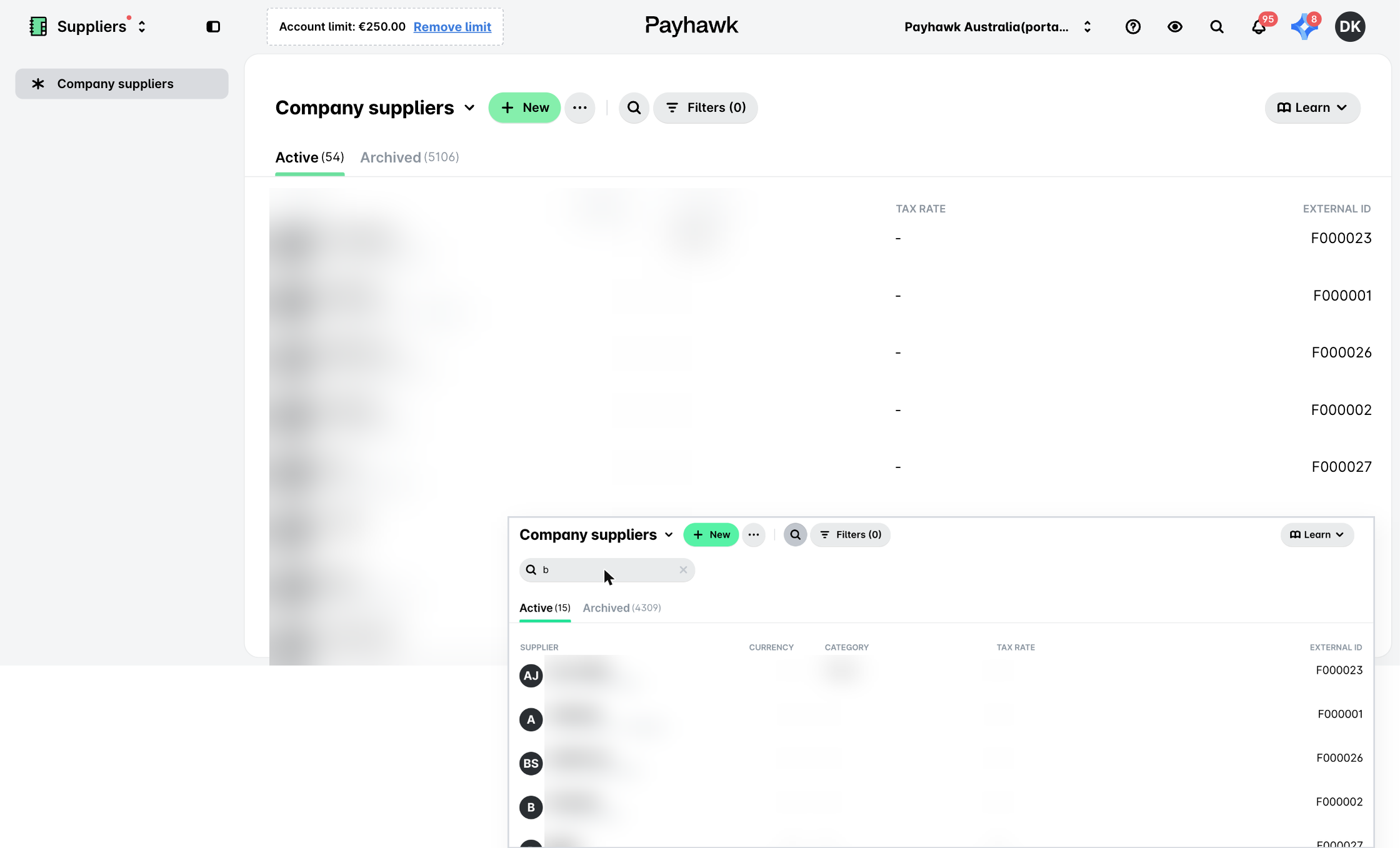
Click in the search (magnifying glass) bar and type in part of or the whole supplier name. As a result, the system will display a list of related results if any.
To exit the search option and return to the main Suppliers screen, click on the x in the search bar.
Useful resources