To upload expense documents in Payhawk, you can take a photo using your phone’s camera and benefiting from Payhawk's data extraction tool, upload images from your gallery, add PDF files from your File folder, or share documents directly from your email using your device’s file-upload feature.
You can also use the built-in camera tools to enhance document quality and attach multiple documents to a single expense, if needed.
Taking photos of receipts and invoices or adding them as images and files from your phone
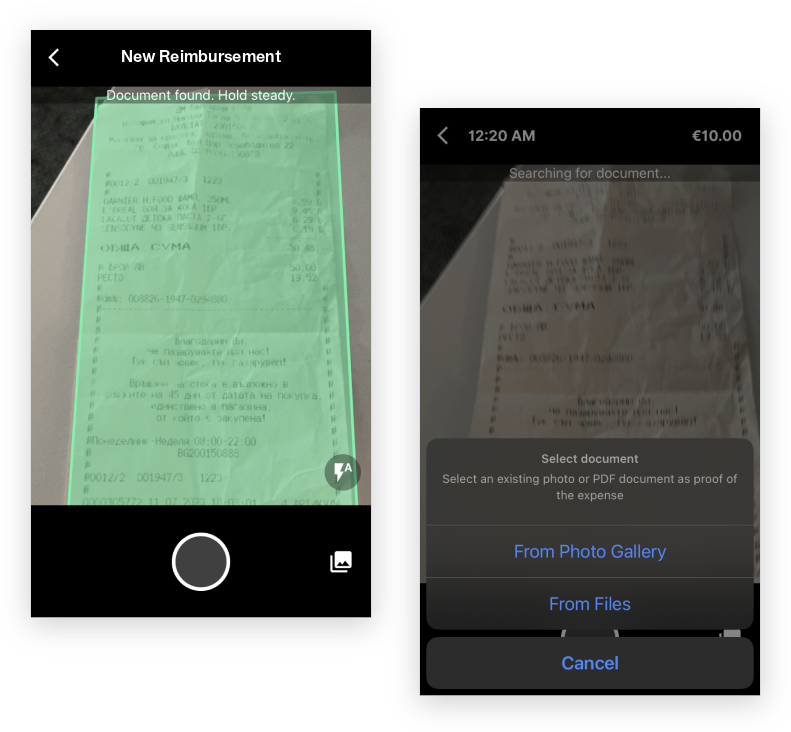
When creating an expense on your mobile device, you can attach a receipt or invoice by using one of the following methods, depending on your situation:
Use your phone’s camera to capture the document at the time of creating the expense.
Payhawk’s data extraction tool will automatically detect the document, take the photo, adjust its edges, and extract supplier data for you.
Alternatively, you can take the photo manually if preferred.
Upload an image from your phone’s photo gallery.
Attach a file from your phone’s File folder.
Uploading multiple receipts and invoices for an expense
In Payhawk, you can add two or more receipts and invoices to an expense, both when creating the expense and after that.
Payhawk's data extraction will suggest the expense data from the first document you upload.
To attach multiple receipts or invoices to a bill, reimbursable expense, or an already created card expense, open the expense and tap the + (plus) button. For more information, see the article on creating and submitting expenses from the Payhawk Mobile App.
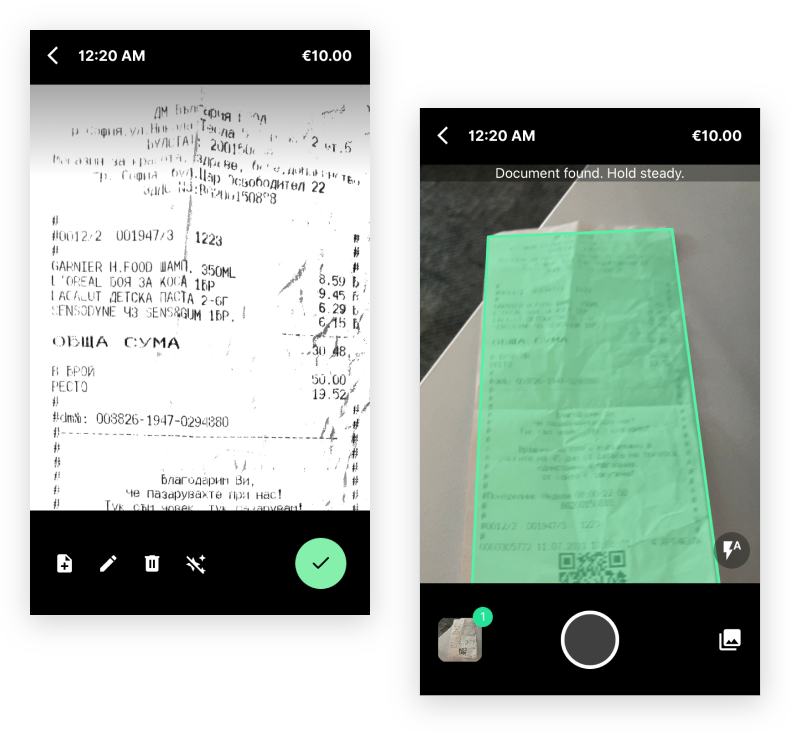
You can add additional documents to submitted, unsubmitted, or returned expenses. To do this, first select the Edit option, then tap the + (plus) button to upload more files.
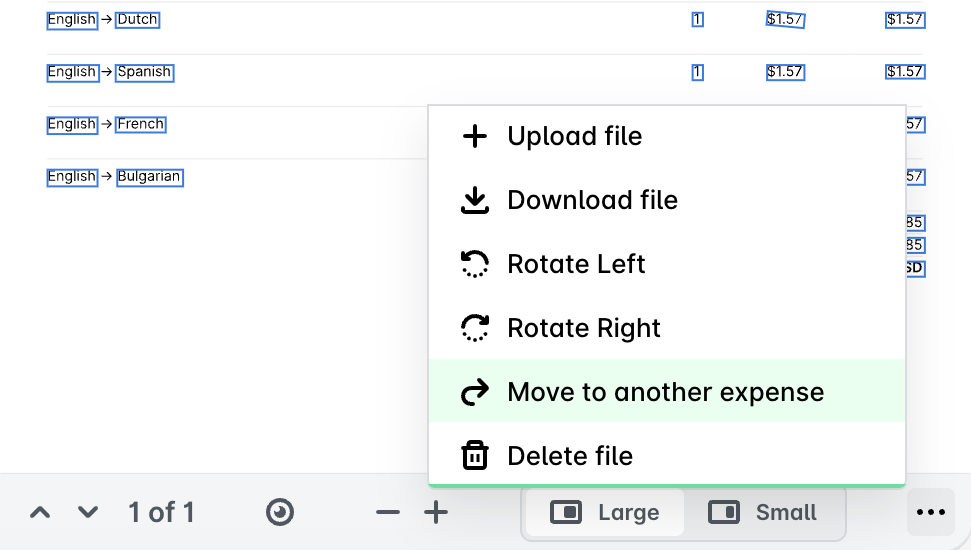
If you've accidentally uploaded a receipt or invoice to the wrong expense, you can move it to the correct one using the Move to another expense option in the Payhawk Web Portal.
Rotating attached receipts and invoices
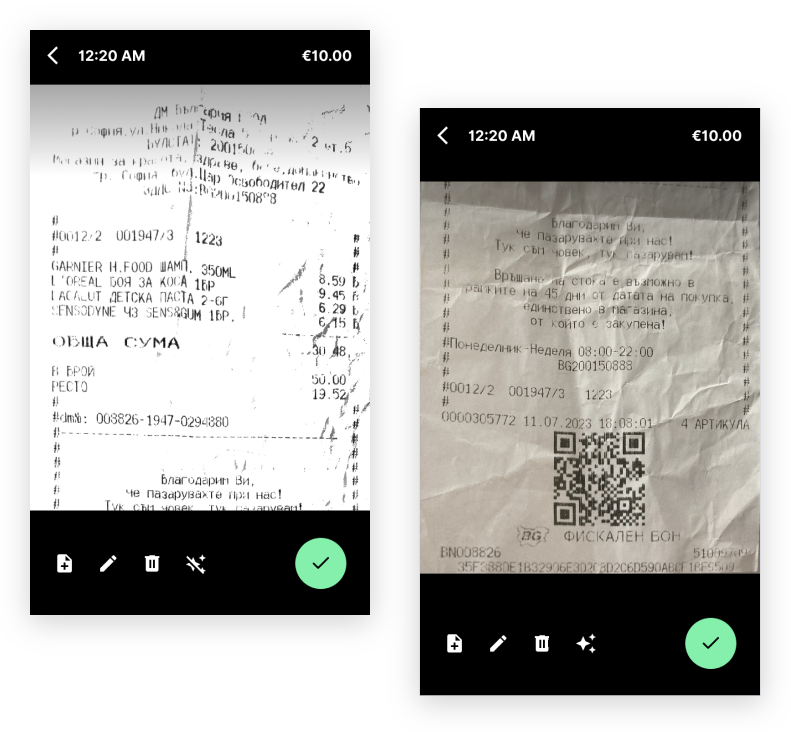
After taking a photo of your expense document, you can rotate the image by tapping the Edit icon.
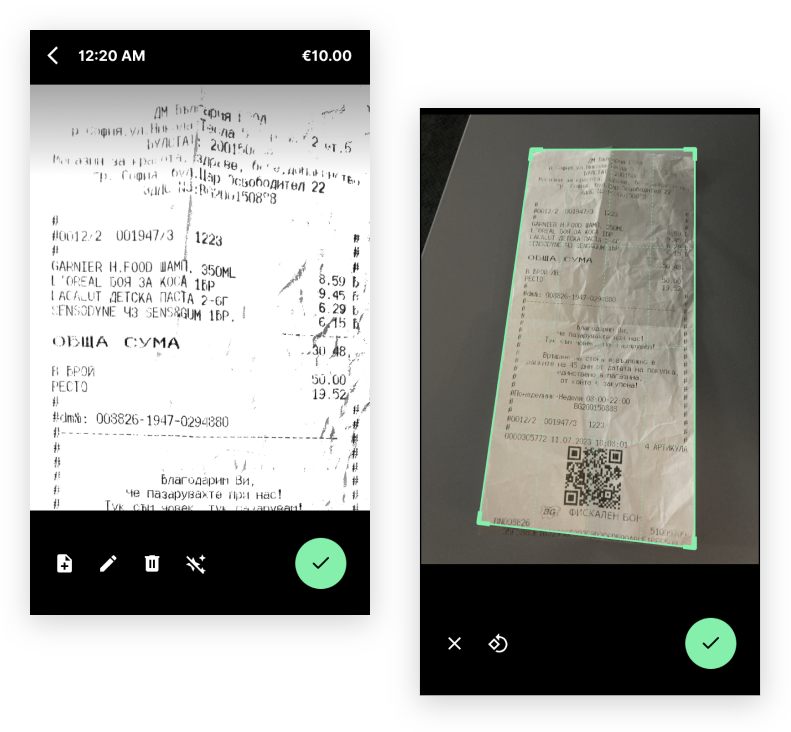
Improving the readability of attached receipts and invoices
If the data on the expense document is difficult to read, you can enhance its readability by using the display modes available via the Stars icon.
Removing and replacing attached receipts and invoices
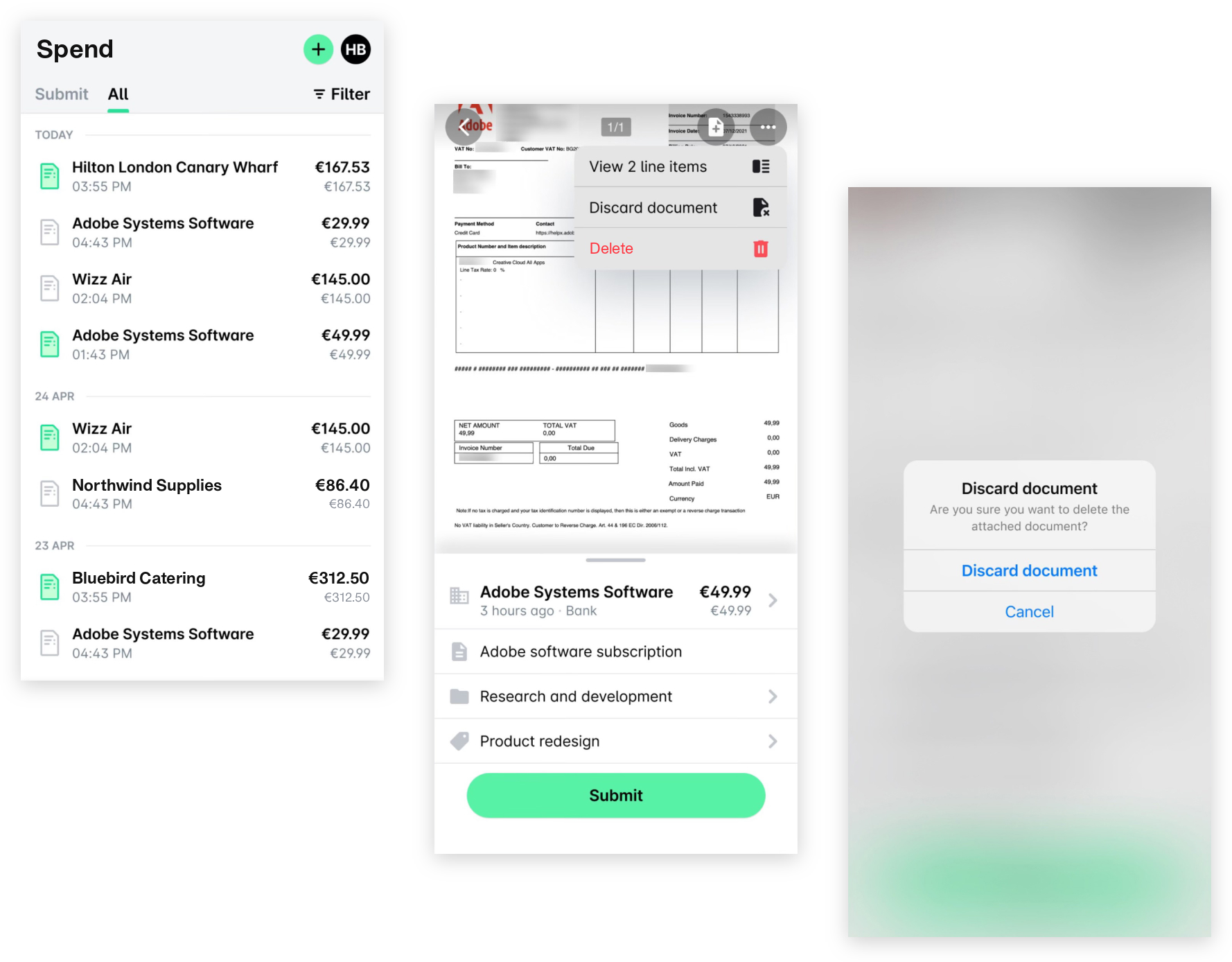
If the image of a receipt or invoice you uploaded while creating the expense is of poor quality, you can replace it in the following way:
Open the expense, tap the three-dot menu, and select Discard document.
Confirm your action by tapping Discard document again.
You can now take a new photo or upload a clearer image or file from your mobile device.
If the expense has already been approved or reviewed, ask the approver or reviewer to return it to you. Once it's returned, you’ll be able to edit the expense and replace the document with the correct version.
Uploading receipts and invoices to Payhawk via your device's file-share functionality
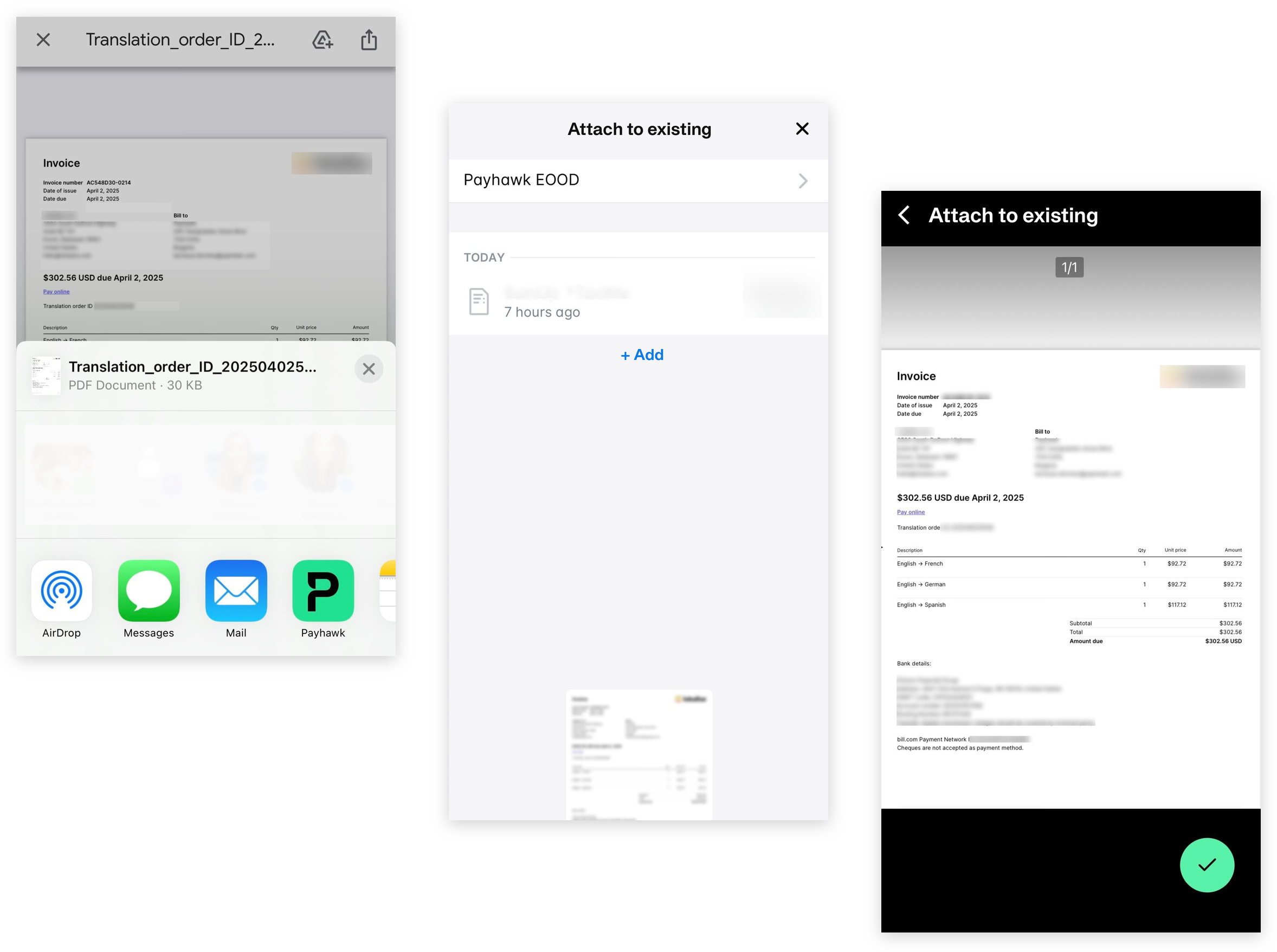
You can also use your mobile device’s native file-sharing feature to upload receipts or invoices, saved as files or images, directly to Payhawk.
On your phone, open the image or the file.
Tap the Share button.
From the list of options, select the Payhawk Mobile App.
Follow the instructions.
Manually associating unmatched invoices to expenses
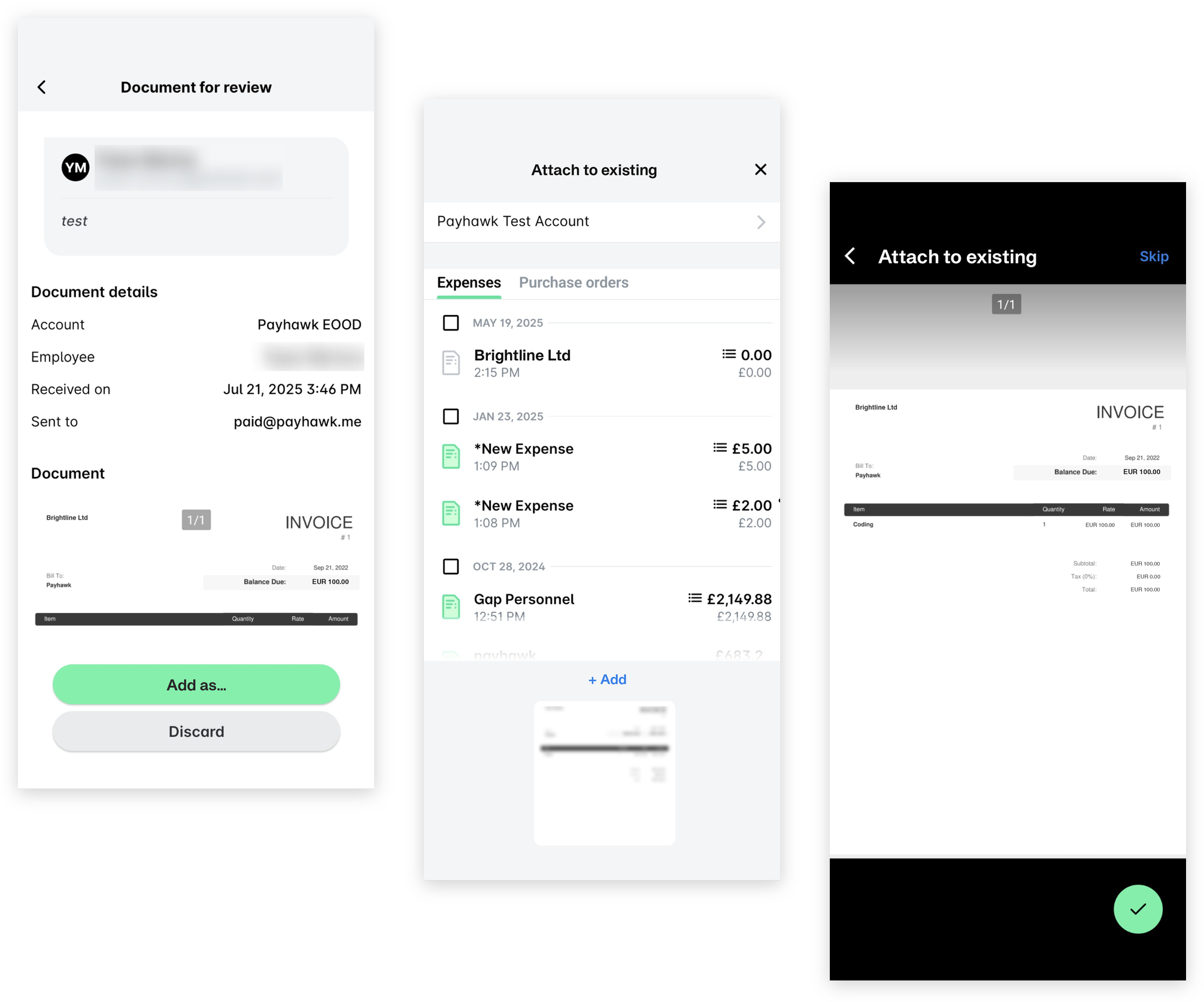
Invoices sent to the Payhawk Mailbox are automatically matched to the corresponding expenses.
If the system cannot find a match, you'll need to manually match the expense document to the expense in the following way:
Check your Payhawk Inbox for unmatched invoices.
Manually map the invoice to the appropriate expense in the system.
Confirm that the invoice is correctly linked to the expense record.
Useful resources