As a Payhawk Administrator, you can easily invite your company employees to the system and set a flexible team structure that corresponds to the needs of your organization.
Teams in Payhawk do not have to correspond to the formal internal structure of your company. Rather, they can reflect relations between employees based on a cost center or other type of project or location.
The Employees app
In Payhawk, actions related to employees and teams are done in the Employees app, for example, inviting or deleting employees, or creating, editing, and deleting teams.
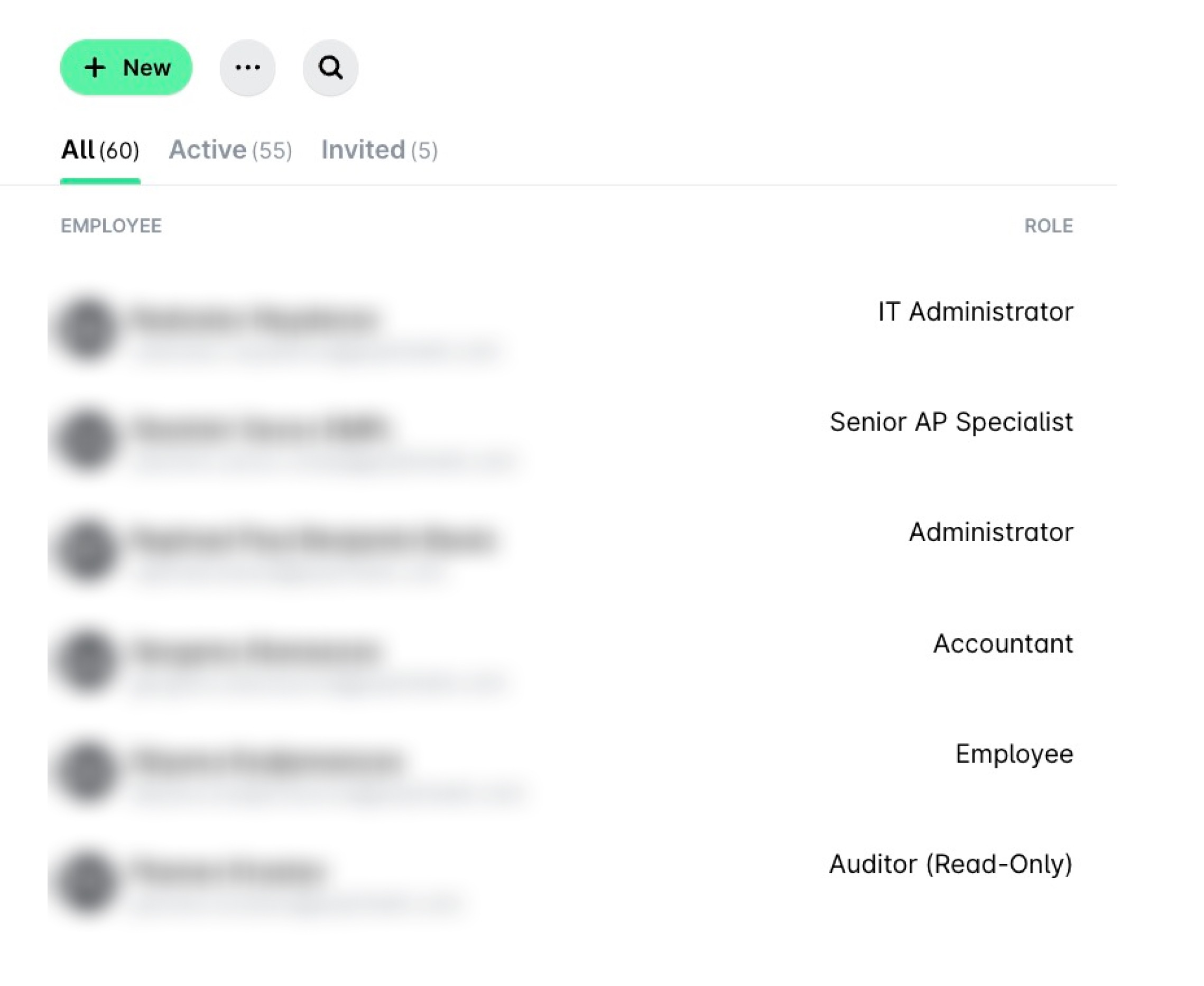
The Employees app contains the following tabs:
The Active tab contains all employees who have successfully signed up (registered) in Payhawk.
The Invited tab contains all employees who have been invited to Payhawk but have not signed up yet.
The Not invited tab contains all employees who have not been invited to Payhawk.
The All tab contains both active users and users with pending invitations.
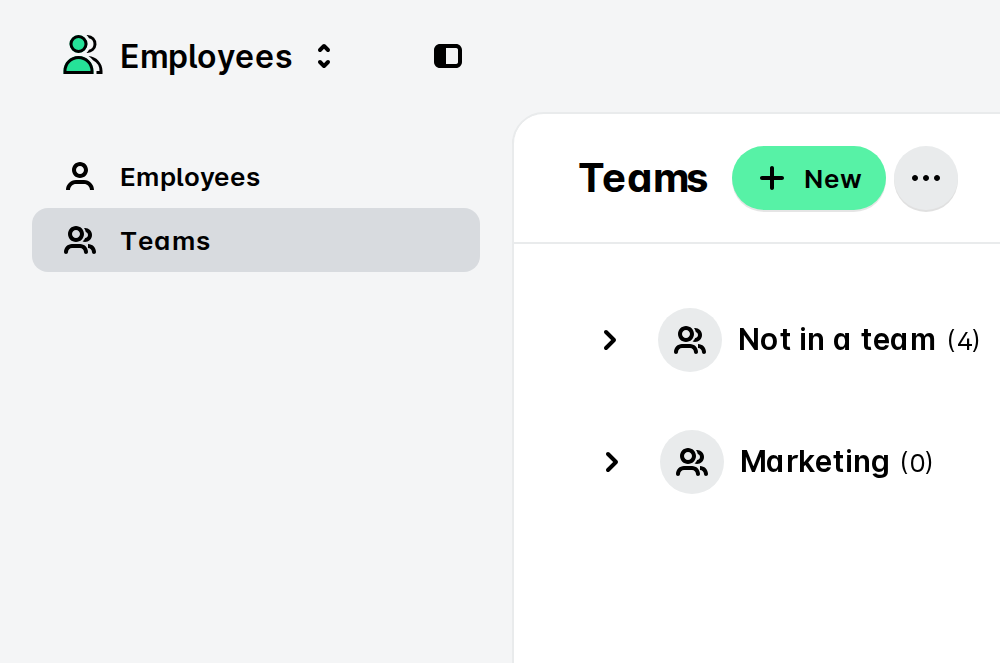
The Employees > Teams view contains the teams Payhawk Administrators create in Payhawk. From there, you can also edit teams, assign Team Managers, add employees to teams, or delete a team if needed.
Defining the global team settings for your company
Before creating teams in Payhawk, you need to define their settings and, if necessary, enable the categorization of expenses based on employee teams.
The definition of team settings for your company is located in Settings > Teams.
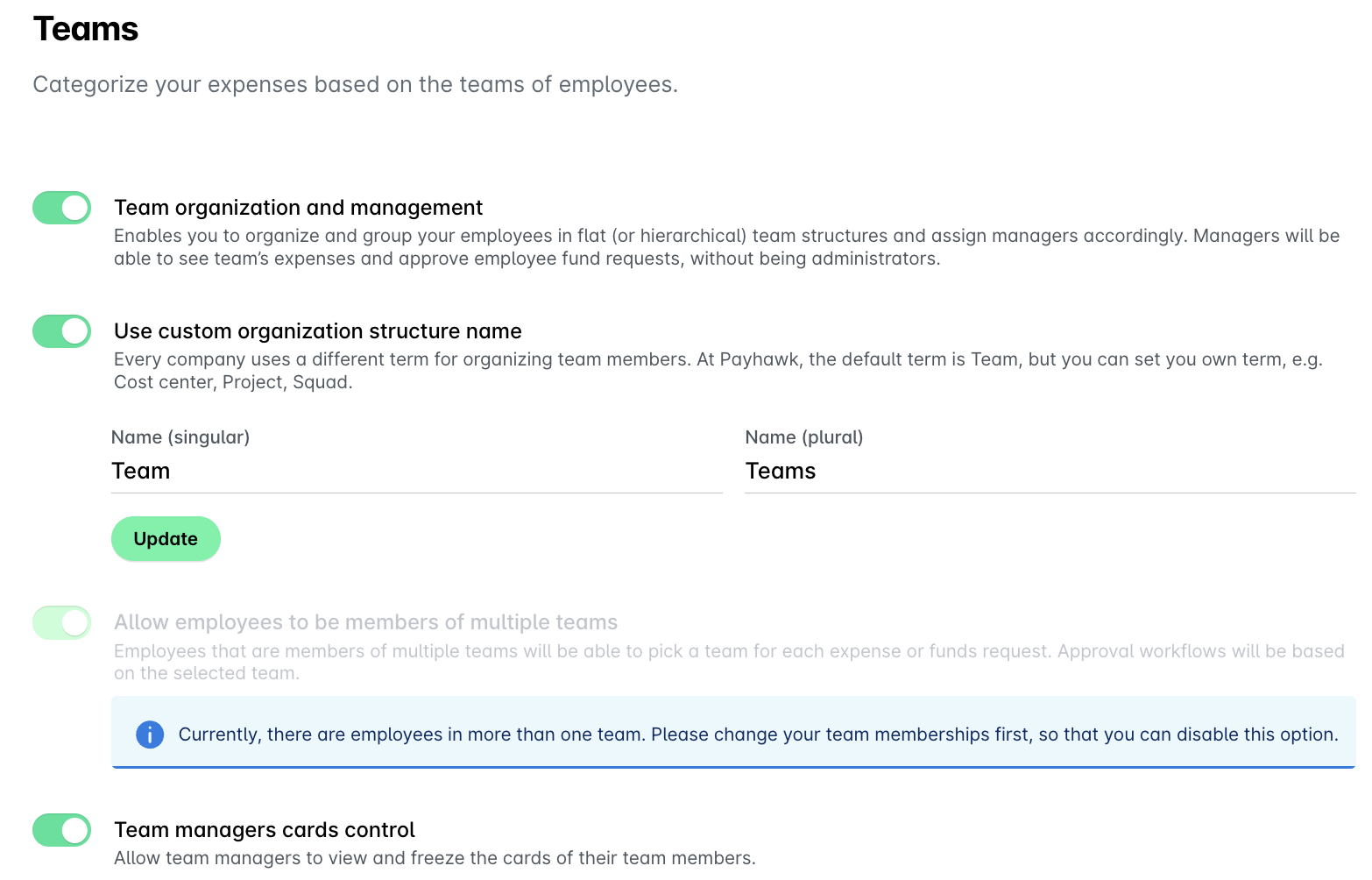
The following table shows the global team settings and their effect on your company's team structure.
Setting | Details |
Team organization and management | This option enables you to create teams and sub-teams and define your custom company structure. When Team organization and management is enabled, the Team built-in expense field will be visible under Settings > Fields library. By default, Team organization and management is enabled. |
Use custom organization structure name | This option allows you to use a different term for the employee organization at your company - for example, Cost center, Project, or Department. Once you change the name, it will be reflected in Spend as well as in your export. By default, the Use custom organization structure name option is set to Team. |
Allow employees to be members of multiple teams | This option enables the employees of your company to be part of two or more teams. Notes:
By default, the Allow employees to be members of multiple teams is enabled. |
Team managers cards control | This option allows Team Managers to view and freeze their team member cards. By default, the Team managers cards control is enabled. |
Defining employees' roles
When you invite employees to your company and teams in Payhawk, you'll need to define their roles within the system, which in turn determines their access and visibility to your company's expense and spend data.
Setting employees' access and visibility
Payhawk’s system is designed to manage expenses, purchases, and expense report visibility based on the defined user roles, team assignments, approval workflows, and specific system settings.
Useful resources