You can manage your receipts and invoices in various ways directly within the Payhawk Web Portal using the available expense document options.
Uploading documents for new expenses
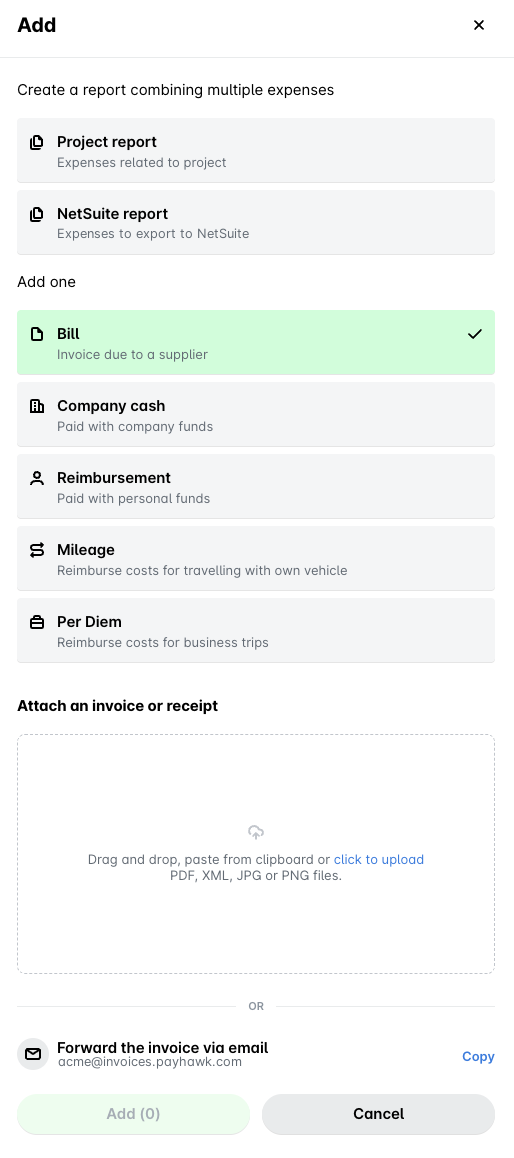
When creating an expense, you can upload one or multiple expense documents in PDF, JPG, and PNG in the following ways:
By dragging and dropping.
By uploading from your file system.
By pasting from the clipboard.
Uploading multiple receipts or invoices for an expense
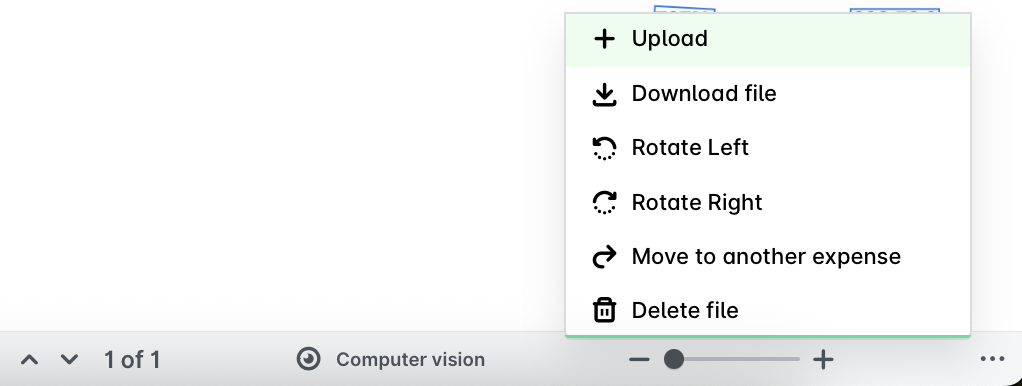
To upload an additional document to an expense:
In the Payhawk Web Portal, open the expense.
From the document options, select Upload.
Choose and attach a file from your computer.
This allows you to add multiple receipts or invoices to a single expense as needed.
Payhawk’s data extraction tool will suggest the expense details based on the first document you upload. For consecutively uploaded documents, Payhawk's data extraction tool will find any input in the file and create a textbox for each. To speed up processing, click on the field and then on the desired textbox to copy-paste its value.
Downloading and printing attached receipts and invoices
To download the expense document currently displayed on your screen, select the Download file option. The file will be saved to your Downloads folder, unless you have set a different default location on your device.
The Download file option remains available even after the expense has been submitted.
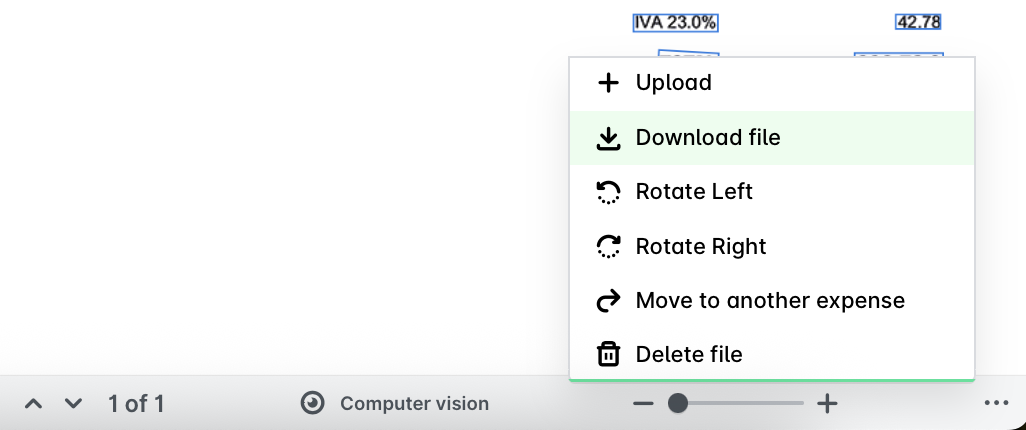
If you need to print or forward a receipt or invoice, use Download file, open the downloaded file on your device, and print or share it from there.
Rotating attached receipts and invoices
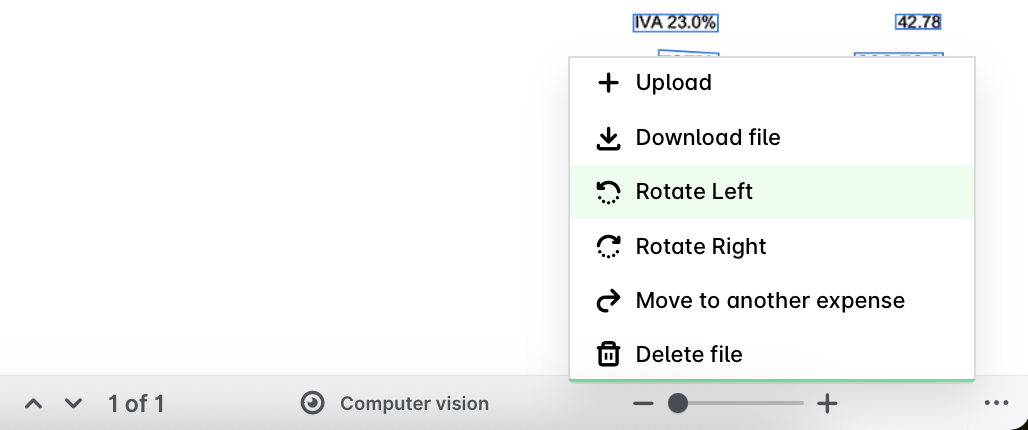
To rotate the expense document, select the Rotate Left or Rotate Right option, depending on the desired direction.
Moving a wrongly attached receipt or invoice to the correct expense
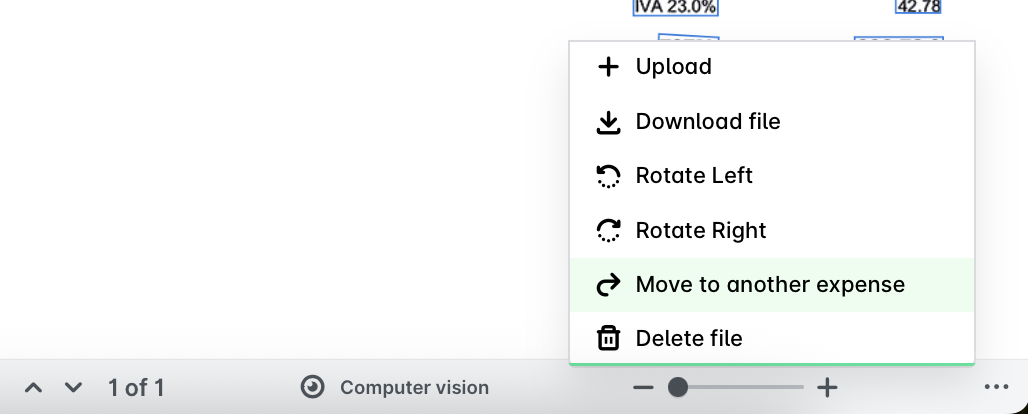
If a document has been attached to the wrong expense and you need to move it to the correct one, choose the Move to another expense option. In the dialog that appears, you can either select an existing expense to attach the document to or create a new one directly.
Removing and replacing attached receipts and invoices
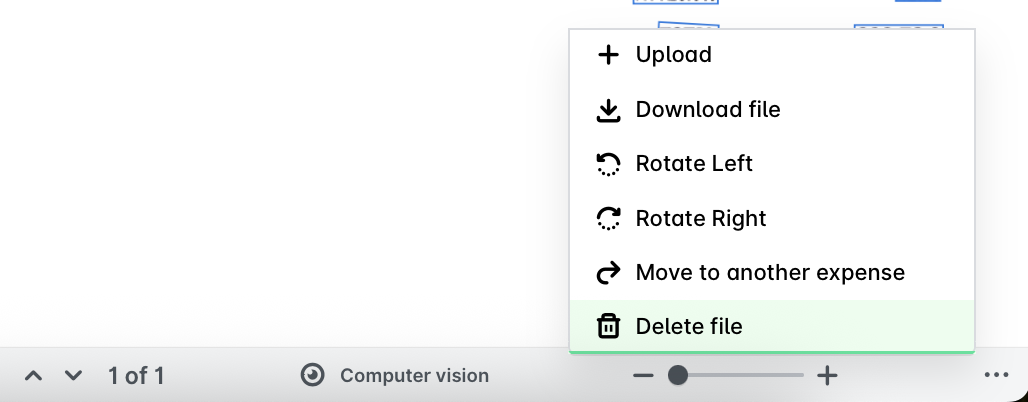
To remove a receipt or invoice attached to an expense:
In the Payhawk Web Portal, select the Delete file option.
In the confirmation dialog, check the box and click Delete to confirm.
Once the document is removed, you can attach a new one by selecting the Upload option and choosing a file from your computer.
Downloading deleted receipts and invoices
You can restore receipts and invoices deleted after October 7, 2025.
To download a deleted expense document:
In the Payhawk Web Portal, go to Spend.
Select the desired expense by clicking on it.
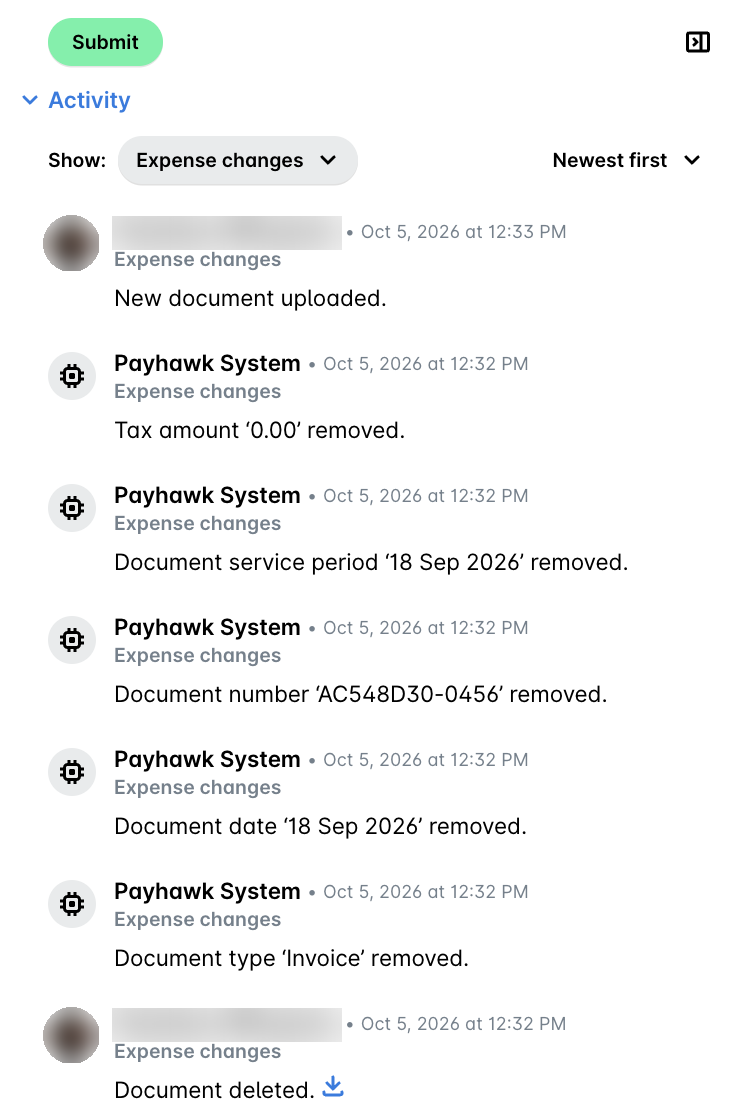
In its Activity section, open the Show drop-down and select Changes.
Navigate to the activity log with the deleted expense document.
Click on the blue button to download the document.
If the expense itself has been deleted, for example, in cases with duplicated card transactions, Payhawk Accountants and Payhawk Administrators can open it from the Deleted expenses view in Spend and download the documents that were uploaded to it from its Activity section. For more details, see the article about deleting and viewing deleted expenses.
Viewing multiple receipts or invoices attached to an expense
If an expense has two or more attached documents, you can view each file individually by clicking the up and down arrows located beneath the expense document viewer.

Switching the computer vision on and off
Payhawk's data extraction tool is an AI-powered data recognition system that reads information from documents uploaded to the platform. It automatically extracts and populates key expense details into the relevant fields, such as Document date, Document number, and Supplier, among others.
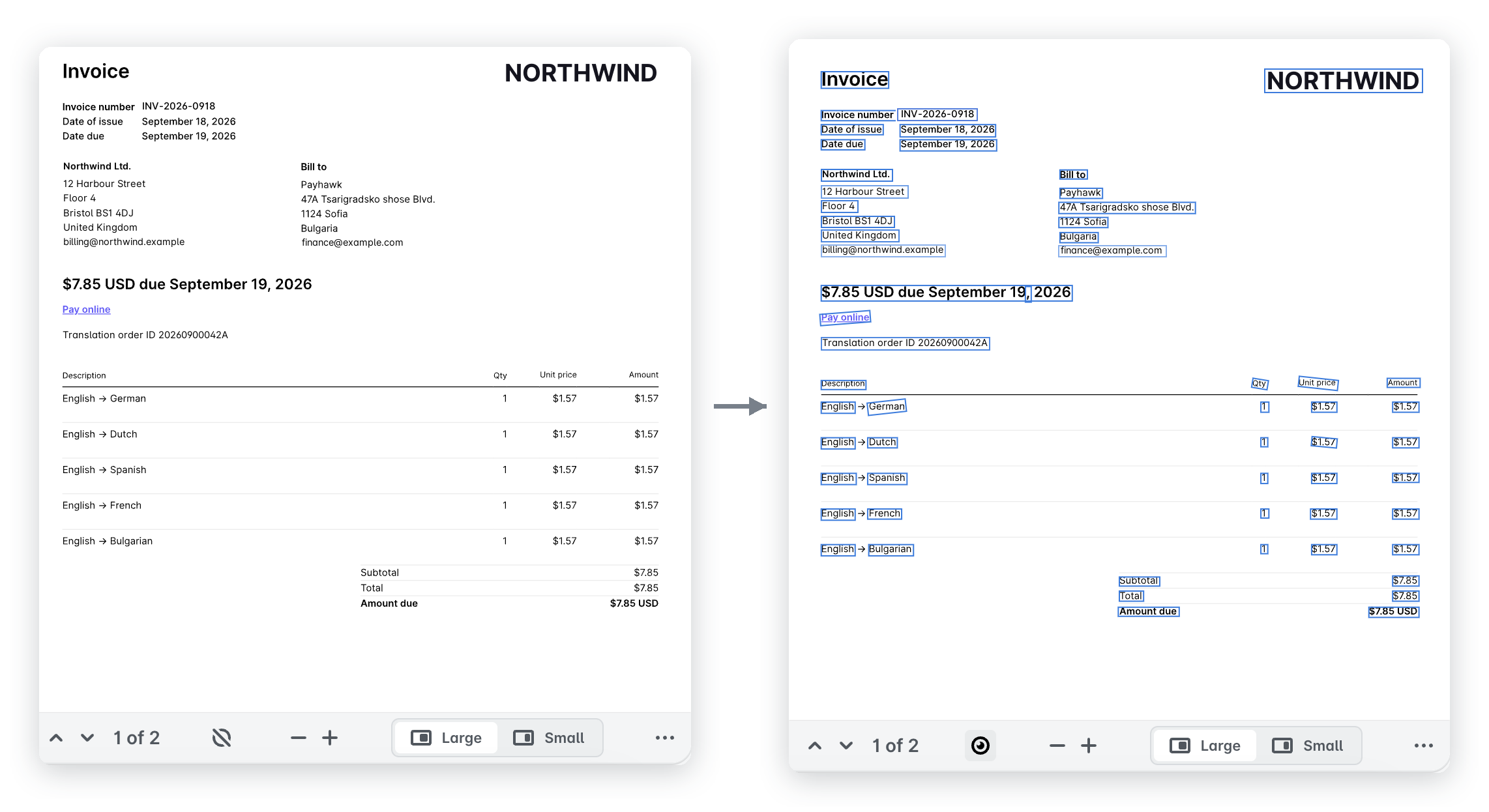
The computer vision feature visually highlights the fields scanned by Payhawk's data extraction tool. To toggle this feature on or off, click the Computer vision option located beneath the expense document.
Turning off the computer vision feature does not disable Payhawk's data extraction tool itself. It only hides the highlighted text boxes, allowing you to view the document content without overlays.
Zooming in and out of receipts and invoices
To zoom in or out of an expense document, click the + (plus) or – (minus) icons located beneath the document viewer.

Changing the size of the document viewer
You can choose how much of the screen the document viewer takes up next to the expense details. Below the document viewer, select:
Large, to widen the document viewer and see the receipt or invoice in more detail.
Small, to narrow the document viewer and leave more space for the expense details. The whole page of the document fits in the smaller viewer.
In the smaller viewer, the Large and Small options are shown as icons only.
Manually associating unmatched invoices to expenses
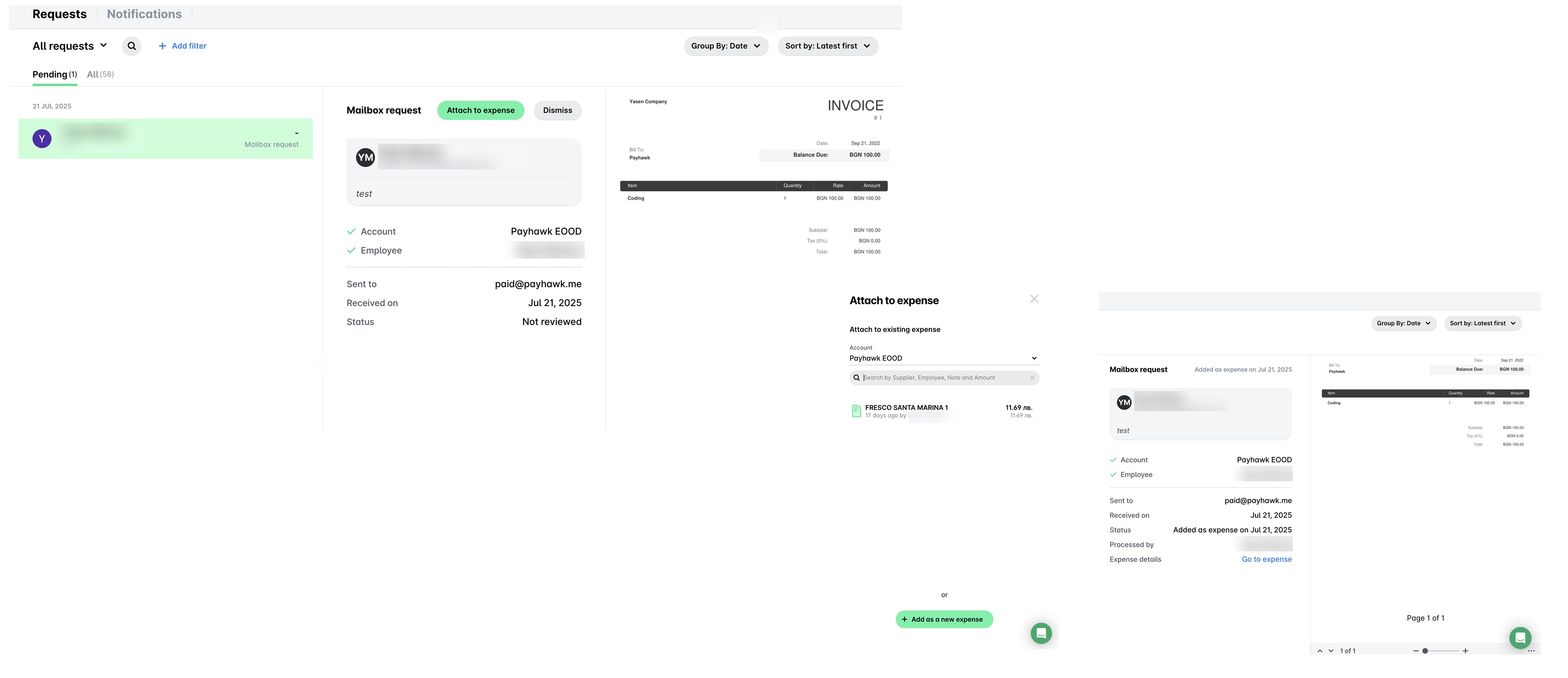
Invoices sent to the Payhawk Mailbox are automatically matched to the corresponding expenses.
If the system cannot find a match, you'll need to manually match the expense document to the expense in the following way:
Check your Payhawk Inbox for unmatched invoices.
Manually map the invoice to the appropriate expense in the system.
Confirm that the invoice is correctly linked to the expense record.
Useful resources