The Payhawk integration with Exact Online is designed to work effortlessly and help you keep your data between the two systems in sync at all times.
Notes on exporting to Exact Online
It's recommended that you sync your Payhawk-Exact Online accounts every time you make changes in Exact Online.
An expense will be automatically exported to Exact Online once that expense is marked as reviewed. As a result, all your expense data, images, and bank statements will be imported.
The payment data for an expense will be exported only after the transaction has been settled.
After the export to Exact Online, Payhawk will pull the value for the expense External ID from the Purchase journal reference of that expense. If there is also a payment export for the payment External ID, Payhawk will display the value from the Bank journal reference of that payment.
Prerequisites
To start exporting expenses and payments, make sure you have connected the Payhawk and Exact Online systems.
Exporting expense and payment data from Payhawk to Exact Online
To export your Payhawk expenses to Exact Online:
Log in to your Payhawk account.
In the Payhawk Web Portal, open the app switcher in the top-left corner and go to Spend, then select the Review tab.
Select an expense.
Check if all the data is correctly stored in the expense.
Click on Review.
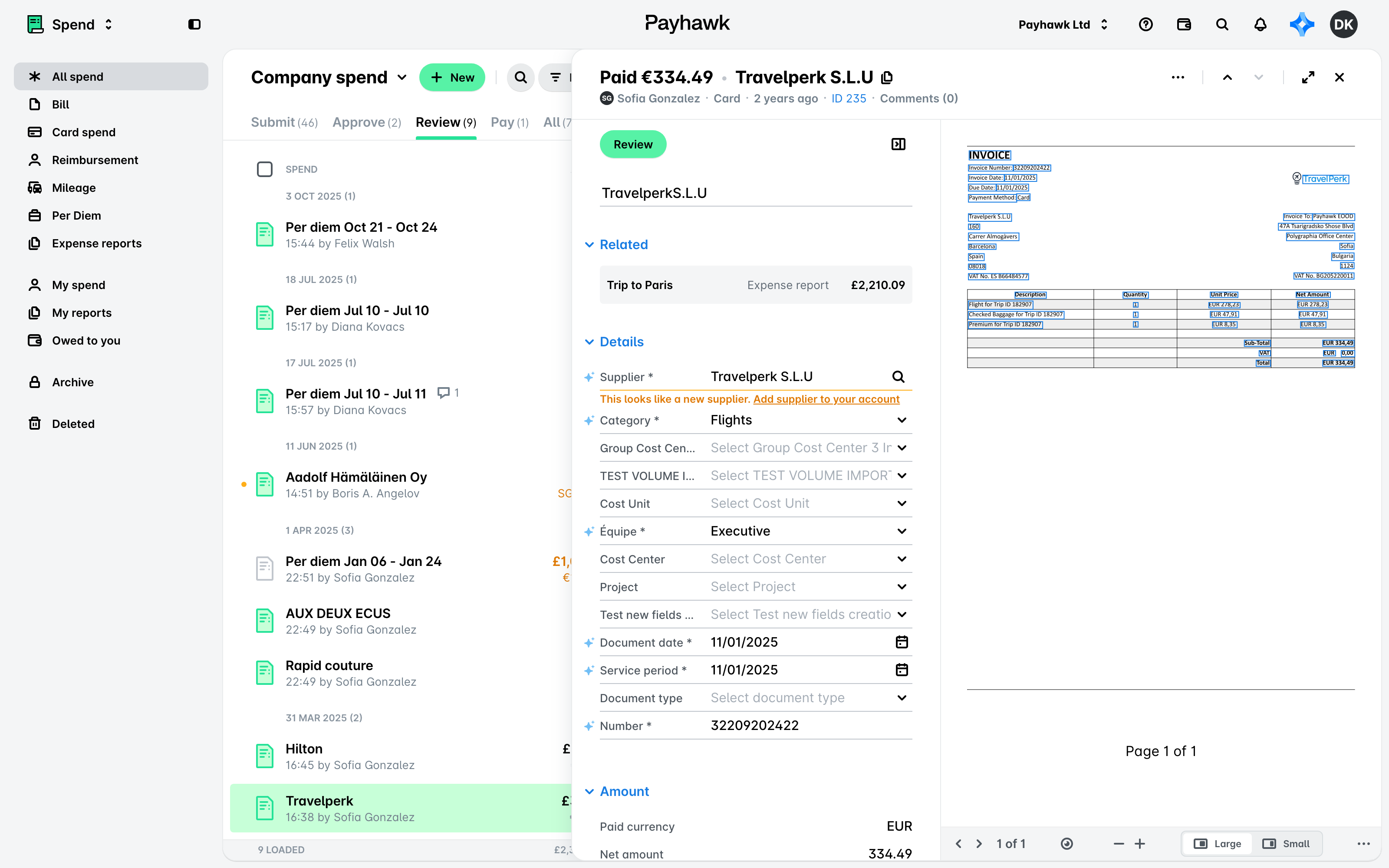
If an error occurs while exporting your data from Payhawk to Exact Online, Payhawk will display an error message suggesting what is wrong with the data.
Viewing exported expenses in the ERP from Payhawk
To directly view your exported expenses to Exact Online from Payhawk:
Log in to your Payhawk account.
Open the app switcher in the top-left corner and go to Spend.
Select the desired expense.
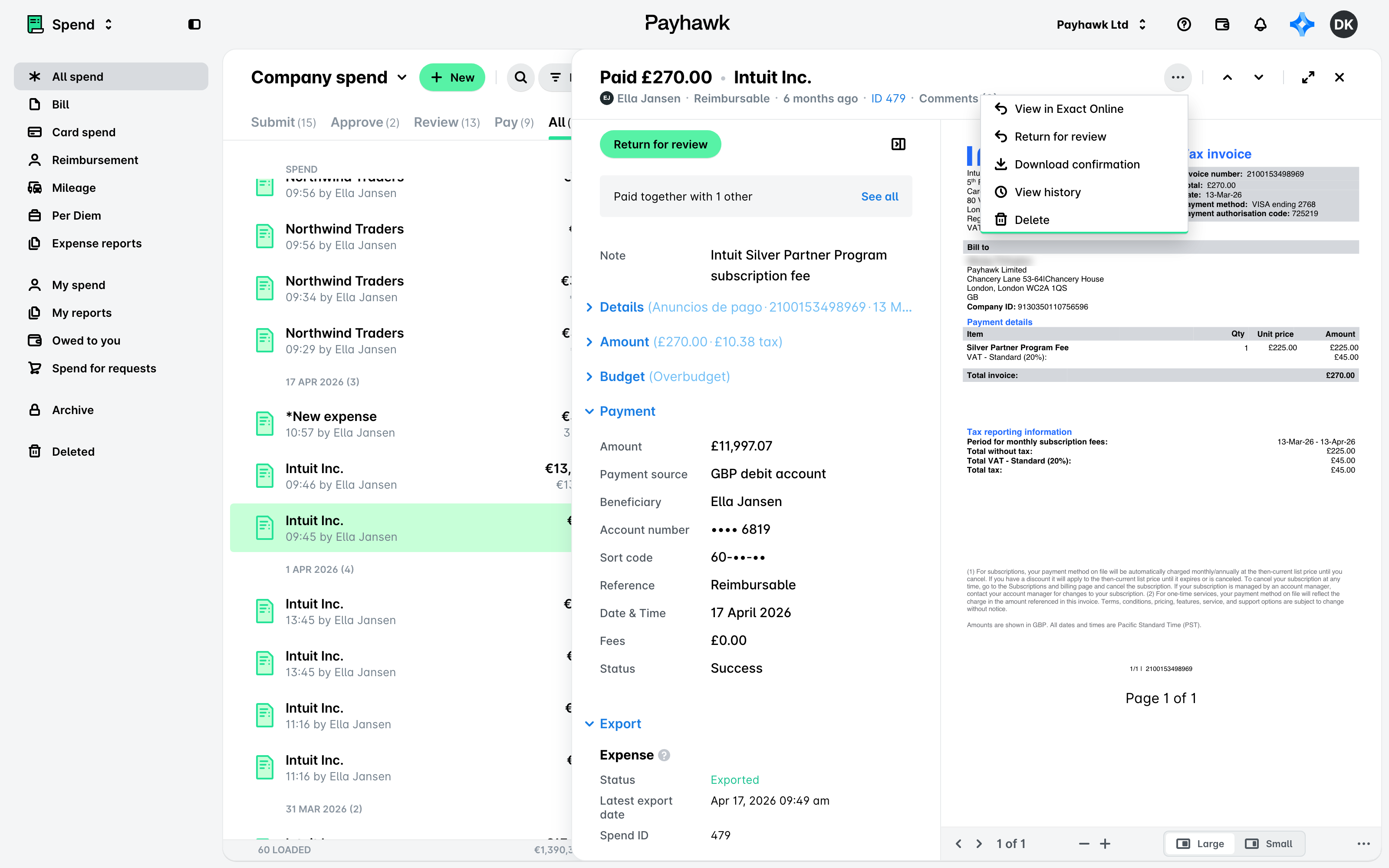
Click on the three dots menu and click on View in Exact Online.
Viewing export data and using export filters for expenses and payments in Payhawk
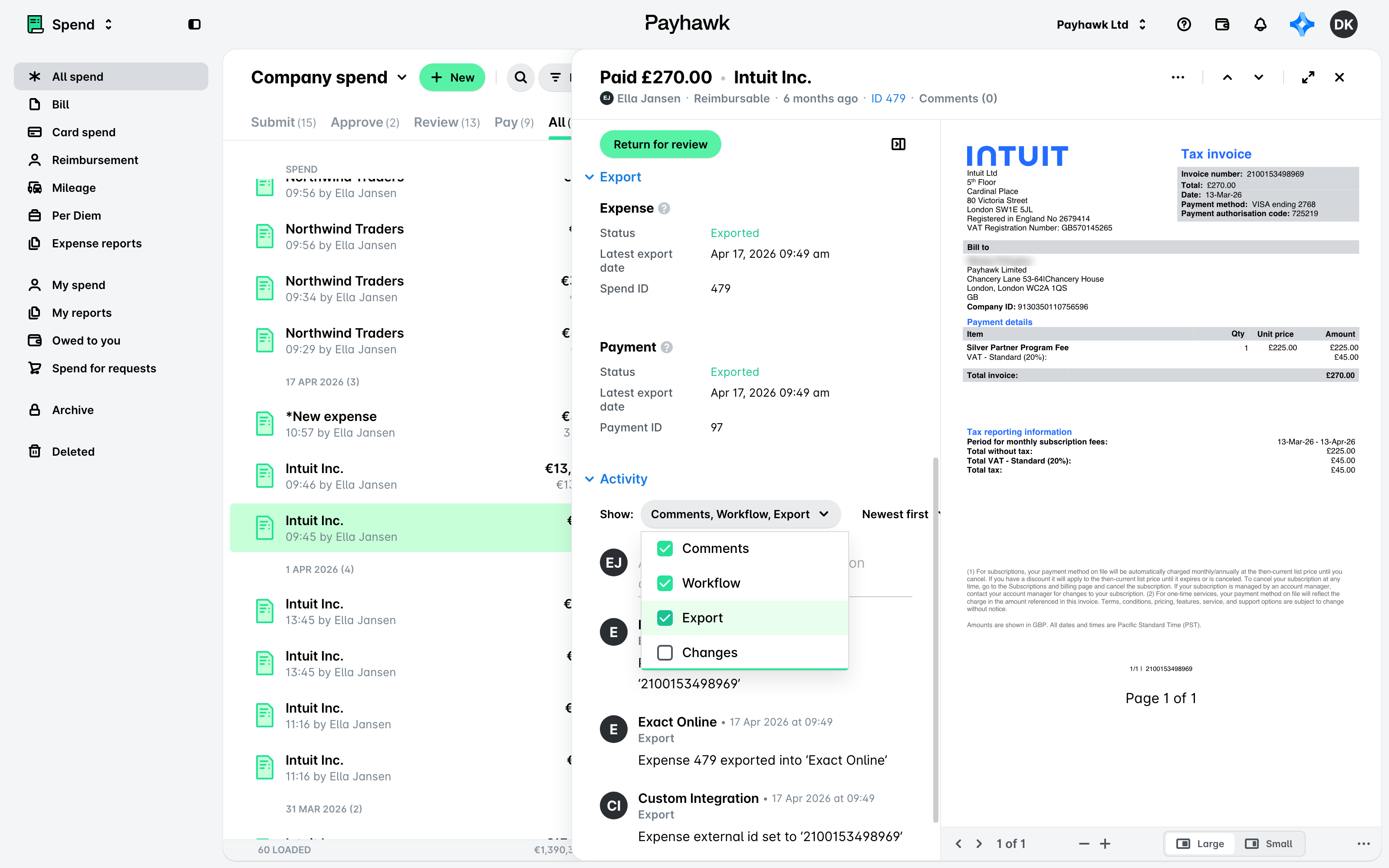
The export event between the two systems can be viewed from Spend, in the expense's Activity section with Export ticked in the Show filter.
The detailed export data of an expense or payment can be viewed from Spend, in the Export section of that expense.
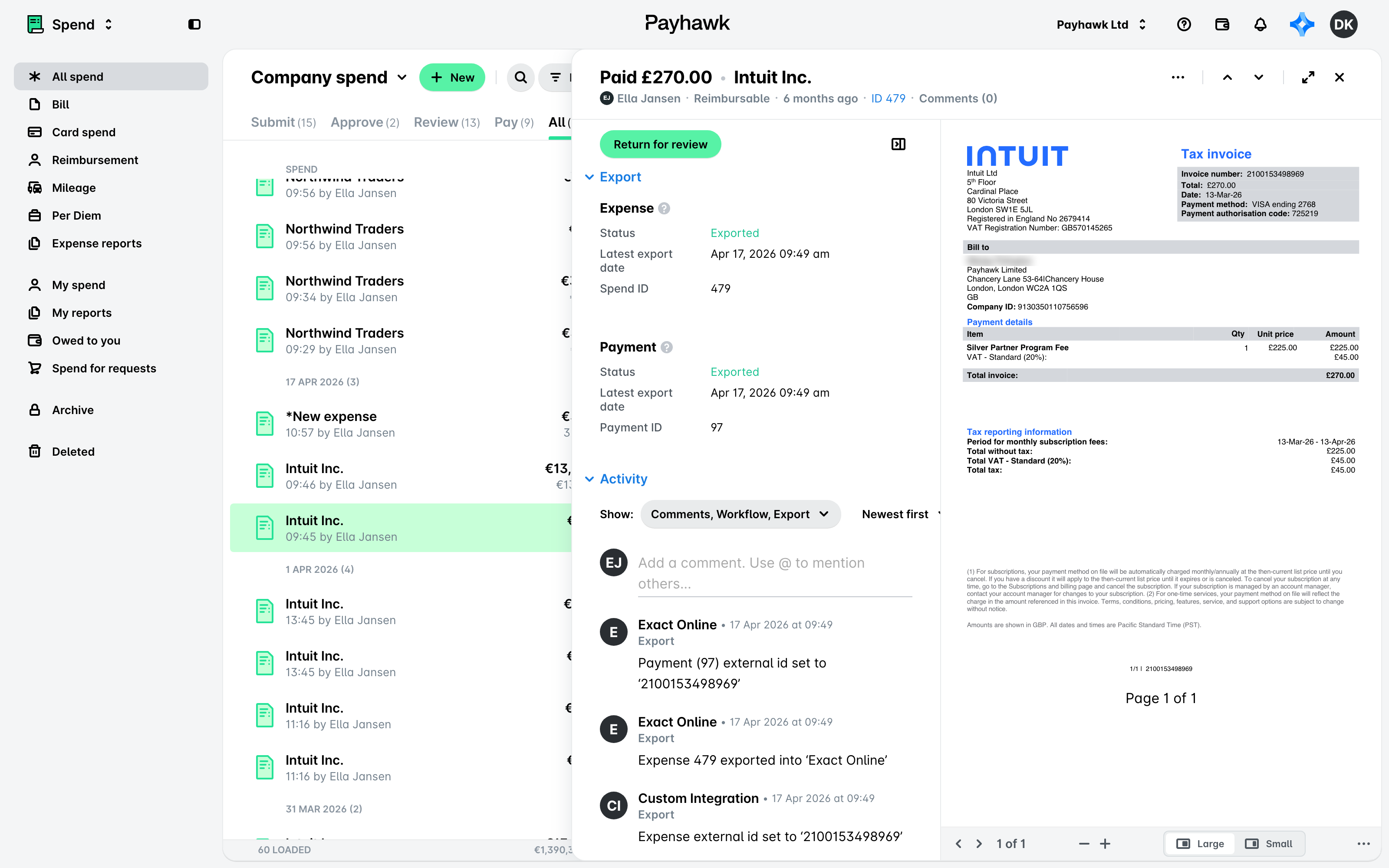
You can also filter out expenses and payments based on various filters relevant to Exact Onlines such as Export status, Exported by, Export date, External ID, and others.
Next steps