The Payhawk role extensions come out of the box with a predefined set of permissions that are limited to a specific context. For example, a Team Manager can access and manage information related only to their team, while an Executive Assistant has permissions related to a specific individual at the company.
The contextual restriction of the Payhawk role extensions is designed to fine-tune the segregation of duties within your company and make sure employees have access only to what they need based on their role.
Role extensions for group accounts
Role extensions and their permissions can be viewed at the group level.
Assigning the Team Manager role extension to an employee is done at the group level.
Including the Team Manager role extension in a workflow is done on the individual entity level, provided that entity-specific settings are enabled at the group level.
Assigning the Executive Assistant role extension to an employee is done at the individual entity level.
The Executive Assistant role extension is not intended to approve expenses or requests and, as such, does not appear as an option within the approval workflow settings.
The permissions of the Team Manager role extension can be modified at the group level. The permissions of the Executive Assistant role extension are fixed and cannot be changed.
Role extensions for single-entity accounts
Single-entity Payhawk accounts (not part of a group):
Cannot view or configure the permissions of the Team Manager role extension, but can still assign it to employees and include it in approval workflows with its default permissions at the account level.
Cannot view the permissions of the Executive Assistant role extension, but can still assign it to employees and include it in approval workflows at the account level.
Payhawk role extensions permissions
The Payhawk role extensions:
Can be assigned in addition to any built-in Payhawk role for extra capabilities within specific contexts.
Allow for modifying their predefined set of permissions.
Payhawk role extensions | Permissions |
Team Manager | The Team Manager role extension allows team leads to view the cards, expenses, and related activity of their team members. They can also approve expenses (if included in approval workflows), issue, freeze, and unfreeze cards, and invite team members and other team managers. The role extension is ideal for team leads or managers, as it provides greater autonomy and the necessary tools to manage their team’s spending and responsibilities more efficiently. |
Executive Assistant | The Executive Assistant role extension allows employees to impersonate another employee (for example, a C-level executive) to create and submit expenses and requests on their behalf. The role extension is ideal for executive assistants or support staff who need to interact with the system, create and edit expenses or requests, and handle Payhawk-related tasks on behalf of high-level managers, without granting full access to sensitive data. |
Category Manager | The Category Manager role extension allows employees to view, update, and submit expenses of other employees that are associated with the expense category the Category Manager is assigned to. If included in an approval workflow, the Category Manager has also permissions to approve expenses. The role extension is ideal for Finance team members or budget owners and helps them organize expenses and ensure accurate categorization across the company. |
Custom Field Manager | The Custom Field Manager role extension allows employees to view, update, and submit expenses of other employees that are associated with the custom expense field the Custom Field Manager is assigned to. If included in an approval workflow, the Custom Field Manager has also permissions to approve expenses associated with that custom field. The role extension is ideal for Finance team members who need to tailor data collection and ensure consistency in expense tracking. |
The Team Manager role extension
In Payhawk, Team Managers require distinct permissions that differ from those of the built-in roles. To effectively manage their responsibilities, they need to view and oversee the cards and expenses of their team and sub-team members.
Viewing and managing team cards
Team Managers can view all cards issued to members of their teams and sub-teams by opening the app switcher in the top-left corner, going to Cards > My team cards view.
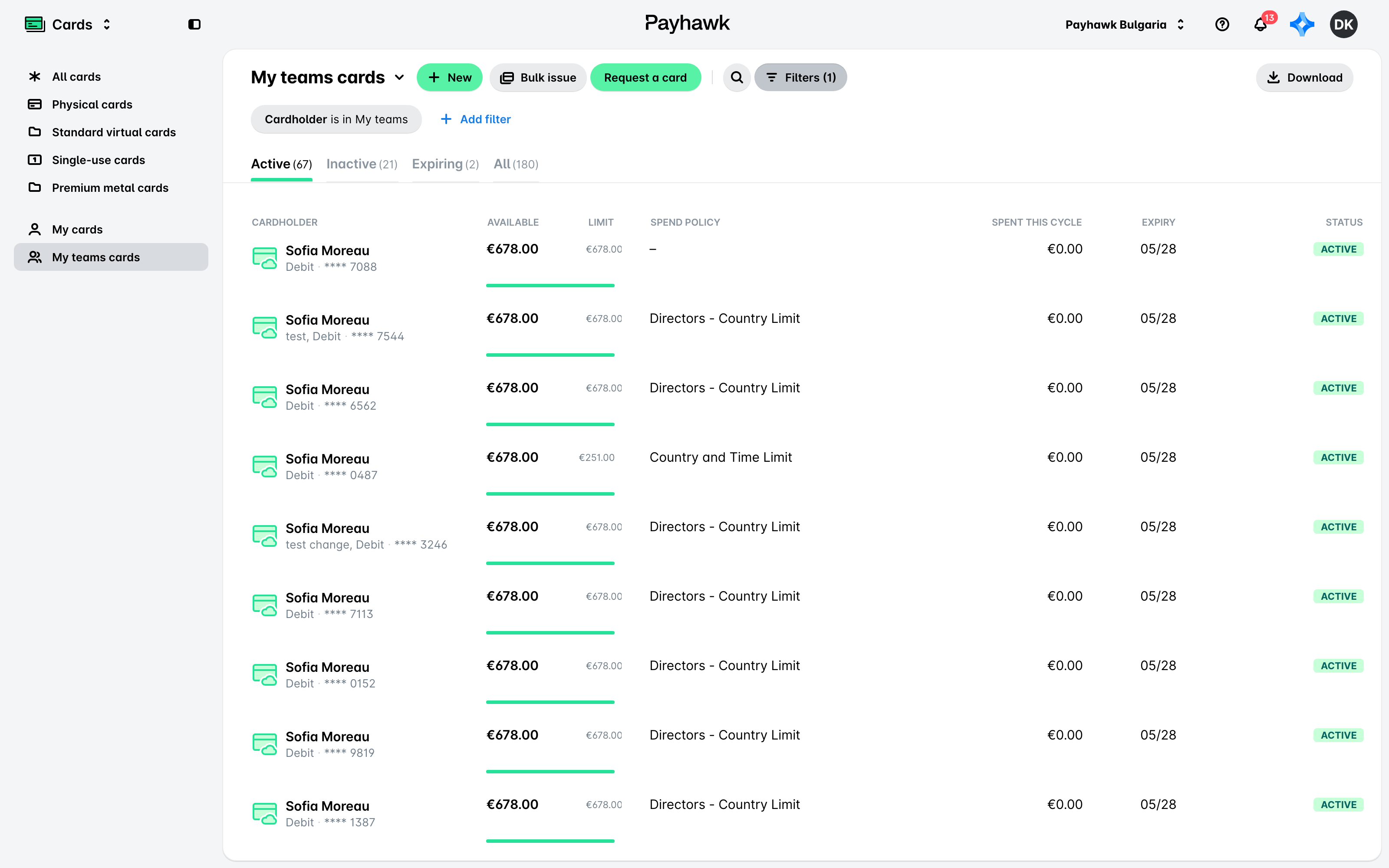
While Team Managers cannot access full card details or modify card limits, they do have the ability to freeze cards belonging to users within their team structure. Once a card is frozen by a Team Manager, it can only be unblocked by another Team Manager or a Payhawk administrator.
Viewing and managing team expenses
To monitor spending, Team Managers can open the app switcher in the top-left corner, go to Spend > My team spend view, which provides an overview of all expenses created by their team and sub-team members. They can edit expenses before submission and are also allowed to submit expenses on behalf of the respective owners.
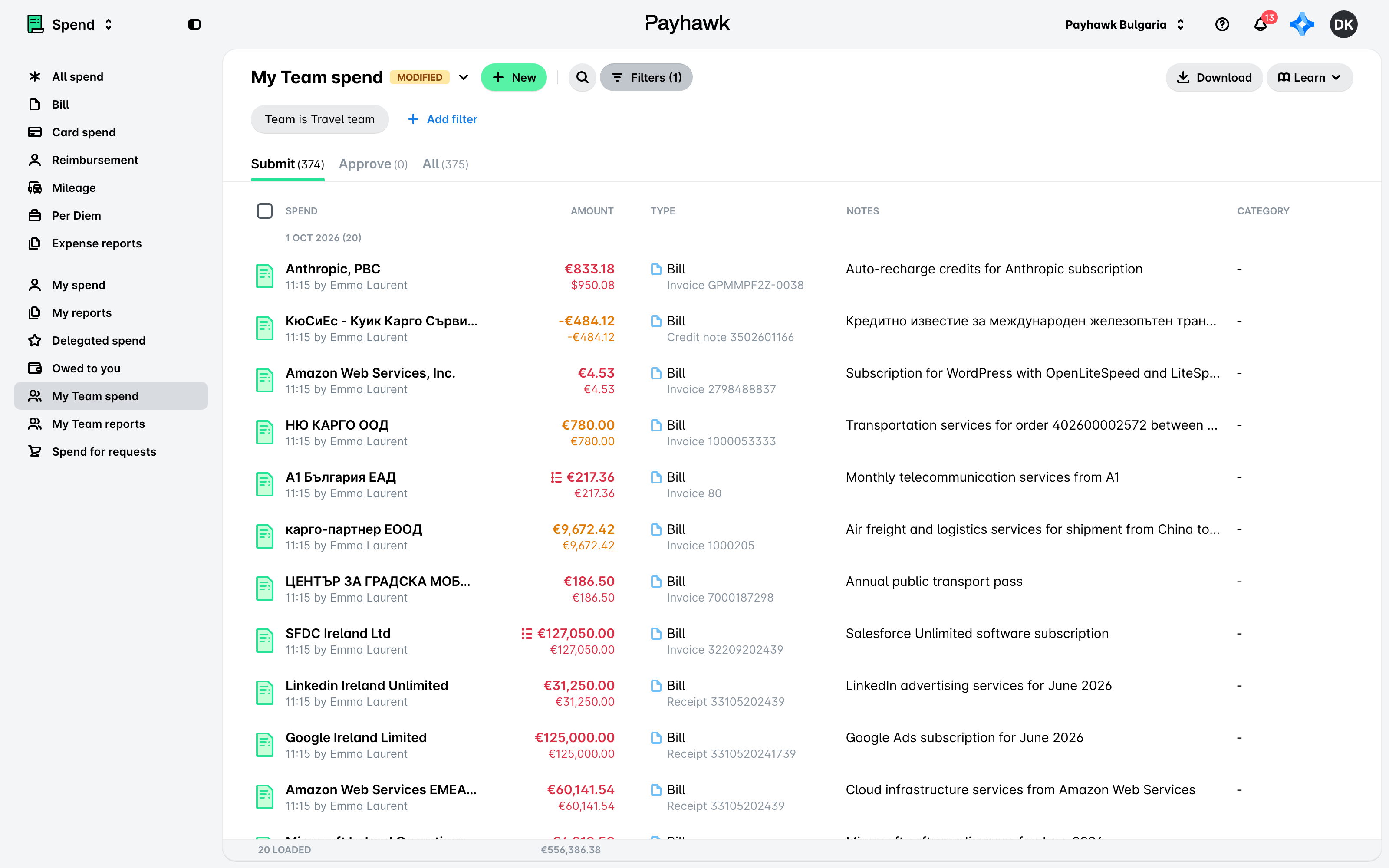
In Payhawk, you can choose not to assign Team Managers to specific teams or disable the team structure entirely for your organization.
Editing the Team Manager's permissions
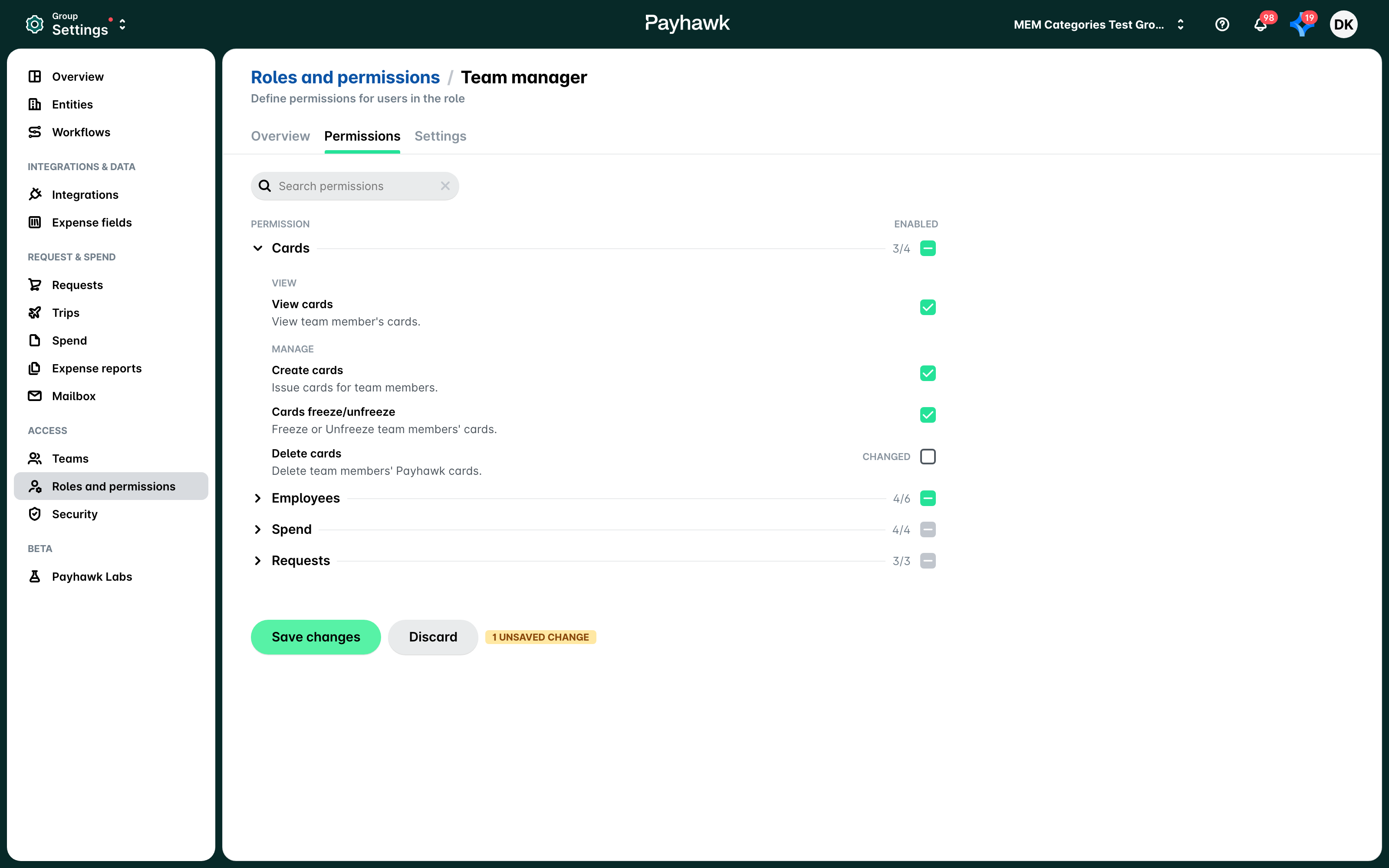
To update the permissions of the Team Manager's role extension:
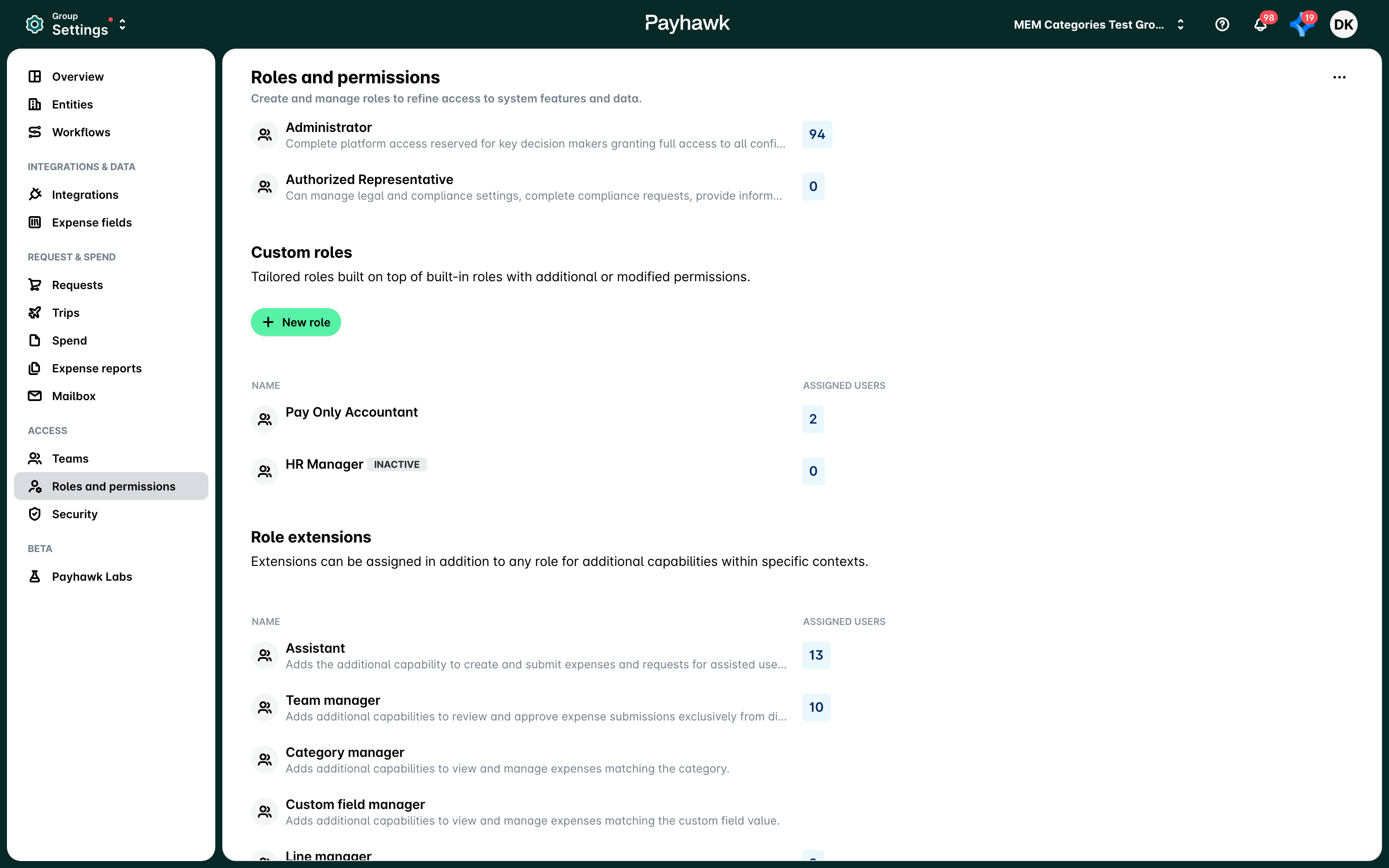
Open the app switcher in the top-left corner and go to Settings > Roles and permissions.
Under Role extensions, select Team Manager.
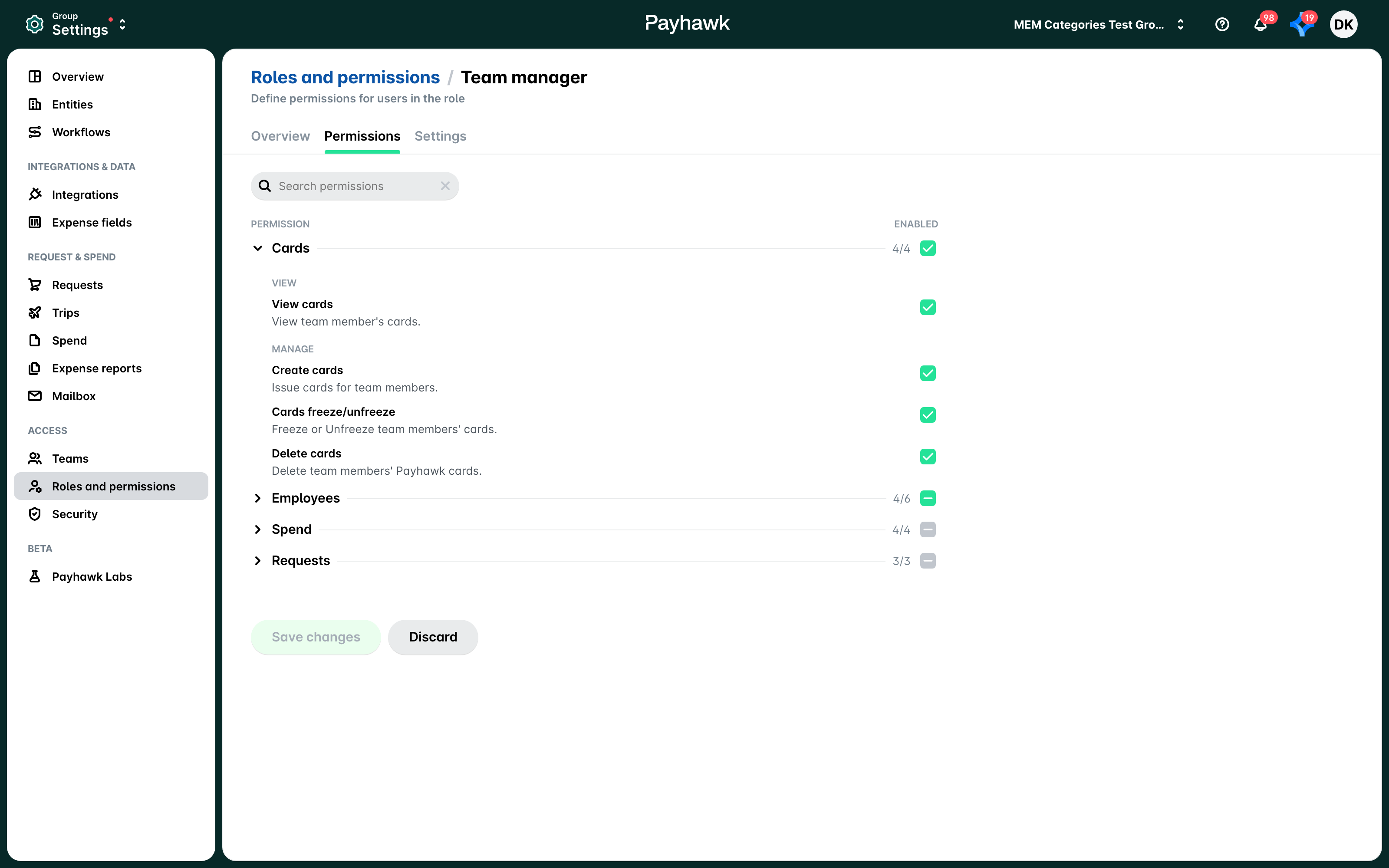
In the Permissions tab, toggle on or off the needed permissions.
Click on Save changes.
The Executive Assistant role extension
At Payhawk, Executive Assistants require a unique set of permissions that differ from the platform’s built-in roles. To efficiently support their assigned executives or senior managers, they need access to view, create, and submit the associated expenses and requests.
Creating and viewing delegated expenses
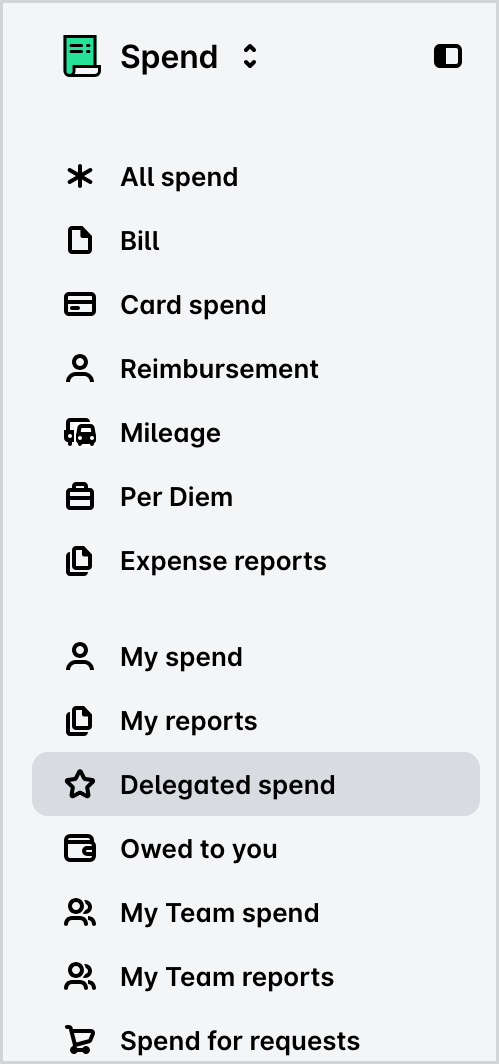
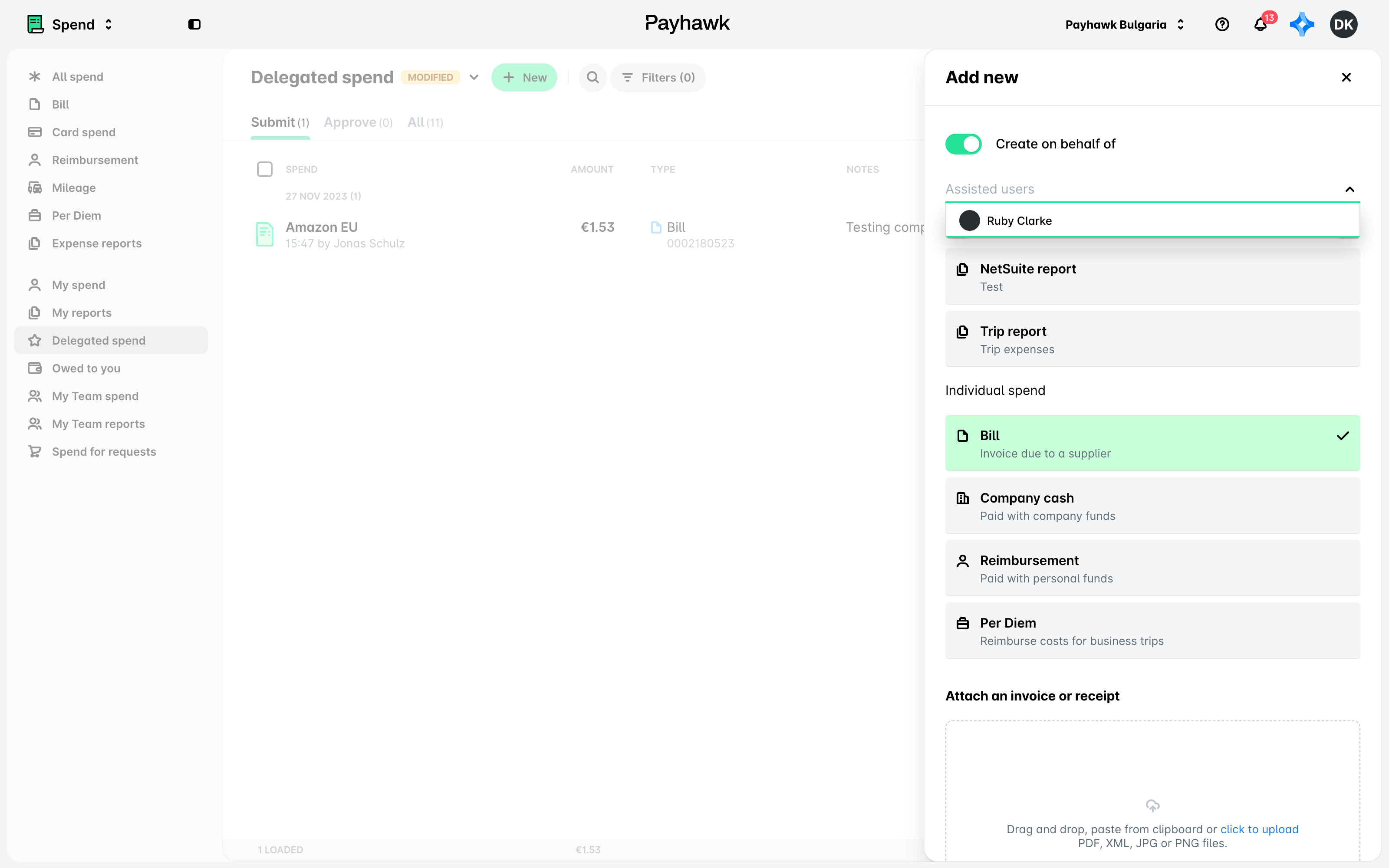
Executive Assistants can view the expenses of the individuals they support by opening the app switcher in the top-left corner, going to Spend > Delegated spend view.
To create a new expense on behalf of their assigned person, Executive Assistants need to click on New, enable the Create Expense on behalf of toggle, and then select the appropriate individual from the list.
Creating and viewing delegated purchases
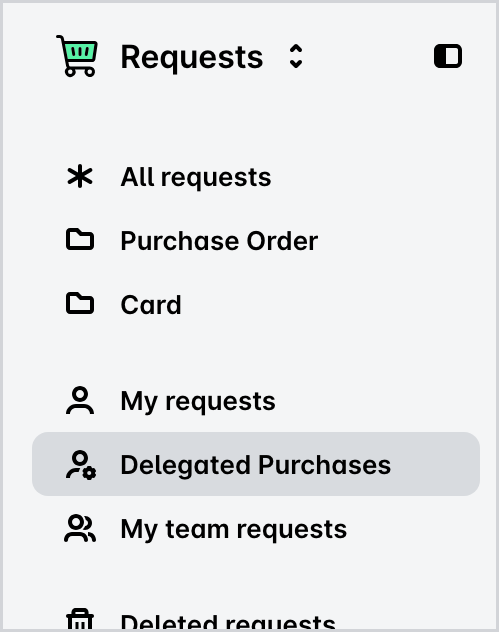
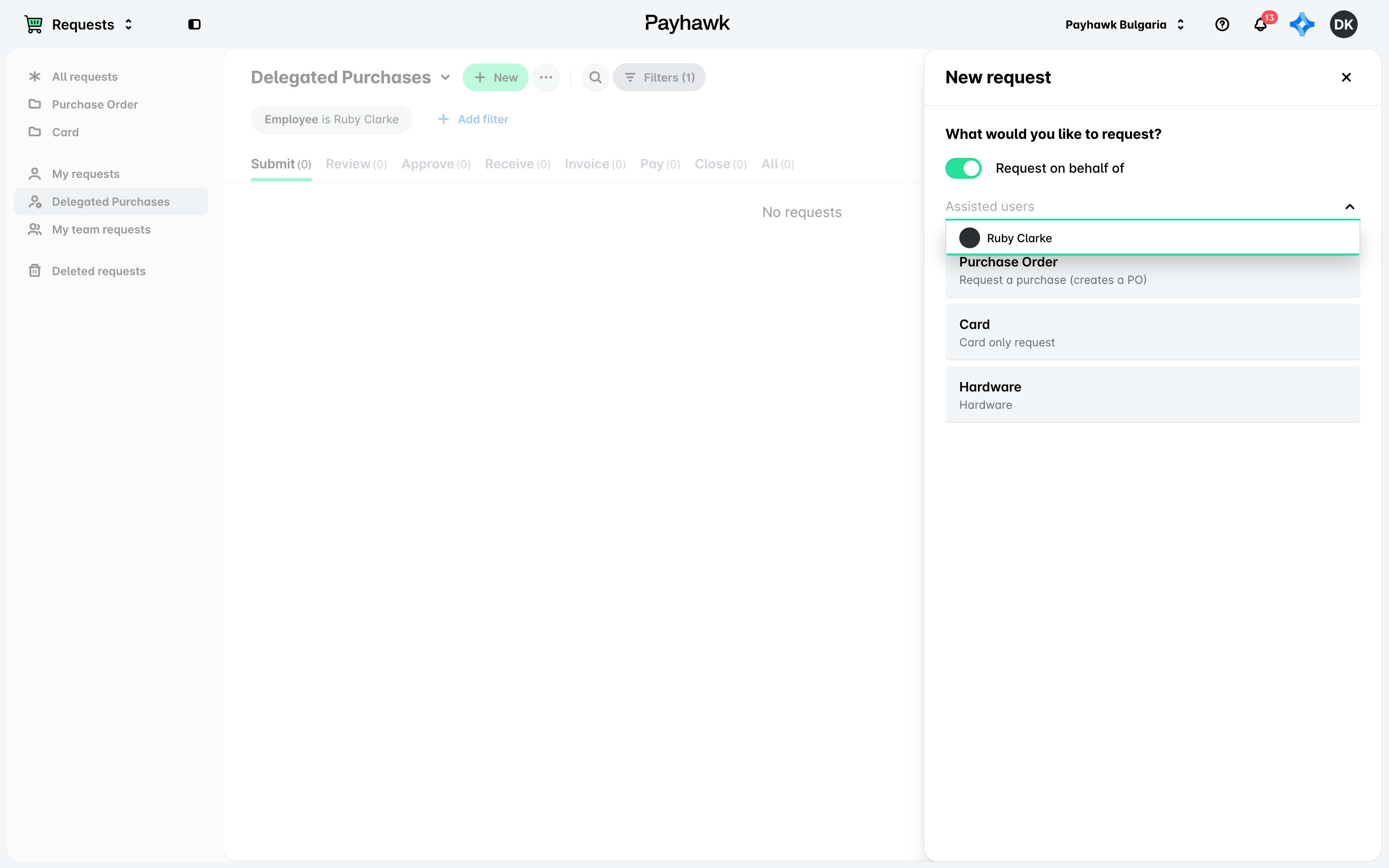
Executive Assistants can view the purchases of the individuals they support by opening the app switcher in the top-left corner, going to Requests > Delegated Purchases view.
To create a new purchase on behalf of their assigned individual, Executive Assistants need to click on New, enable the Request on behalf of toggle, and select the appropriate person from the list.
The Category Manager and Custom Field Manager roles extensions
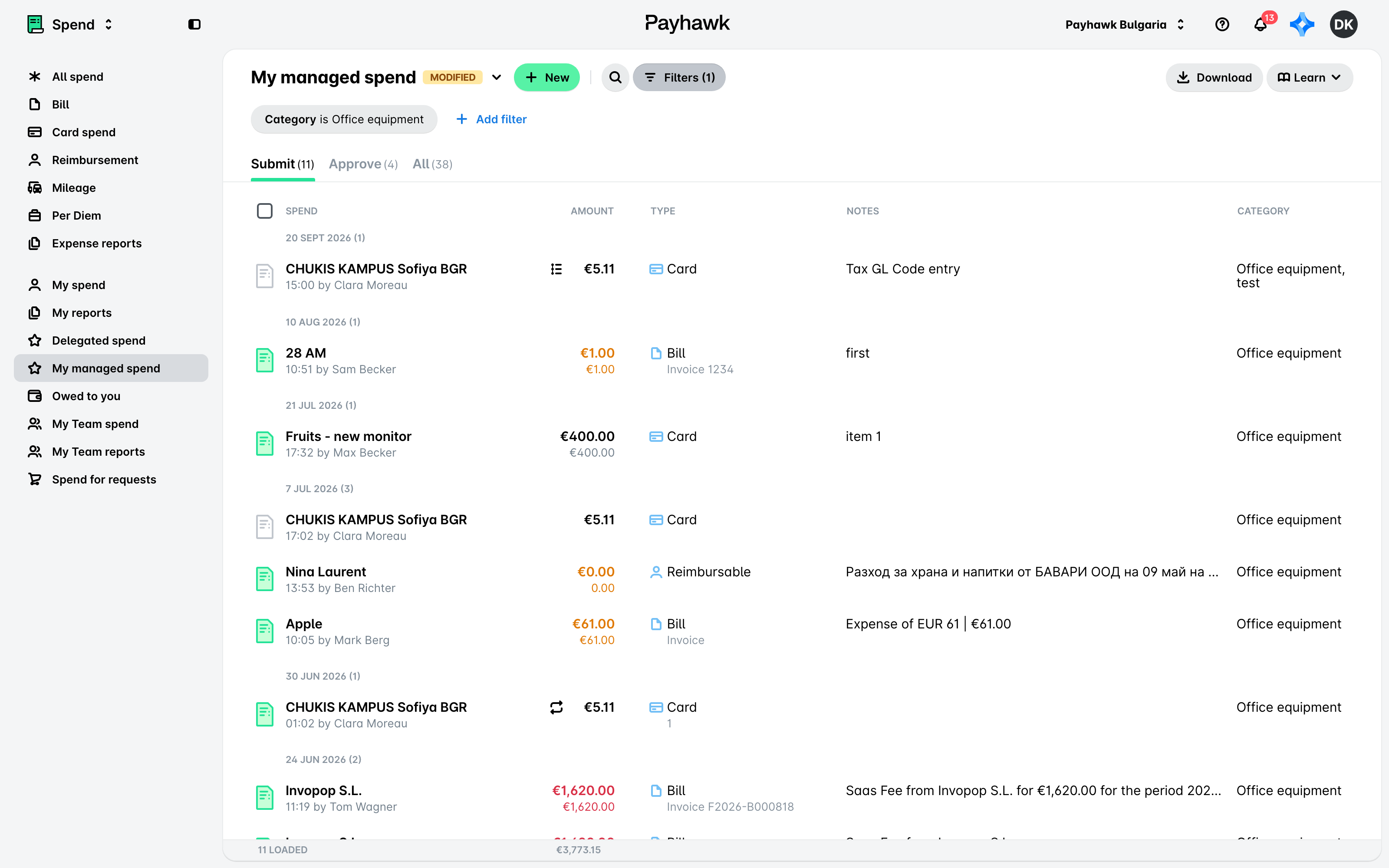
To monitor spending, Category Managers and Custom Field Managers can go to Spend > My managed spend view. It provides an overview of all expenses submitted by employees across the entity or group of entities that are of the expense category or custom field the Managers are assigned to. Category and Custom Field Managers can edit expenses before submission and are also allowed to submit expenses on behalf of the respective owners.
Assigning role extensions
To assign the Team Manager role extensions, you need to assign an employee as a Team Manager.
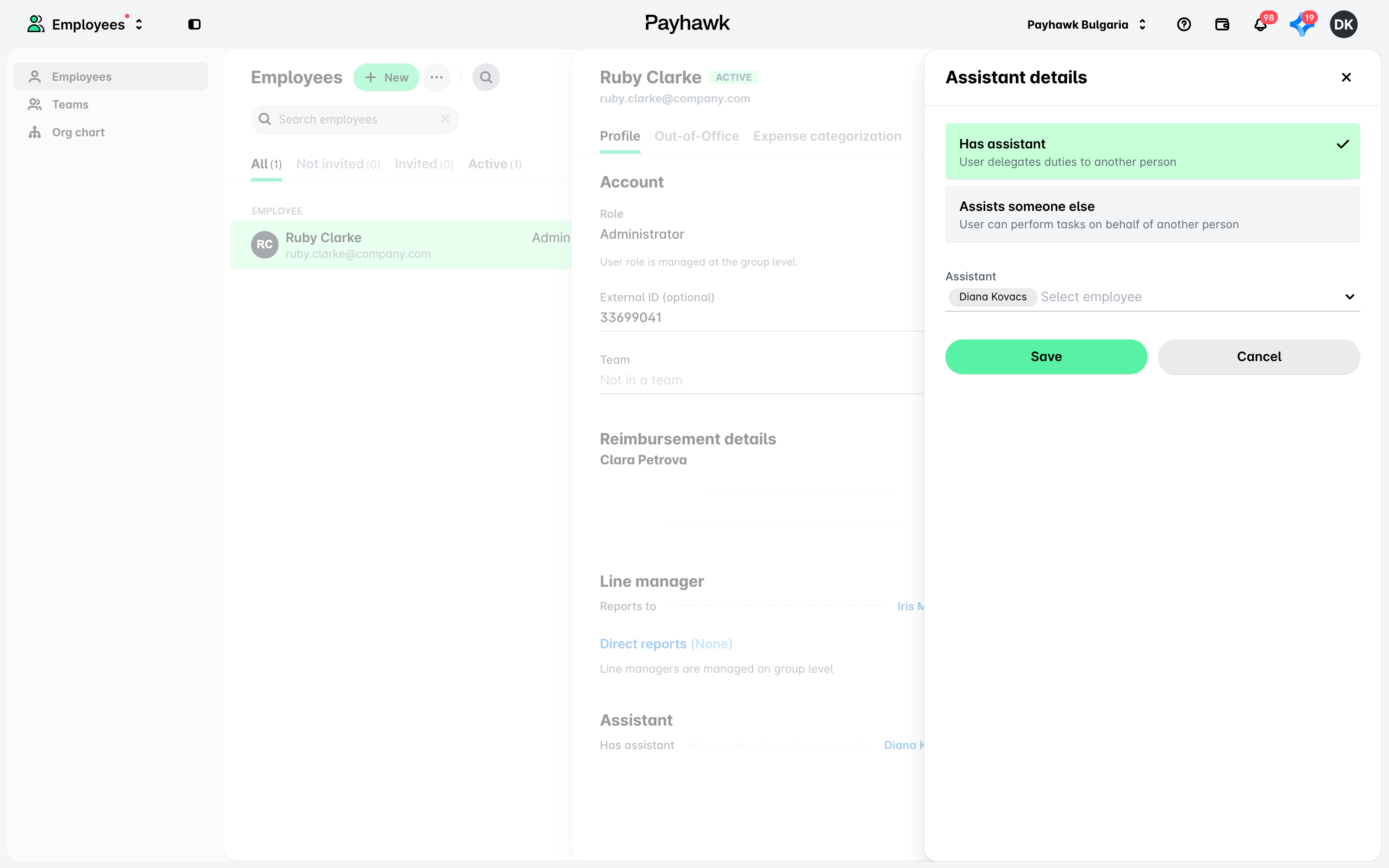
To assign or edit the Executive Assistant role extension:
Log in to the desired Payhawk account.
Open the app switcher in the top-left corner, go to Employees, and select the desired employee.
In the Profile tab, under Assistant, click on Edit.
In the dialog that opens:
Select Has assistant to add the Executive Assistant who will help the selected employee, and choose the relevant name from the drop-down list.
Select Assists someone else to assign the selected employee as an Executive Assistant who will perform tasks on behalf of another person, and choose the relevant name from the drop-down list.
Click on Save.
Viewing Payhawk role extensions and permissions
You can view the Payhawk role extensions by opening the app switcher in the top-left corner and going to Settings > Roles and permissions.
The full list of permissions enabled for a role extension can be viewed by opening the app switcher in the top-left corner, going to Settings > Roles and permissions, and selecting the desired role extension.
Viewing the history log for Payhawk role extensions
You can view all activities related to Payhawk role extensions, such as role extension changes and assignments, updates of permissions, and invites.
Open the app switcher in the top-left corner and go to Settings > Roles and permissions.
Click on the three-dot menu and select View history log.
On the next screen, select any of the following options:
Role change to view updates to any of the role extension permissions and settings.
User role change to view updates in the role extension assignment to a specific user.
All to view both types of updates.
Useful resources