Employees with permissions that include card access, such as Payhawk Administrators, Team Managers, and other custom roles, can monitor corporate cards in a fast and efficient way.
Searching through cards
You can search through your employees' cards by the following criteria:
Cardholder's name.
Card's name.
The last four digits of the card number.
To search for a specific employee's card:
In the Payhawk Web Portal, go to Cards > All cards.
Click on the Search icon. In the input field, select the desired search criteria.
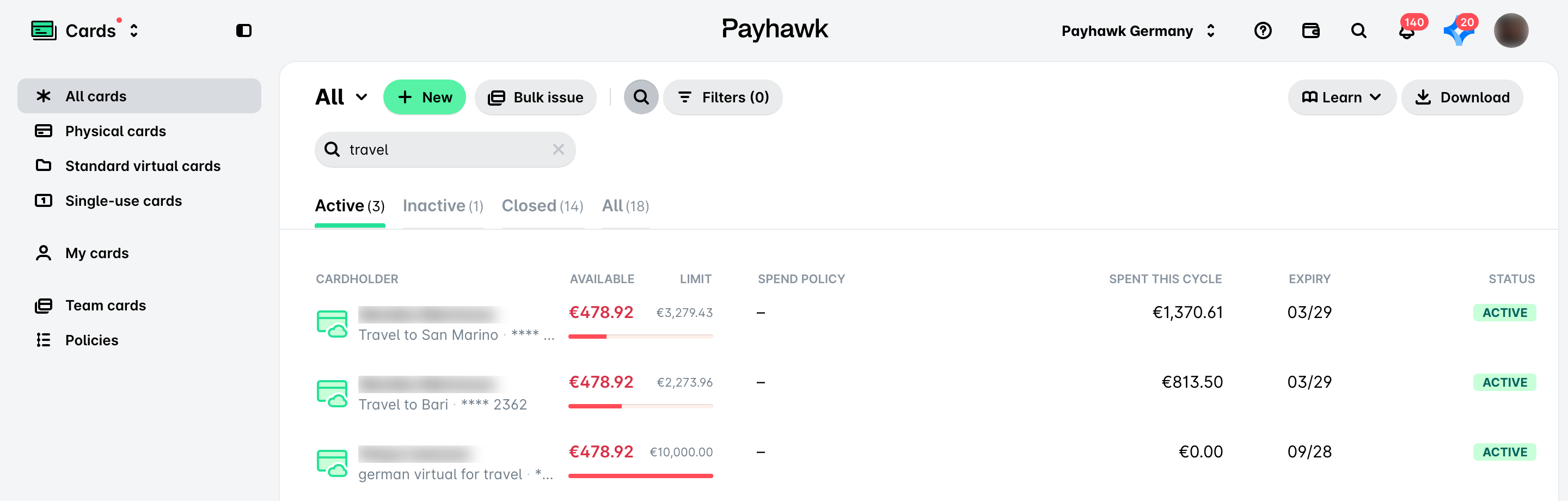
The All cards view shows only individual employees' cards that are not linked to team cards.
The search option applies to all Active, Inactive, Closed, and All regardless of which one is currently open (active).
Filtering cards
You can filter corporate cards by various criteria, such as currency, expiry date, status, available funds, limit, spend policy, and more. Applied filters affect what data is included when you download card data. For more information, see the article about downloading card data.
To filter cards:
Go to Cards > All cards.
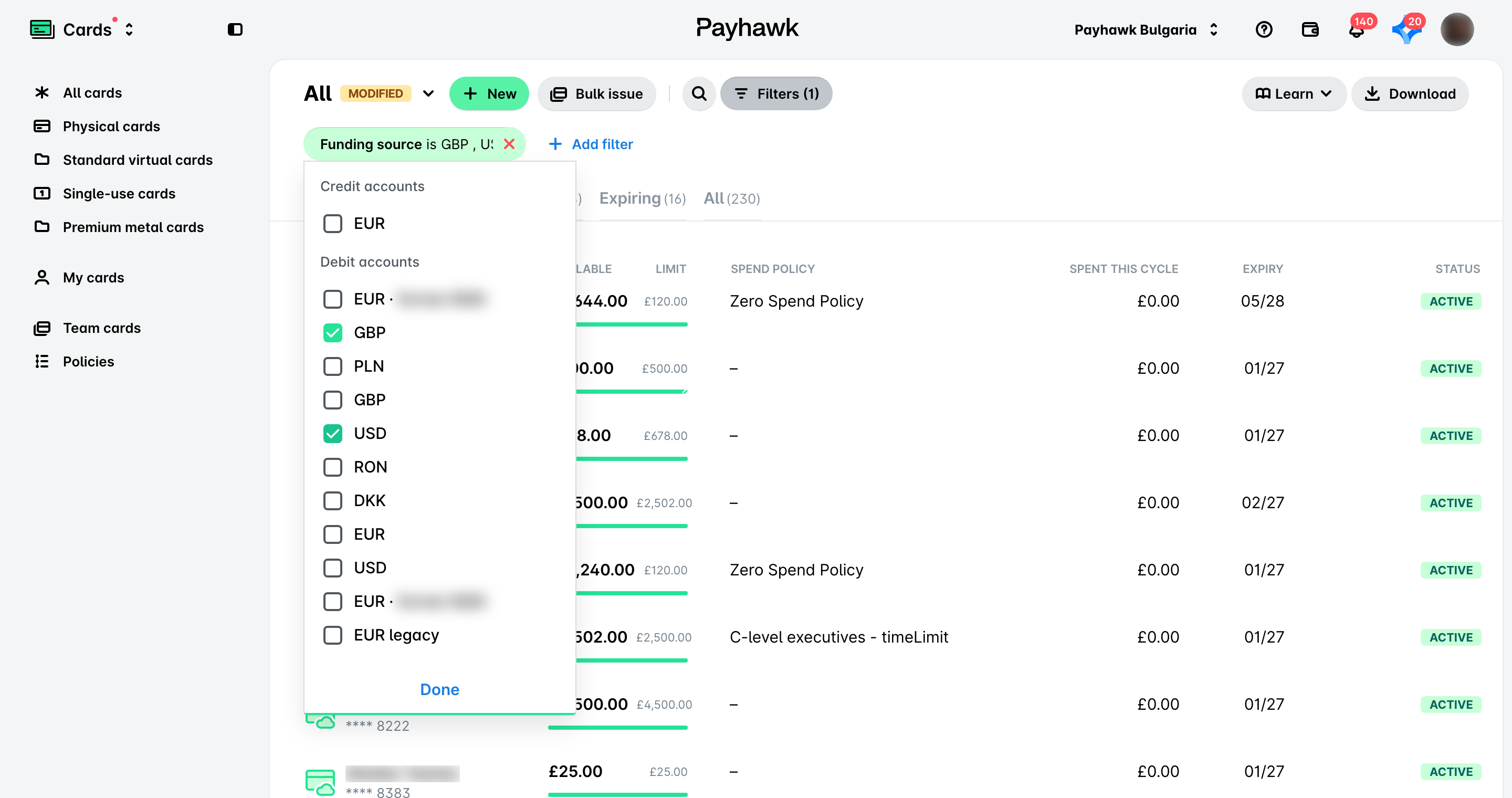
Click on Filters. If you have already applied a filter, you can also click on Add filter to aggregate the filtering criteria.
Select the desired filter and the values you want to include.
Click on Done.
You can combine the search and filter options, and, for example, look for all Payhawk cards in GBP of an employee:
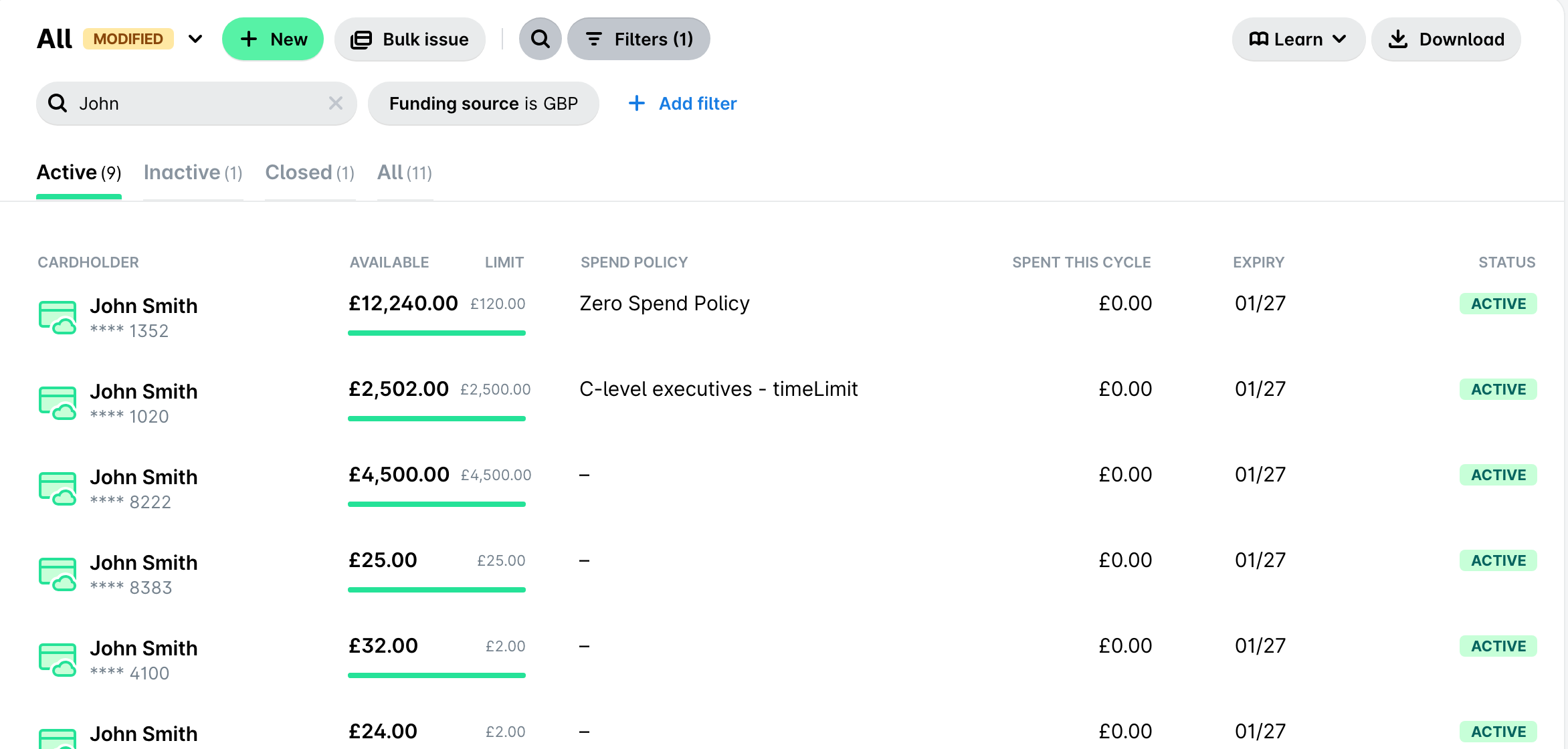
The filter option applies to all Active, Inactive, Closed, and All regardless of which one is currently open (active).
Viewing card activity
You can view card updates in the card Activity tab, which provides the following information:
Fund updates showing updates to the card funds balance.
Card changes displaying card status updates, balance type modifications, and PIN resets.
Failed card transactions indicating the corresponding amounts and reasons for failure.
Useful resources