You can view the existing company spend policies that affect cardholders at your company and also monitor any changes that may have been applied.
Defining spend policies
Viewing existing spend policies
To view an existing spend policy at the company:
Log in to the Payhawk Web Portal.
Go to Cards > Policies.
Select the desired spend policy by clicking on it. As a result, you'll be able to see what general settings and advanced controls apply to the cards assigned to this spend policy.
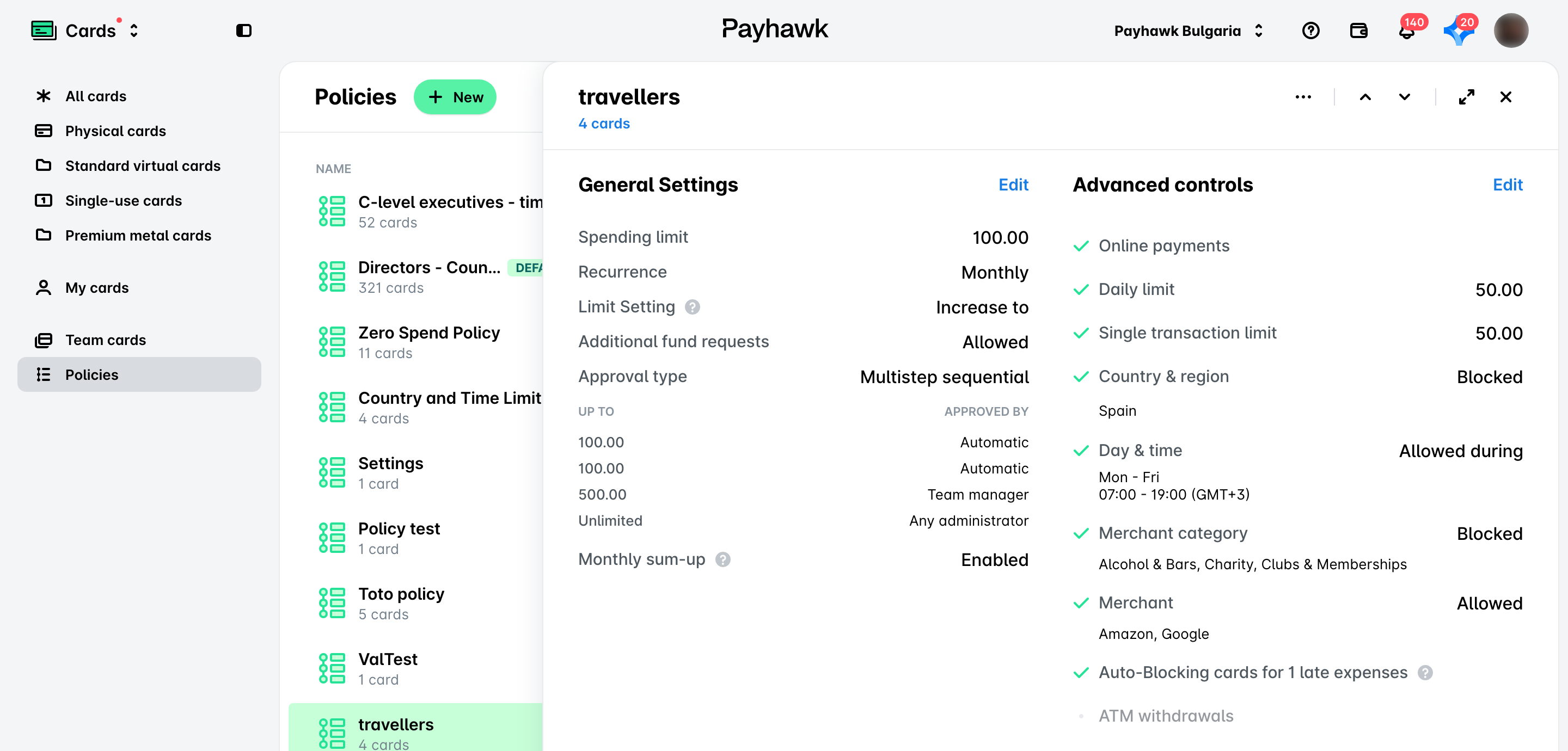
For more information, see the article about the pre-defined spend policies at your company that affect card spending.
Viewing cards under a spend policy
To view which of your cards are affected by a specific pre-defined spend policy:
Go to Cards > Policies.
Select the desired spend policy by clicking on it.
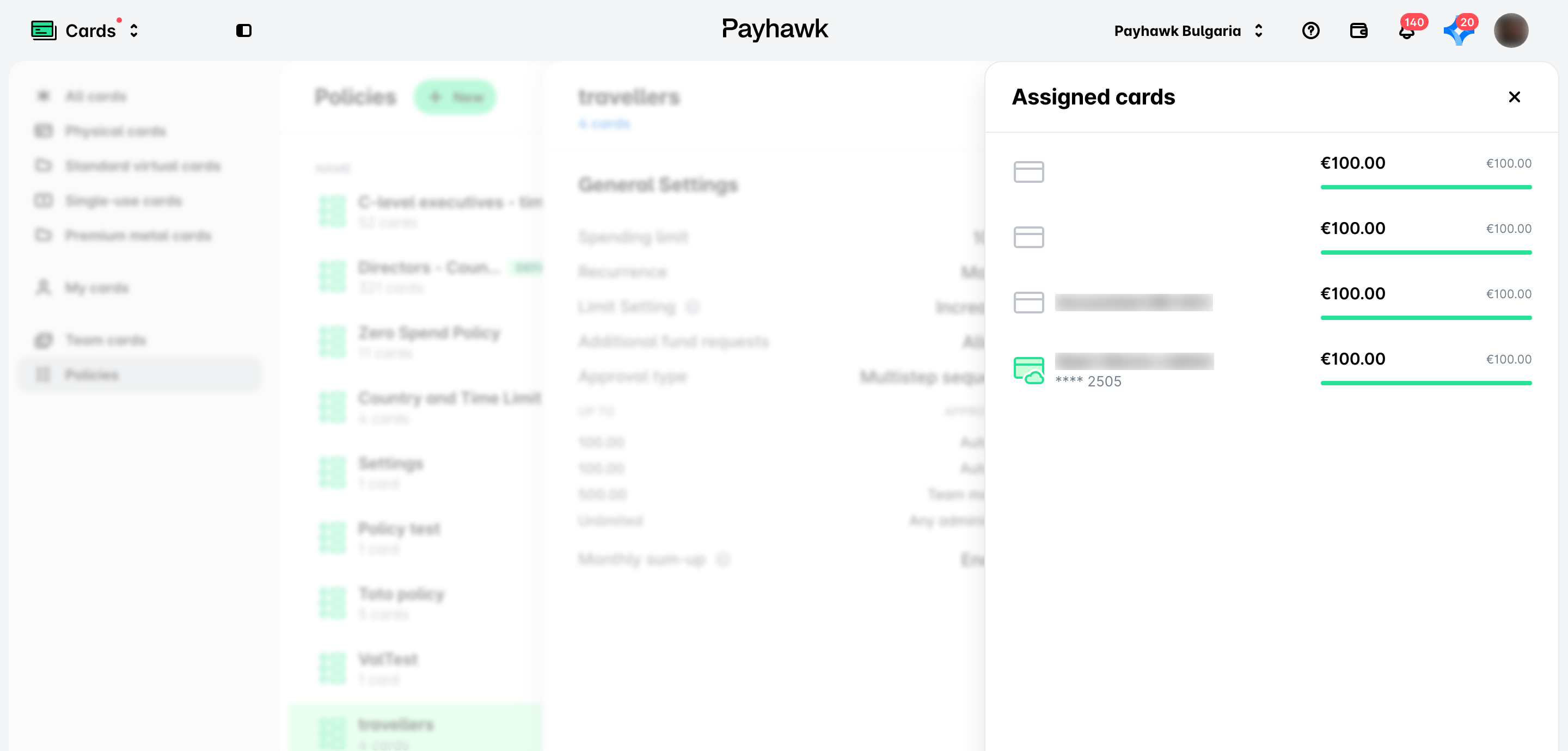
Click on the [number] card (cards) link under its name. In the Assigned cards panel that opens, you'll be able to see all cards assigned to the selected spend policy.
Useful resources