The Activity section for each request allows you to view any comments on that request, its approval status, and its change log with the respective updates. Thus, you can reconstruct the history of a request in the system.
The following information about comments to expenses and expense requests applies to comments for requests:
Viewing request comments in the Web Portal
To view the comments for a request:
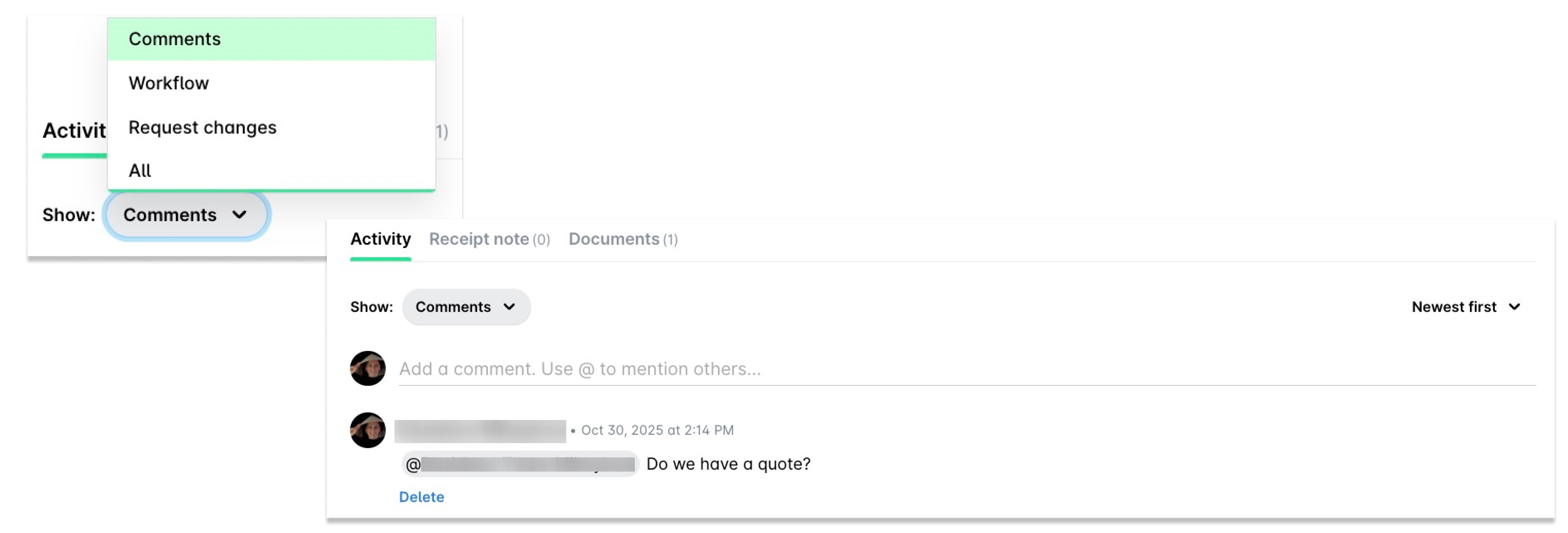
Open its Activity section or click on the sticky label with the comments. By default, the Show filter has Comments and Workflow selected.
Viewing request workflow in the Web Portal
You can view the request workflow by selecting Workflow in the Show filter in its Activity section.
Viewing request export history in the Web Portal
To view the request export history:
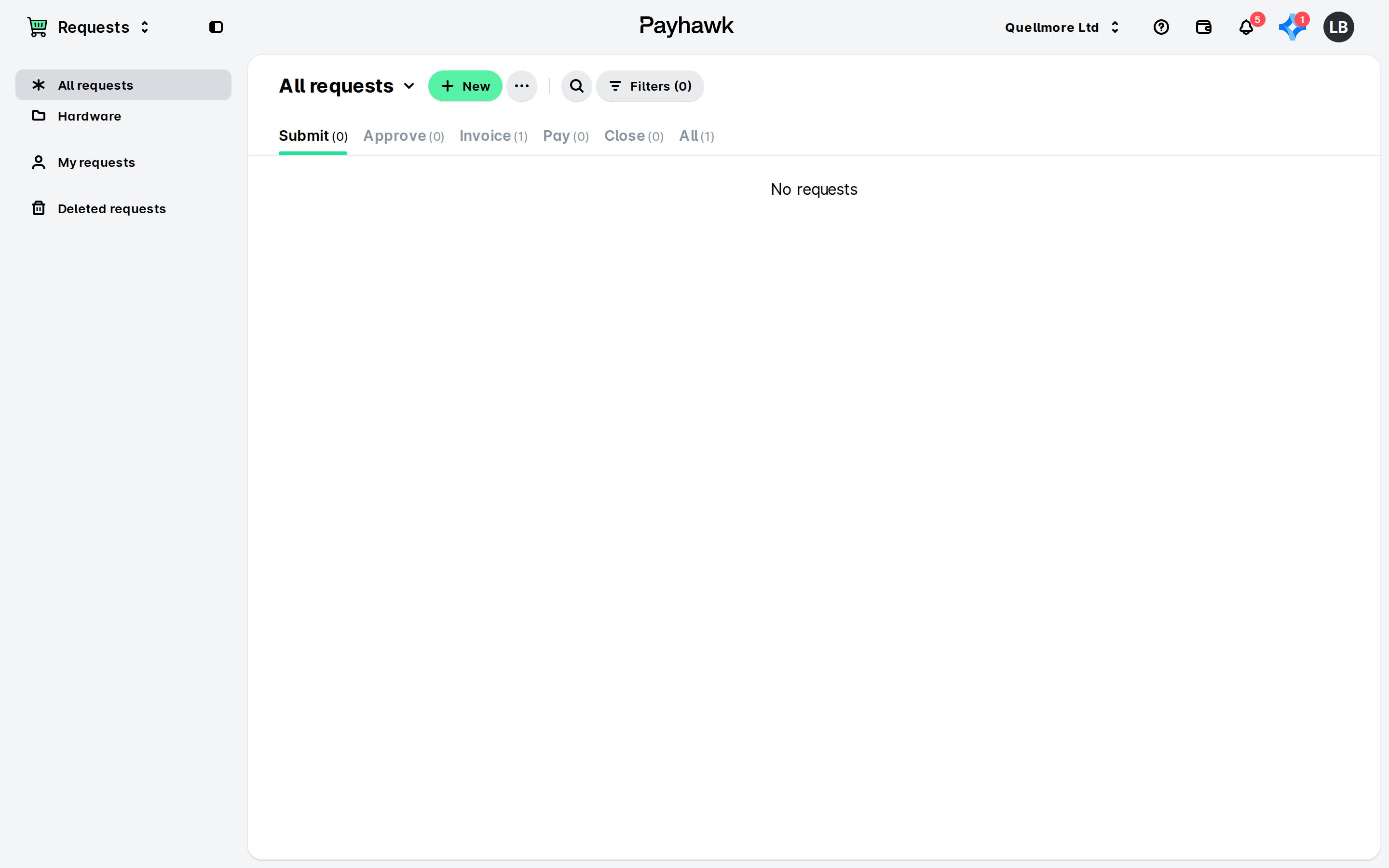
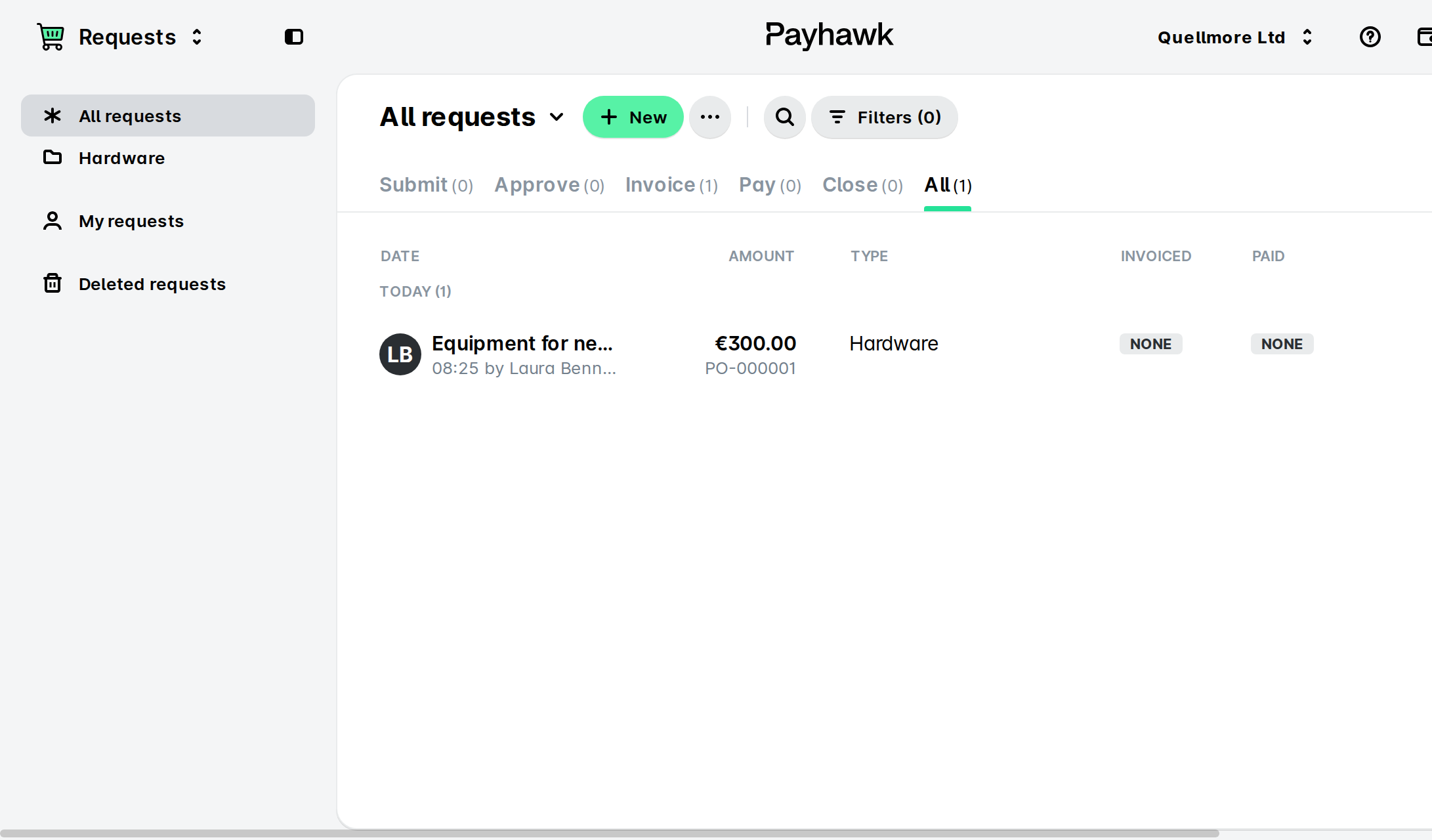
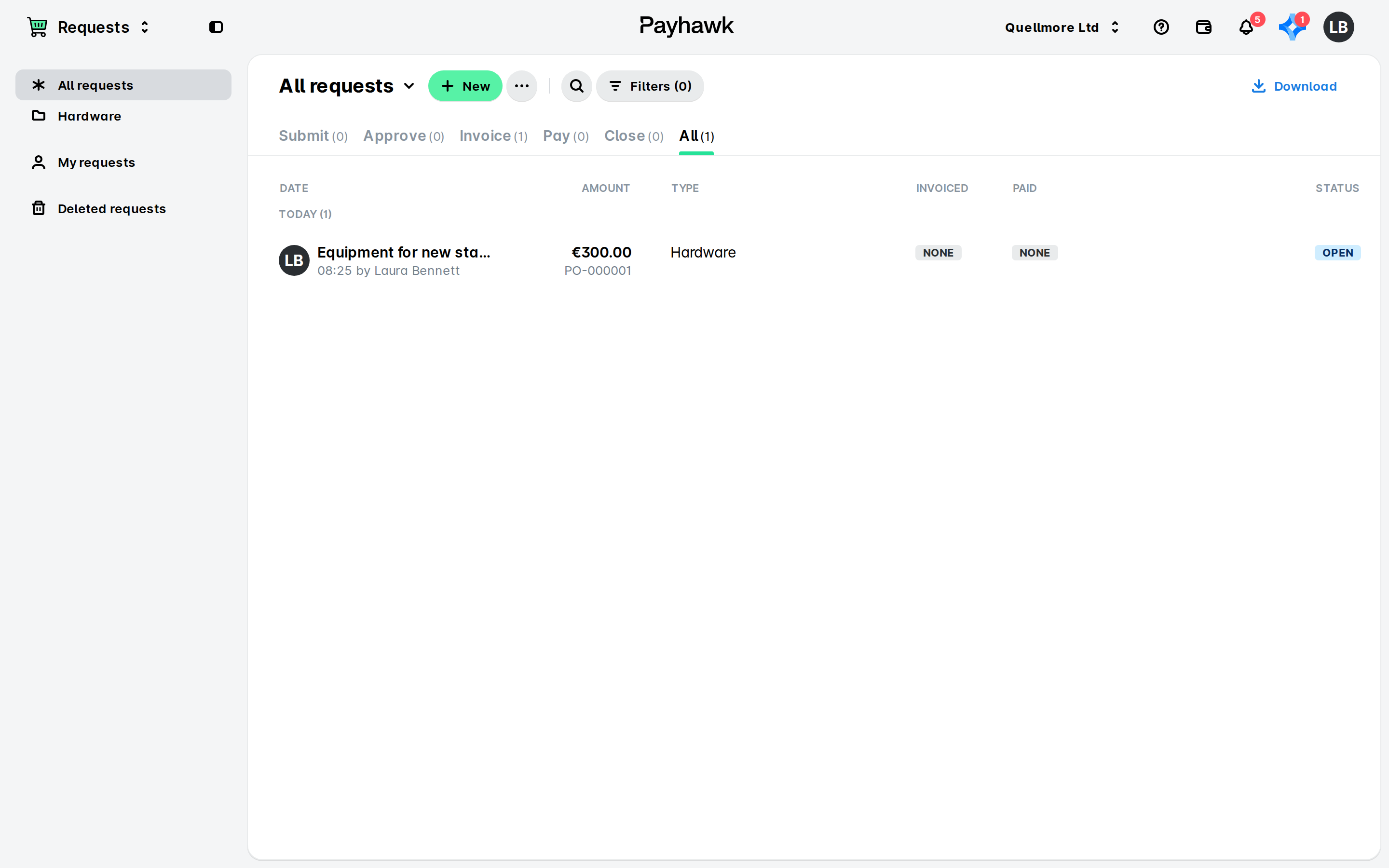
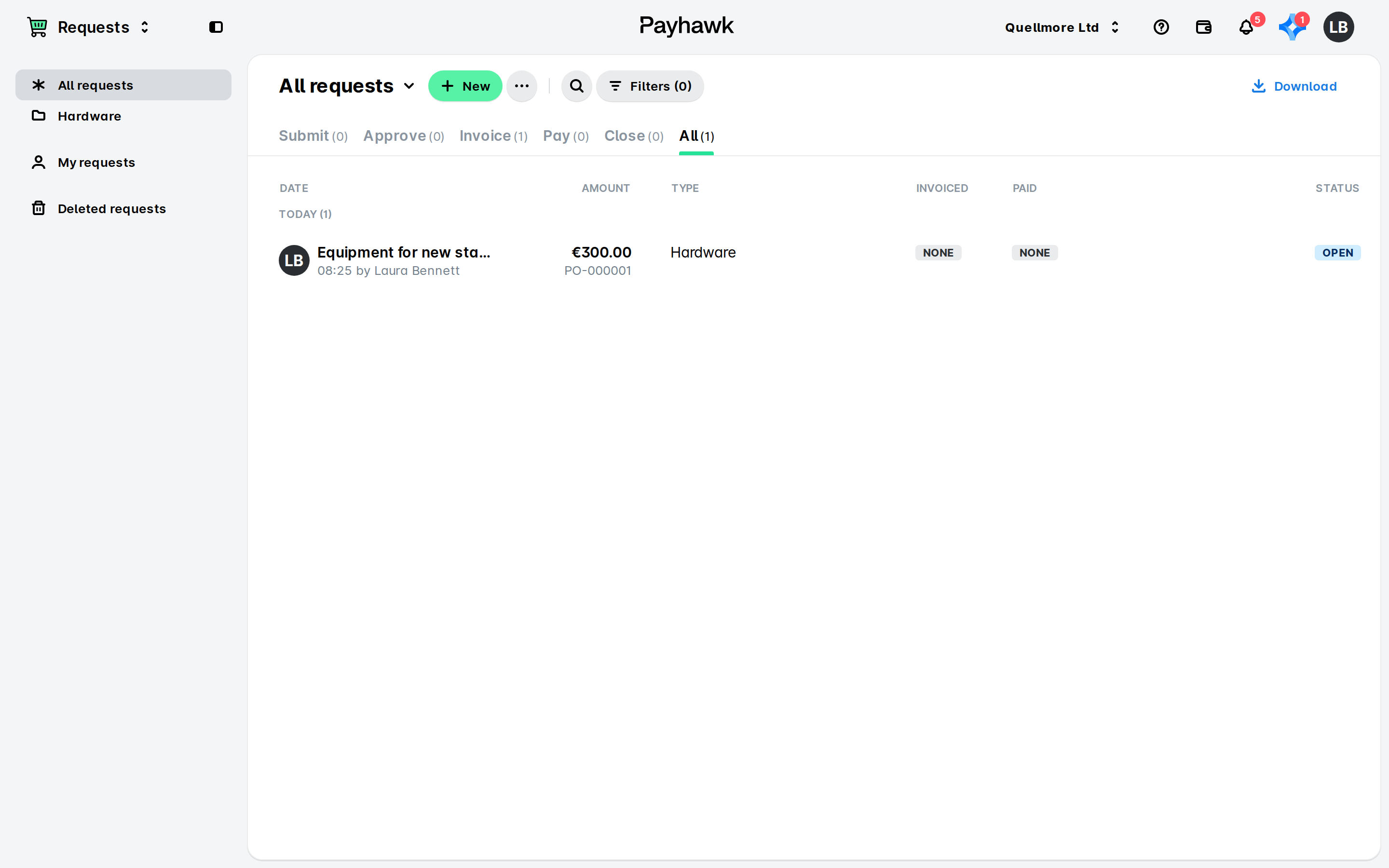
In the Payhawk Web Portal, open the app switcher in the top-left corner and go to Requests > All requests > All tab.
Select the desired request by clicking on it.
Navigate to its Activity section.
In the Show filter, select Export.
Viewing request changes in the Web Portal
You can view the history of a request in its change log by selecting Request changes in the Show filter in its Activity section.
Viewing all request activities in the Web Portal
To view all combined activities for the request, select all options in the Show filter in its Activity section.
Viewing comments and request workflows in the Mobile App
If you've been notified about a request comment, open your Inbox and tap on the notification. Alternatively, tap on the push notification you've received on your phone.
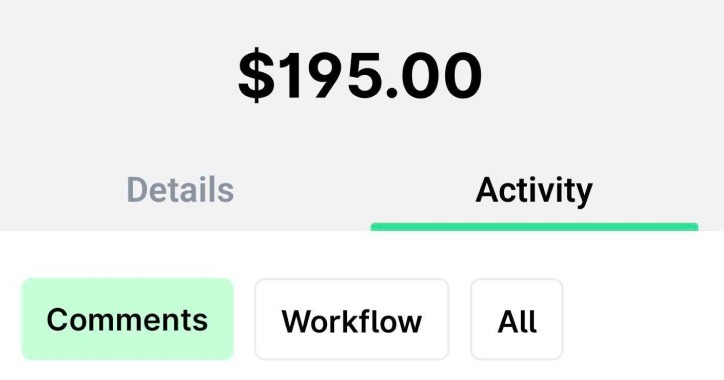
From your Inbox, you can view all comments for a request (Activity > Comments) and its workflow (Activity > Workflow), or all of these combined (Activity > All).
Useful resources