Payhawk has launched a set of supplier management functionalities, which enables the exchange of supplier information and details between the Payhawk and Exact Online systems.
The supplier synching option optimizes the time an employee spends on navigating between the two systems and looking for supplier information when paying bills or performing other related activities.
Specifics
When synching suppliers between Payhawk and Exact Online, note the following specifics:
Payhawk will filter out only the suppliers for the specific Exact Online subsidiary.
Payhawk will sync only active Exact Online suppliers. Inactive suppliers in Exact Online will be filtered out.
Payhawk will sync only suppliers with unique names and tax numbers.
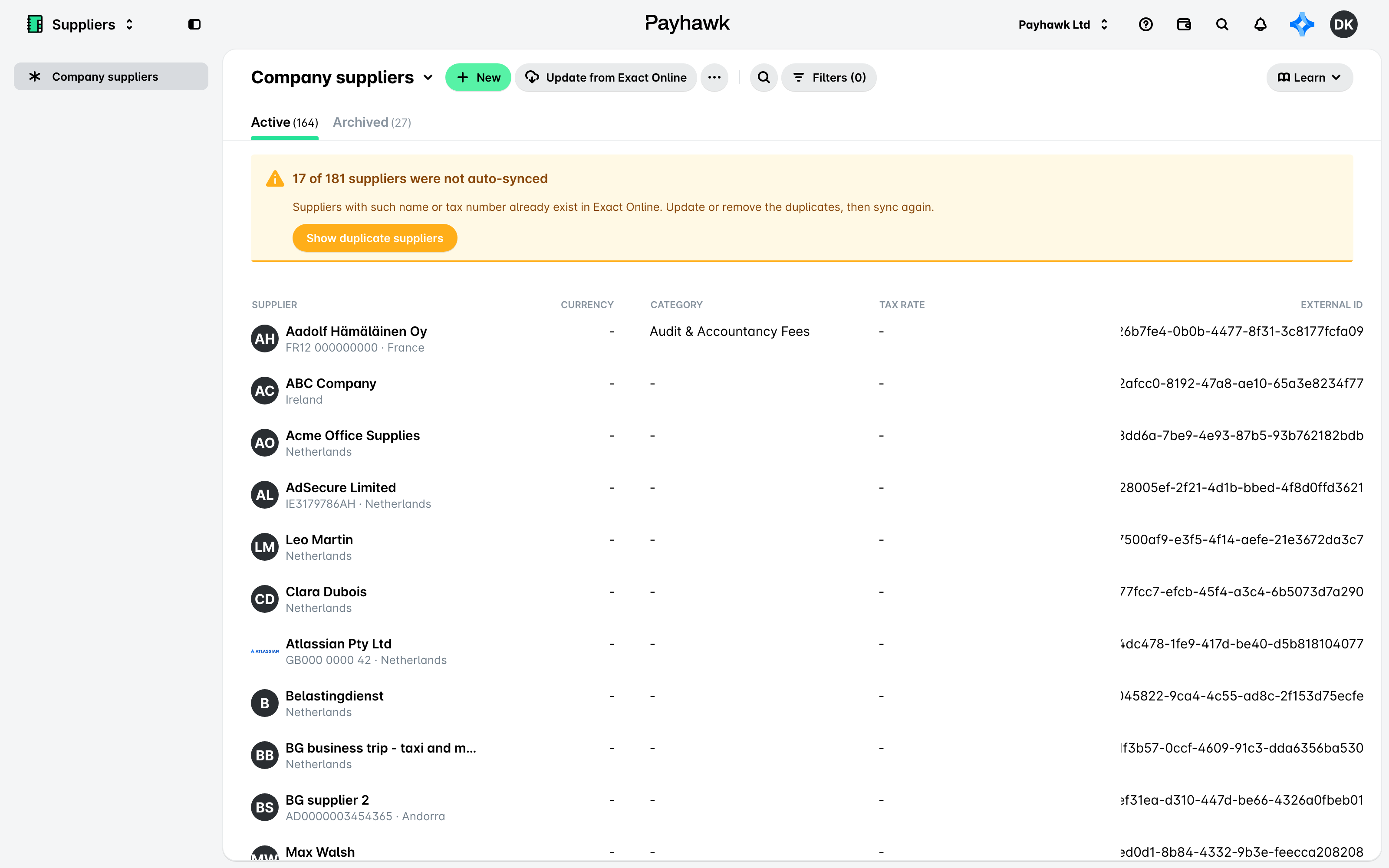
If you have suppliers with the same name or tax number, Payhawk will not sync them. These skipped suppliers will appear in the Sync details panel with a Go to Exact Online link for you to fix the issue while the Suppliers sync shows as Partially synced. For more information, see the article on resolving supplier sync issues between Payhawk and external systems.
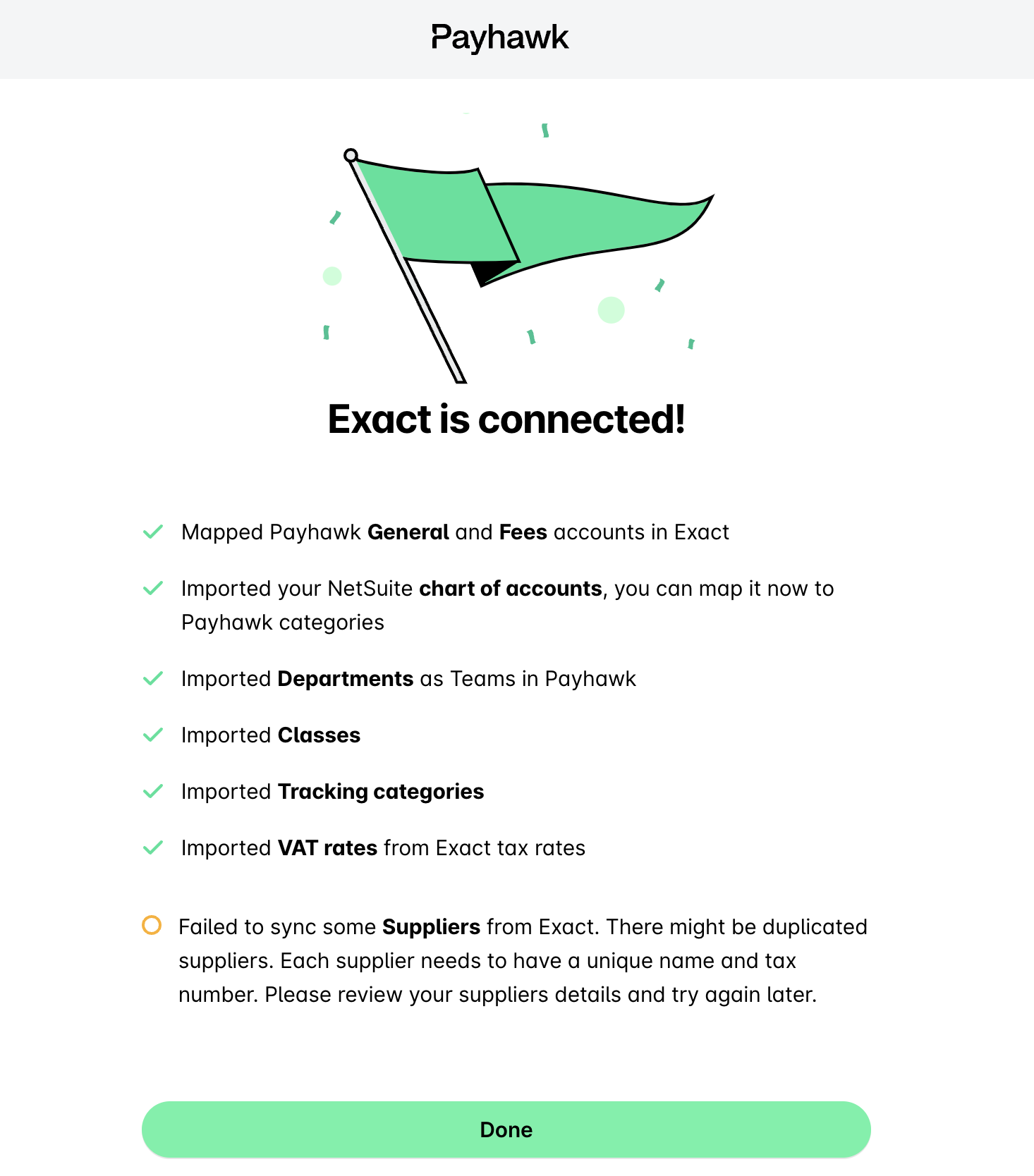
Initially synching suppliers between Payhawk and Exact Online
The initial sync between the Payhawk and Exact Online systems performs the following:
Payhawk imports the list of suppliers from Exact Online.
Payhawk will attempt to map all existing suppliers to the Exact Online suppliers.
Once the mapping finishes, Payhawk will show only the suppliers that are available in Exact Online.
Payhawk will not update previously classified expenses. If a supplier has been selected for an expense before the initial sync, Payhawk will not update the Supplier ID to match the Vendor ID in Exact Online.
Synching supplier fields between Payhawk and Exact Online
Payhawk will sync the supplier fields with the general details of the supplier both ways. For example, if you make an update to a supplier name on Payhawk, Payhawk will sync this information in Exact Online and vice versa.
Adding new suppliers from Payhawk to Exact Online
If you create a supplier in Payhawk, that supplier will be automatically created in Exact Online in real time and will use the same supplier fields.
Updating supplier data in Payhawk
If the data about a supplier in Exact Online has been updated and you want to update that supplier's data in Payhawk too:
Log in to the Payhawk web platform.
Open the app switcher in the top-left corner and go to Suppliers > Company suppliers.
Click on the three-dot menu.
Select Update from Exact Online.
Next steps