To remove an expense, you can directly delete it from Spend in the Payhawk Web Portal.
For accounting reasons, in Payhawk you can only delete unpaid expenses before they have been reviewed. Paid expenses can be rejected and will remain under the Review tab in the system.
Deleting expenses
To delete an expense:
In the Payhawk Web Portal, go to Spend.
Select the desired expense by clicking on it.
Click on its three-dot menu and select the Delete option.
In the dialog that opens, mark the checkbox to confirm your choice.
Click on Delete.
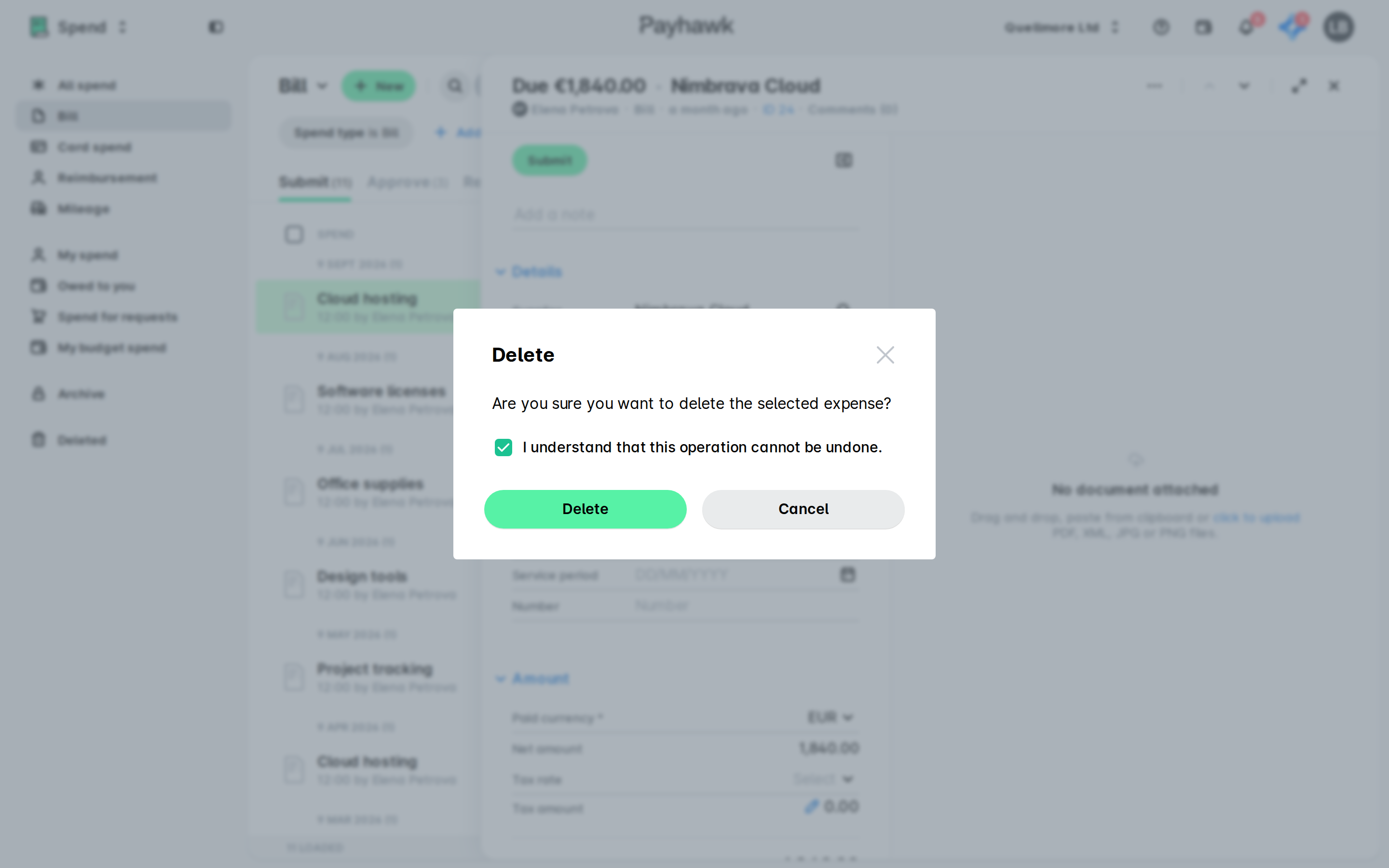
Viewing deleted expenses
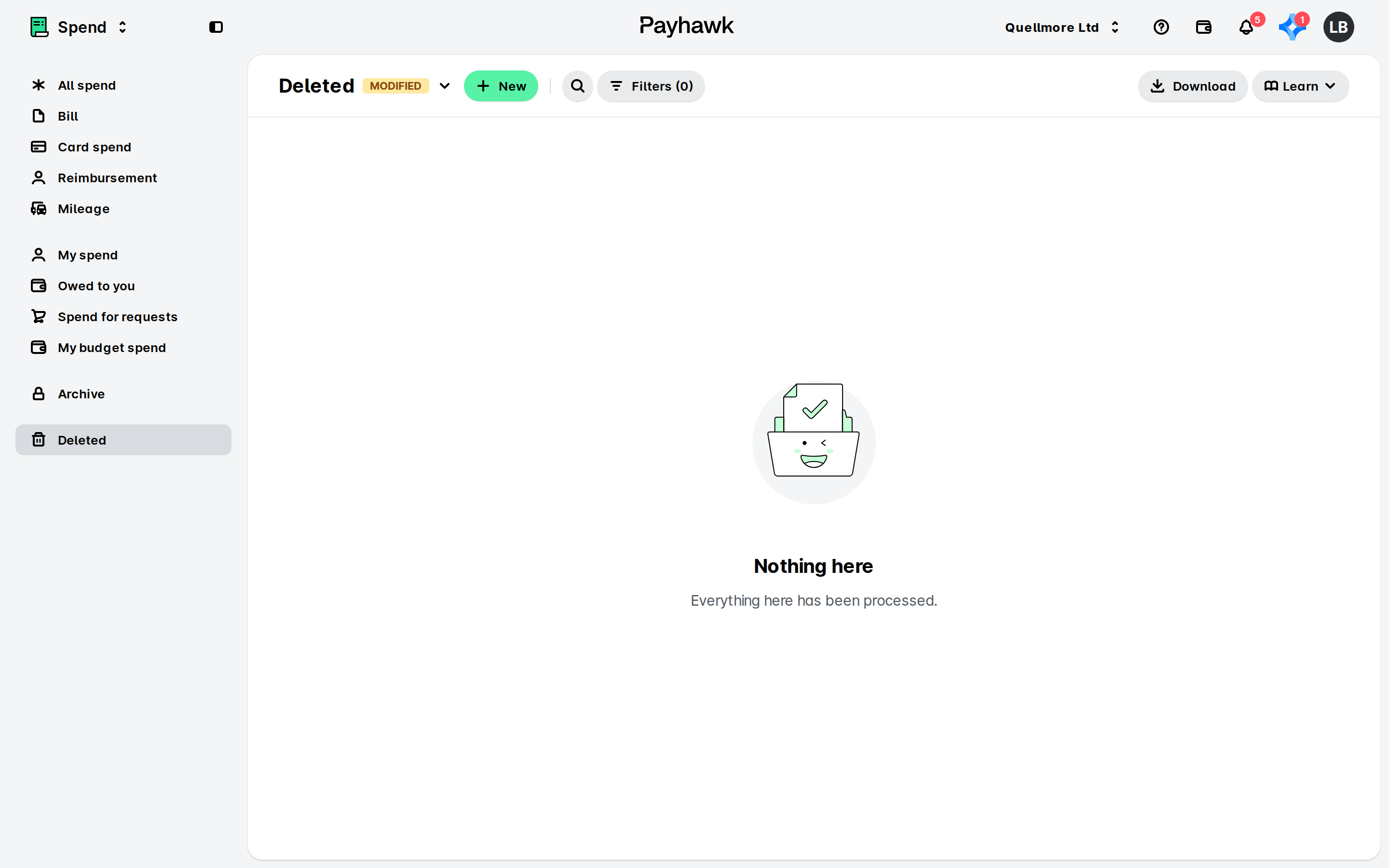
Payhawk Accountants and Payhawk Administrators can monitor deleted expenses in a read-only mode from the Deleted view in Spend. By default, the view excludes deleted card expenses, and you can show them when needed.
To view deleted expenses:
In the Payhawk Web Portal, go to Spend.
In the left pane, select Deleted.
To also display the deleted card expenses, remove the filter for hiding card expenses.
Viewing the history of deleted expenses
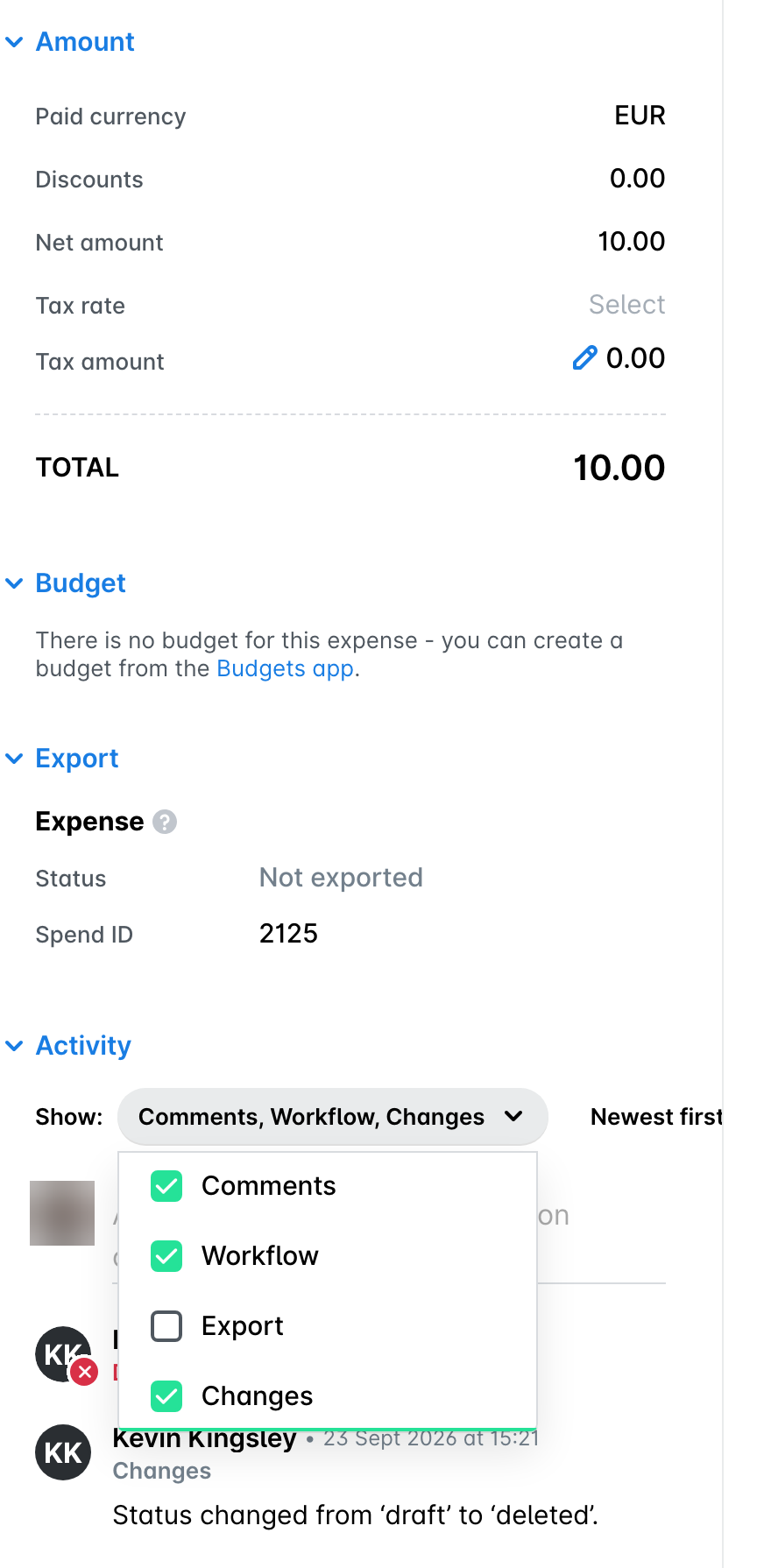
In the Activity section of a deleted expense, select Changes in the Show filter to see when the expense was marked as deleted as well as the full history of the expense before its deletion. For more information, see the article about viewing expense activity.
Downloading documents from deleted expenses
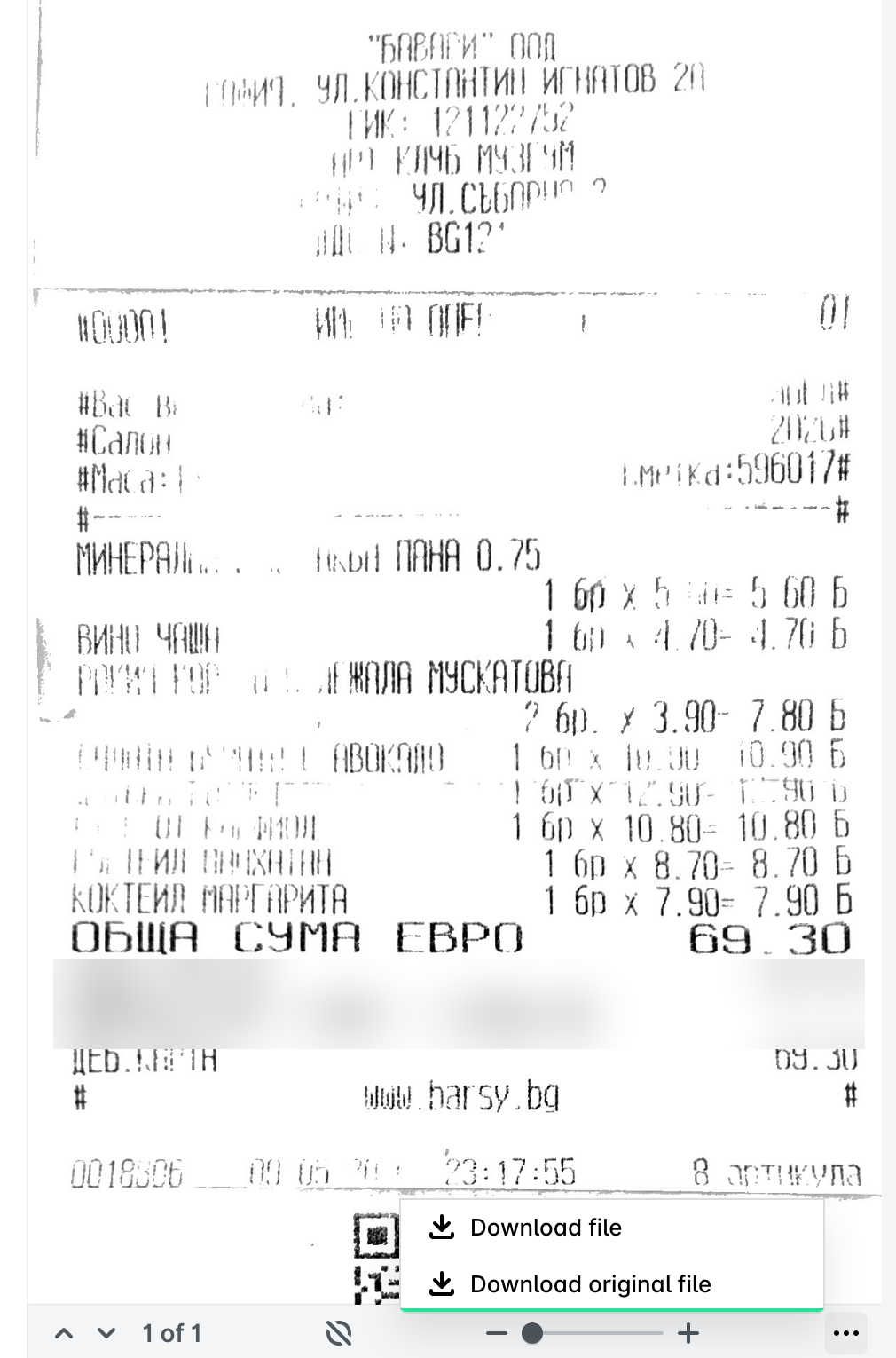
In cases such as duplicated card transactions, you can download the documents that were uploaded to a deleted expense. To do so, open the deleted expense from the Deleted view and download the document from the activity log entry that contains it. For more information, see the article about managing receipts and invoices in the portal.
Useful resources