Occasionally, you may need to download company expense data for a specific period or based on other criteria.
Expense download vs. expense export
The Download option in Spend is different from the Export option in the Export app. For more information, see the overview article about the differences between the expense and payment export and download options in Payhawk.
Downloading your expenses
To download expenses:
In the Payhawk Web Portal, go to Spend.
(Optional) Click on the + Add filter button and select the expenses you want to download. Note that only the expenses that correspond to the defined filters will be downloaded.
Click on Download.
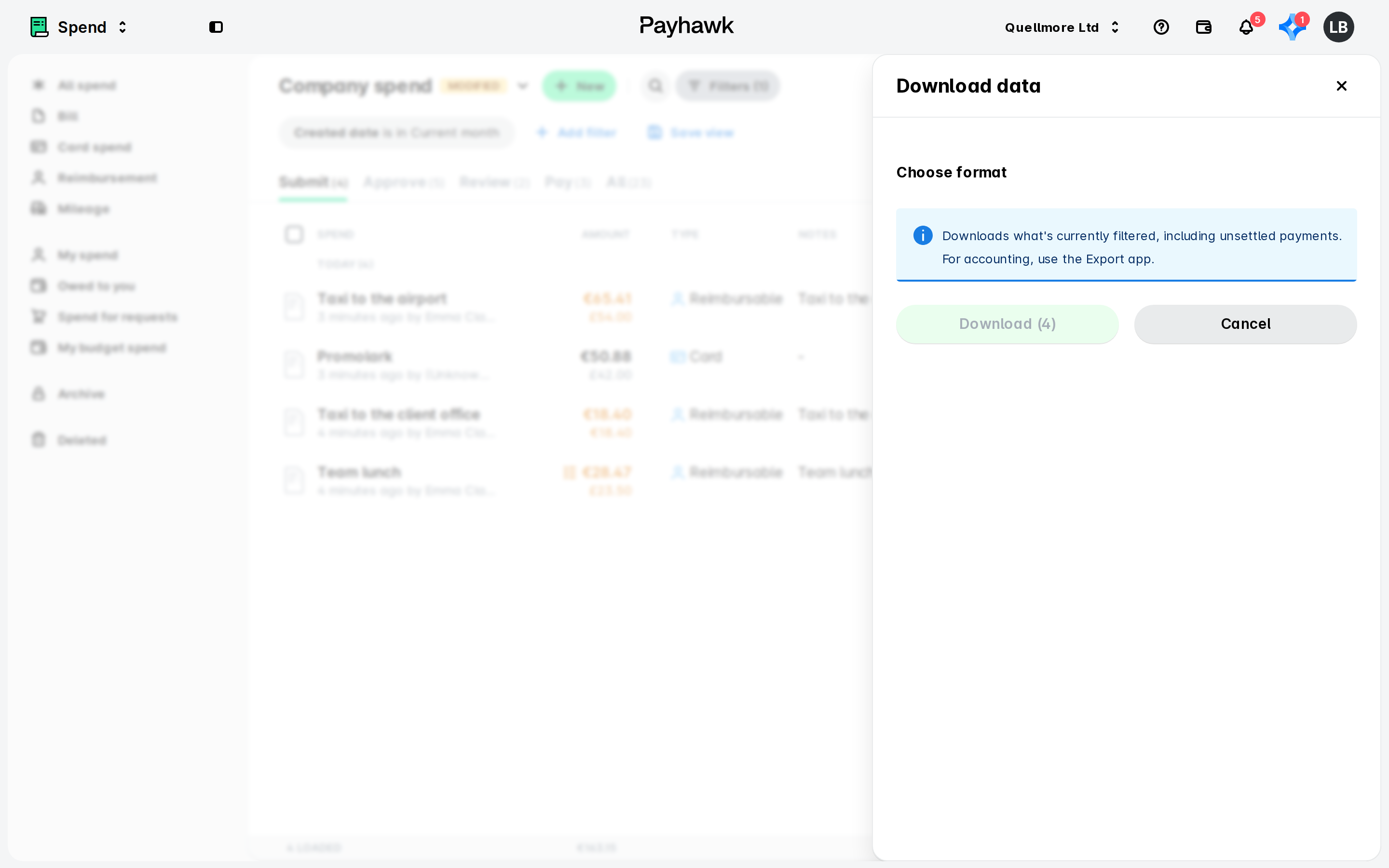
Select the desired format of the report and click on the Download [number] button to confirm your choice. As a result, the file will be downloaded in the browser.
Useful resources