In the Payhawk Web Portal, you can edit or altogether delete your existing expenses before your expense requests have been approved.
Specifics
Paid and reviewed expenses cannot be deleted either by employees or by Payhawk Accountants or Payhawk Administrators.
Pending approval, approved, and rejected expenses can be edited or deleted only by Payhawk Administrators.
Editing and deleting unsubmitted expenses
To edit an expense in the Payhawk Web Portal that has not yet been submitted:
In the Payhawk Web Portal, go to Spend and select the expense you want to edit by clicking on it.
On the screen that opens, update any of the desired expense details.
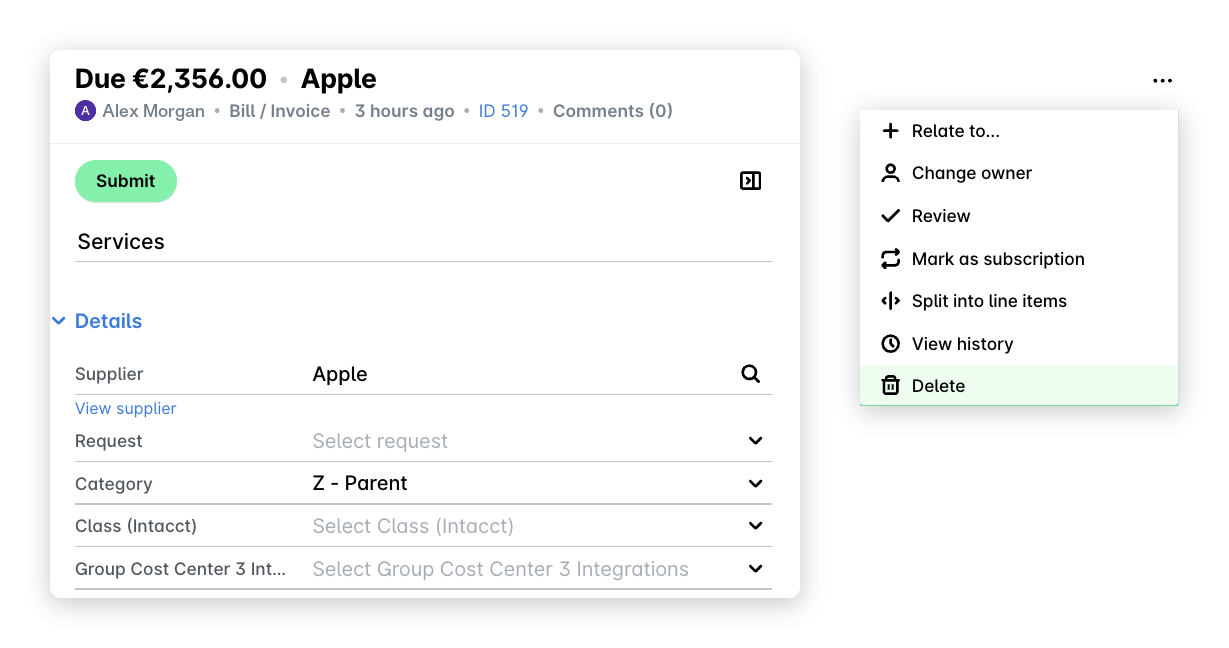
To delete your expense, click on the three-dot menu and select the Delete option. On the next screen, check the confirmation checkbox and click on Delete.
Editing and deleting submitted or approved expenses
When you submit an expense for approval, review and payment, you might enter the wrong details or forget an optional one.
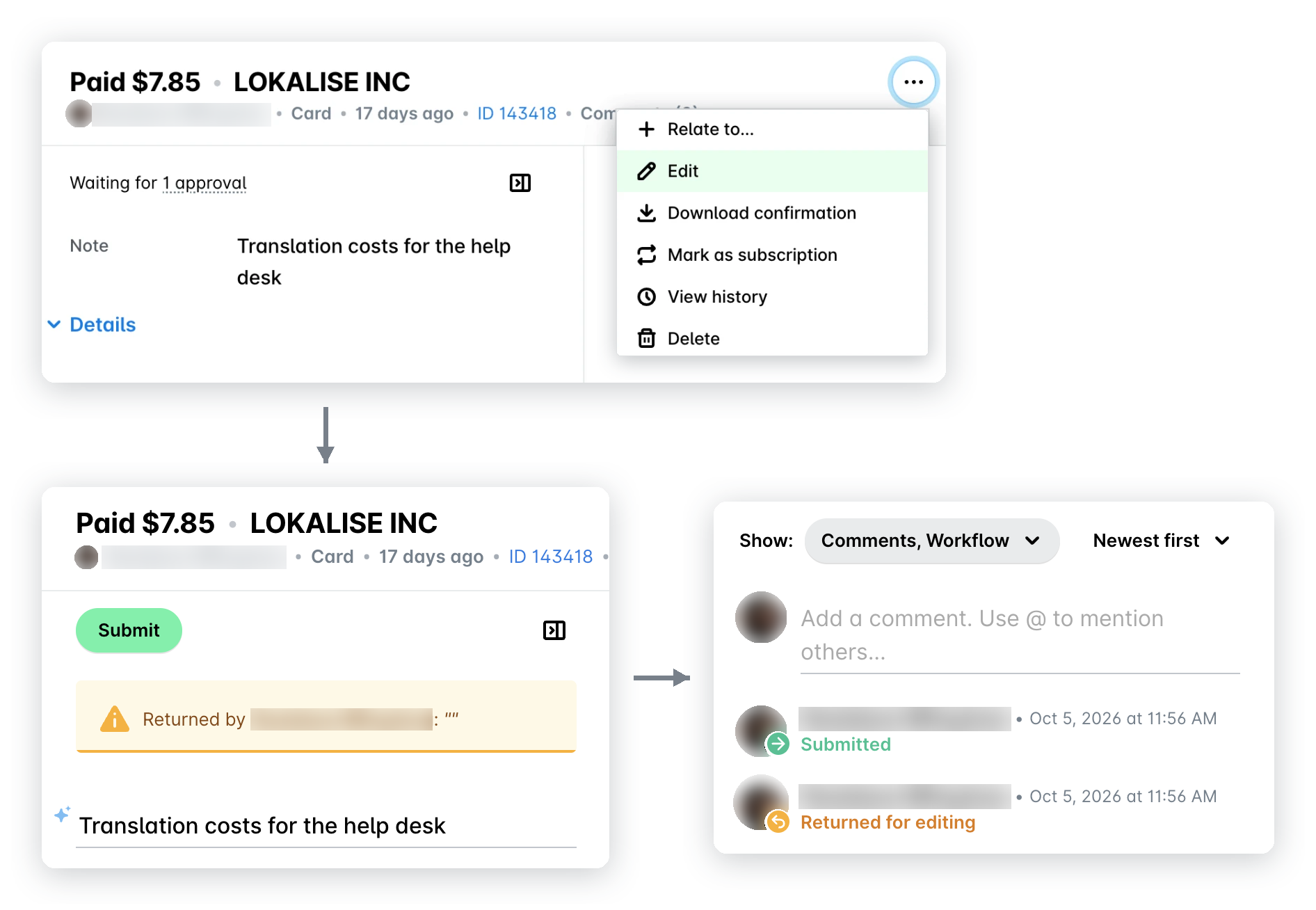
You can edit an expense after you submit it, or even after it's approved, so you don't have to wait for the approver to return it to you. Once you edit a submitted expense, it comes back to you and you need to submit it again.
The return for editing is recorded in the expense's audit log, so you can see it in the expense's Activity section.
To update your submitted or approved expense:
In the Payhawk Web Portal, go to Spend.
Select the desired expense by clicking on it.
Click on its three-dot menu and select the Edit option. As a result, the expense moves back to the Submit tab.
To delete the expense at this stage, select the Delete option. In the confirmation dialog, mark the checkbox to confirm your choice and click on Delete.
If the expense has been approved:
On the next screen, confirm that you want to edit the expense and click on Edit.
Update the necessary details.
Click on Submit.
Editing and re-submitting, or deleting returned expenses
Your approver may have returned an expense request for you to update. Once the expense is returned:
Payhawk will notify you in the Payhawk Mobile App and by email.
You can view the reason for returning the request in the Activity section of the expense.
To edit and submit your returned expenses, or altogether delete them, follow the same steps described in the current article.
Useful resources