Once you have filtered out the company expenses based on the required expense data or used the data grid, you can save the desired expense view and quickly access it later on when needed.
This functionality is handy if you frequently search for expenses with a specific set of expense data, such as category, employee, or total amount.
The saved filtered views are personal and are only visible to the user who created them.
Default views for expenses
Depending on employees' roles, Spend provides the following default views for expenses and payments:
All employees can use the My spend default view to select only the expenses they've submitted, the Owed to you default view to monitor their submitted reimbursements, and the Spend for requests default view to list expenses that are linked to purchase orders they've submitted.
In addition to My spend, Owed to me, and Spend for requests, Team managers can access the default My team spend default view to select the expenses submitted by their teams.
In addition to My spend, Owed to me, and Spend for requests, Payhawk Accountants and Administrators can use the All spend default view and monitor all employee expenses.
In addition to My spend, Owed to me, and Spend for requests, Payhawk Accountants and Administrators can use the Deleted default view to monitor deleted expenses in a read-only mode. By default, the view excludes deleted card expenses, and you can show them when needed. For more details, see the article about deleting and viewing deleted expenses.
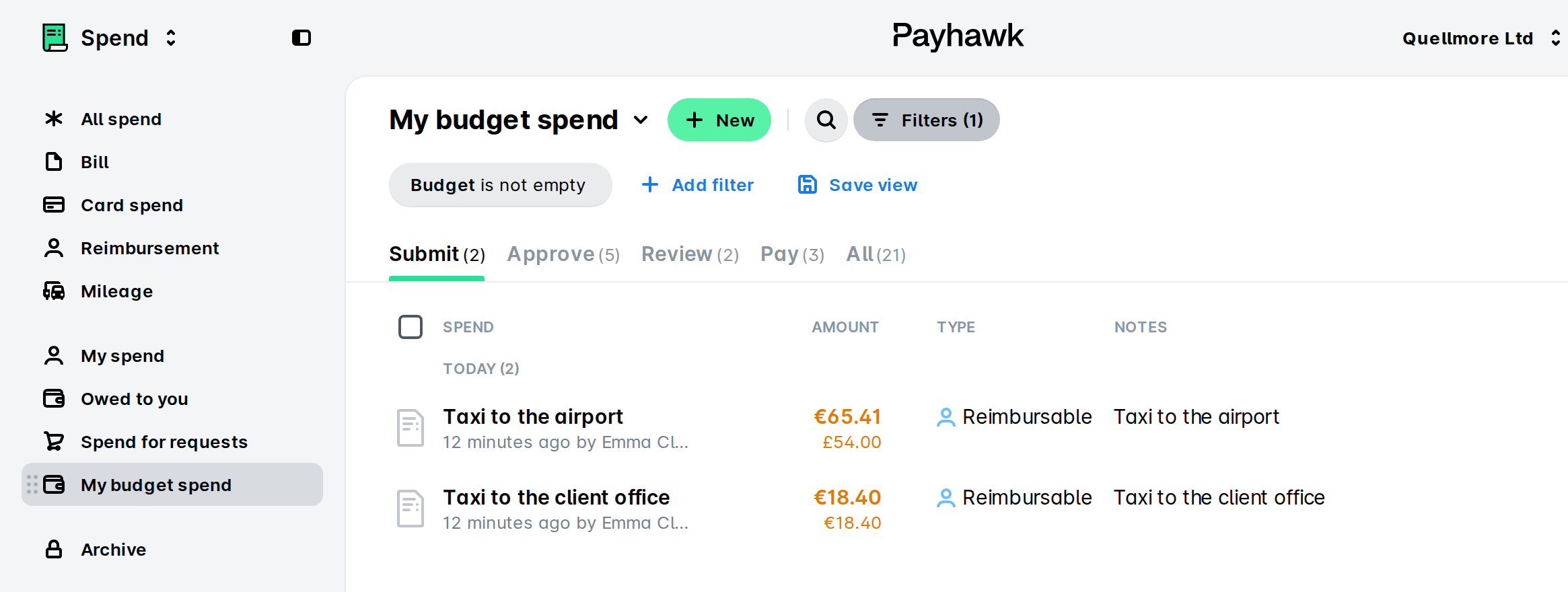
The My budget expenses view applies the default Budget is not empty filter and allows users to see expenses associated with budgets. The view is available for budget owners and Payhawk Administrators:
Budget owners can view expenses related to their specific budgets.
Payhawk Administrators can access all expenses linked to any budget within the account.
Team Managers, Executive Assistants, Category Managers, and Custom Field Managers have default views that reflect their role's permissions and responsibilities. For more details, see:
Saving views for expenses
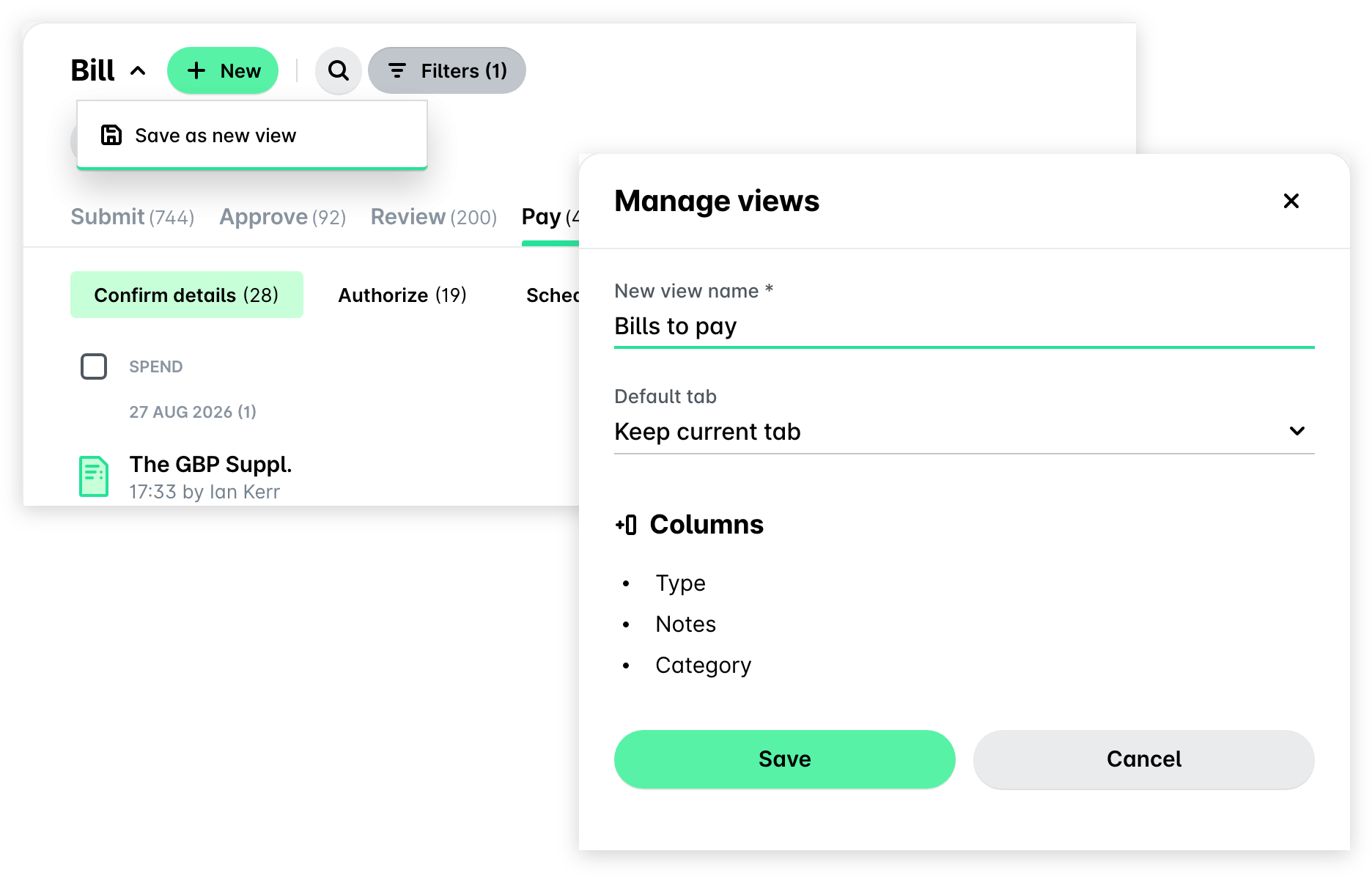
To save your data grid and filtered views after you have filtered the expenses as required:
In Spend, click on the Save view button next to your active filters, or open the view title's drop-down menu and select Save as new view.
In the Manage views panel that opens, enter a name for your view and choose a Default tab, or keep Keep current tab.
Click on Save.
Accessing saved expense views
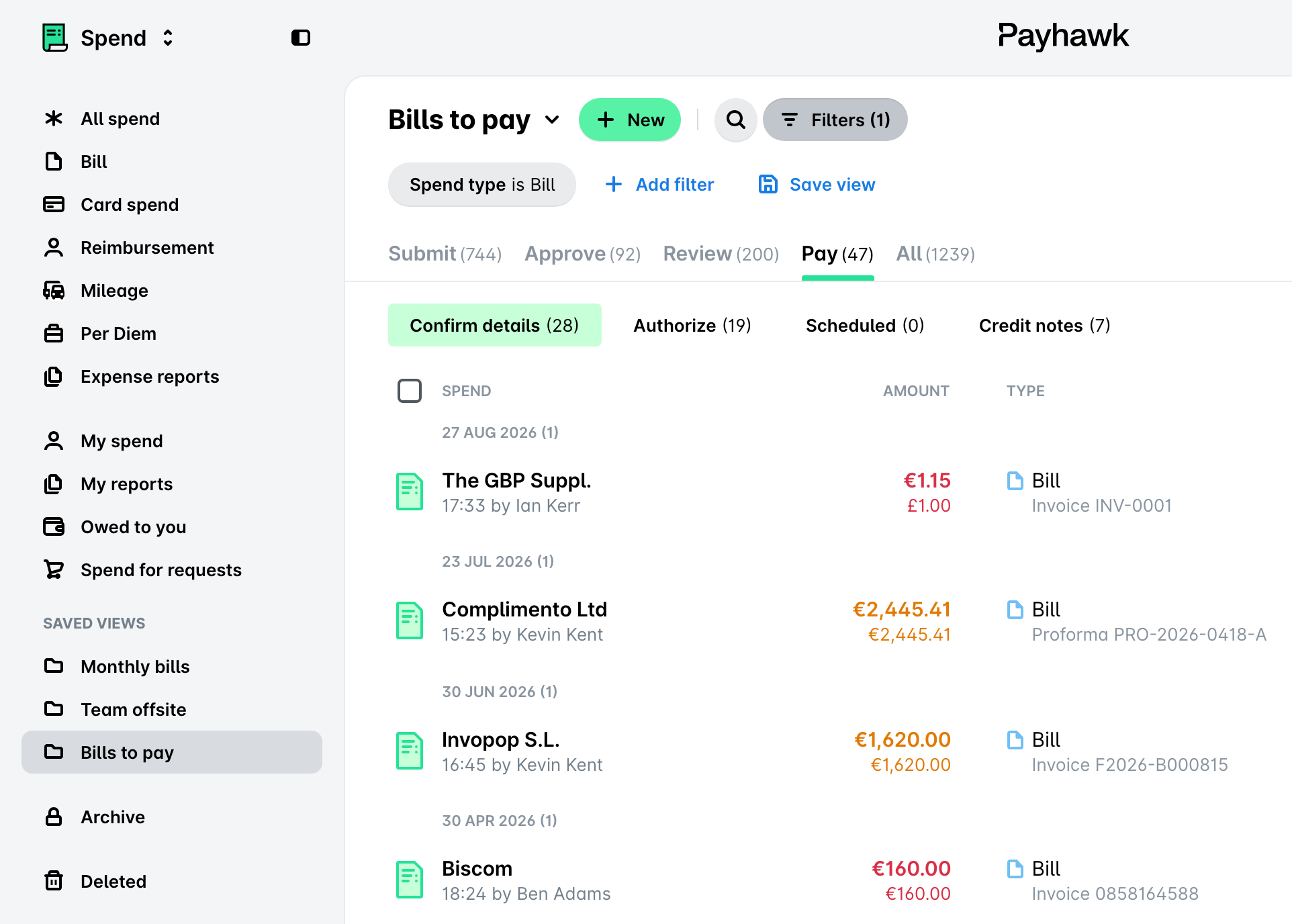
Saved views appear in the left pane, under a Saved views heading below the default views. Select a saved view there to open it.
Managing saved expense views
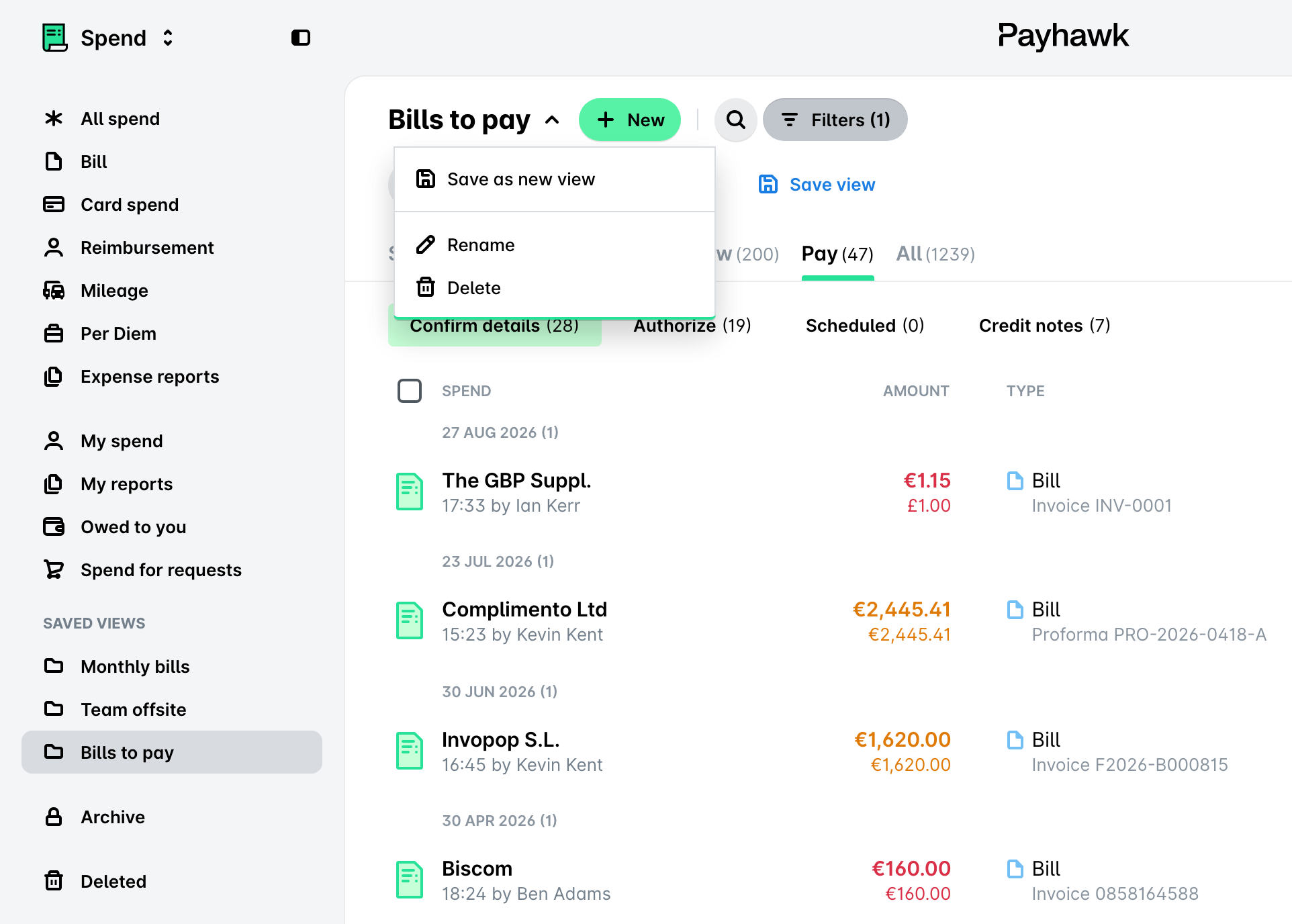
To rename or delete an existing saved view:
Open the saved view from the left pane.
Open the view title's drop-down menu.
Select Rename to give the view a new name, or Delete to remove it.
For Rename, confirm the new name. For Delete, confirm in the dialog that opens.
Useful resources